Event Gantt Chart+ for AVEVA PI Vision

PI Vision Gantt chart for your Event Frames

Event Gantt Chart+ (Gantt Chart+ in PI Vision and the documentation) draws Event Frames as bars on a time axis, so downtime, batches and alarms show their duration, overlap and sequence at a glance in your PI Vision display.

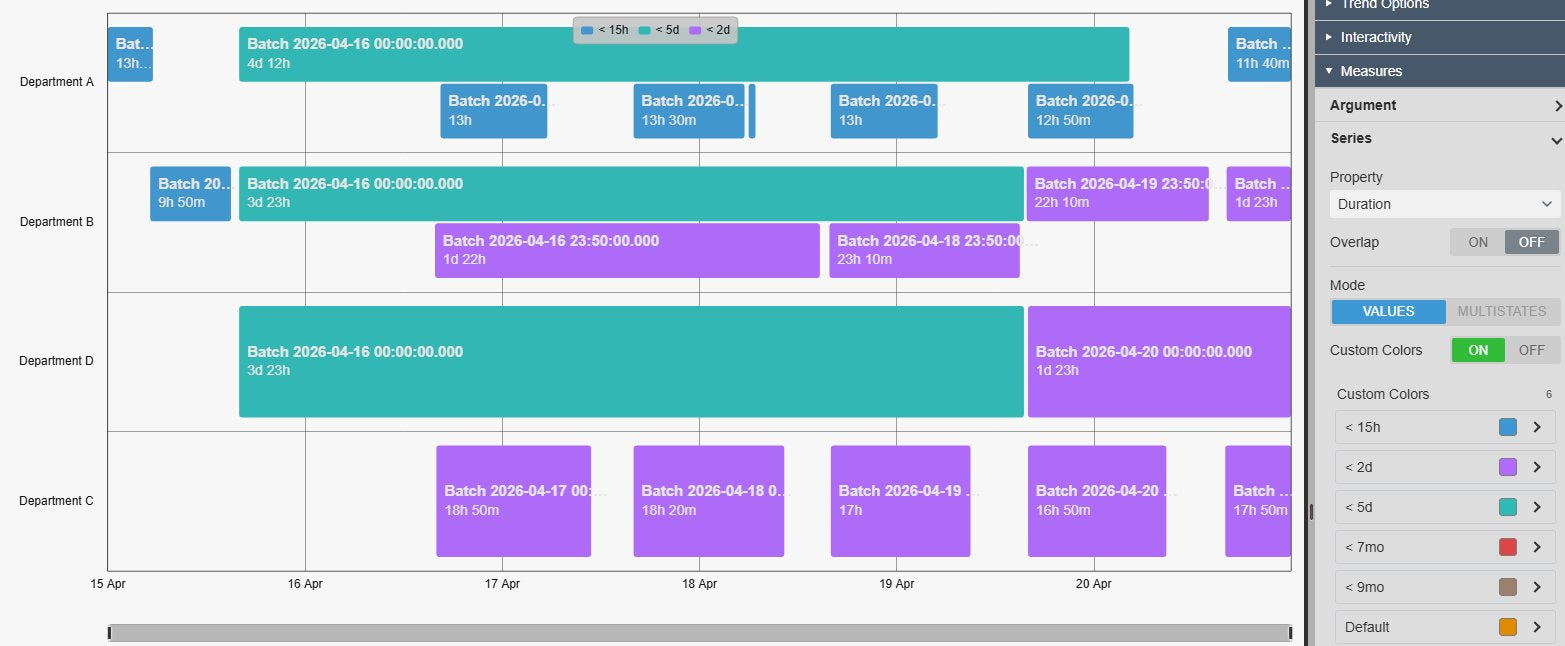
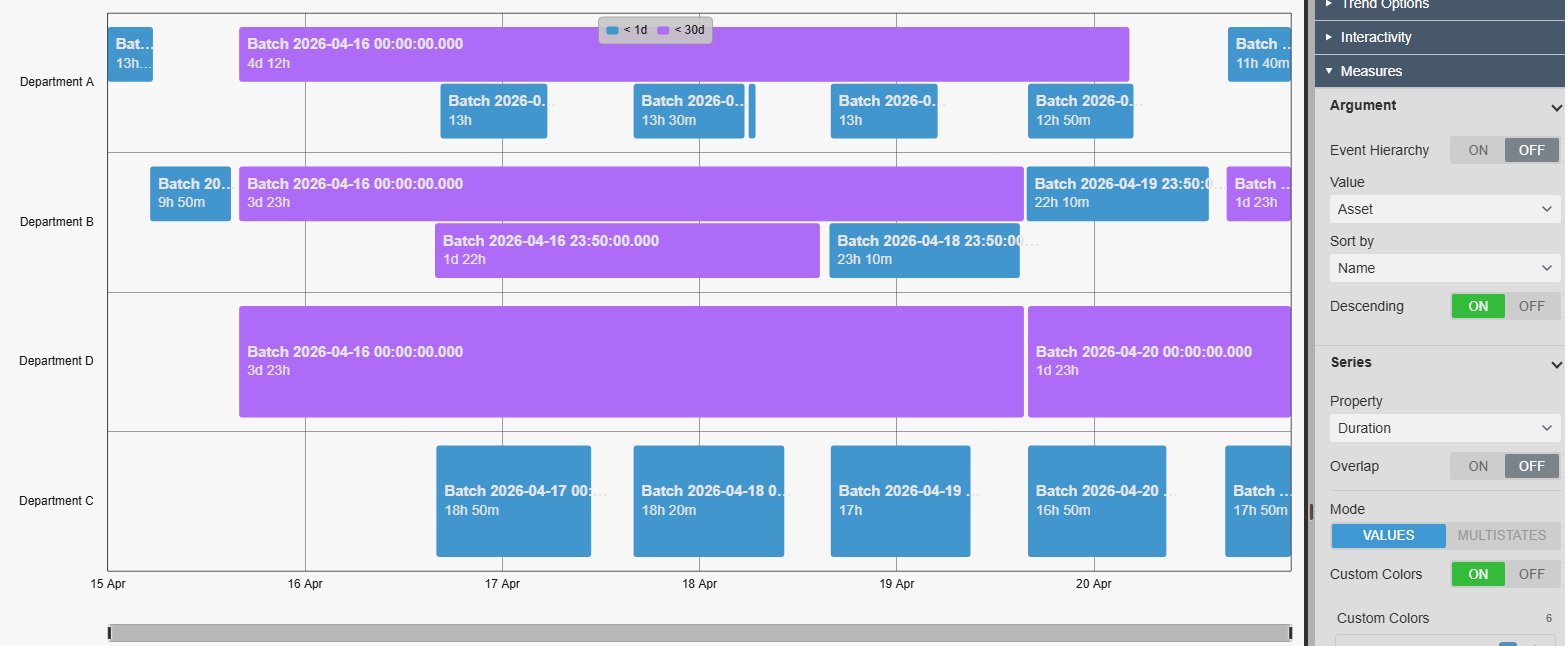
Event Gantt Chart+ in PI Vision showing batch Event Frames as bars in one row per department on a time axis, coloured by duration with a legend, next to the Configure Gantt Chart pane with the Argument and Series settings
Event Gantt Chart+ v2.0 in PI Vision: batch Event Frames as bars by asset, coloured by duration, with the configuration pane. Demo data. Select the image to enlarge.

PI Vision Gantt chart for Event Frames

A list of events tells you what happened. A Gantt chart shows how long each event lasted, which events overlapped and what followed what, on the same time axis as the rest of the display.

Event Frames as bars, in rows you choose

Group the bars into the rows that answer your question, for example one row per asset, per reason or per event template.

  • Rows by asset, name, template, severity, reason, duration or any Event Frame attribute.
  • Sort the rows by another property, ascending or descending.
  • Overlapping events stack inside their row instead of hiding each other.
  • Event Hierarchy gives every event its own row and expands parents to their child Event Frames.
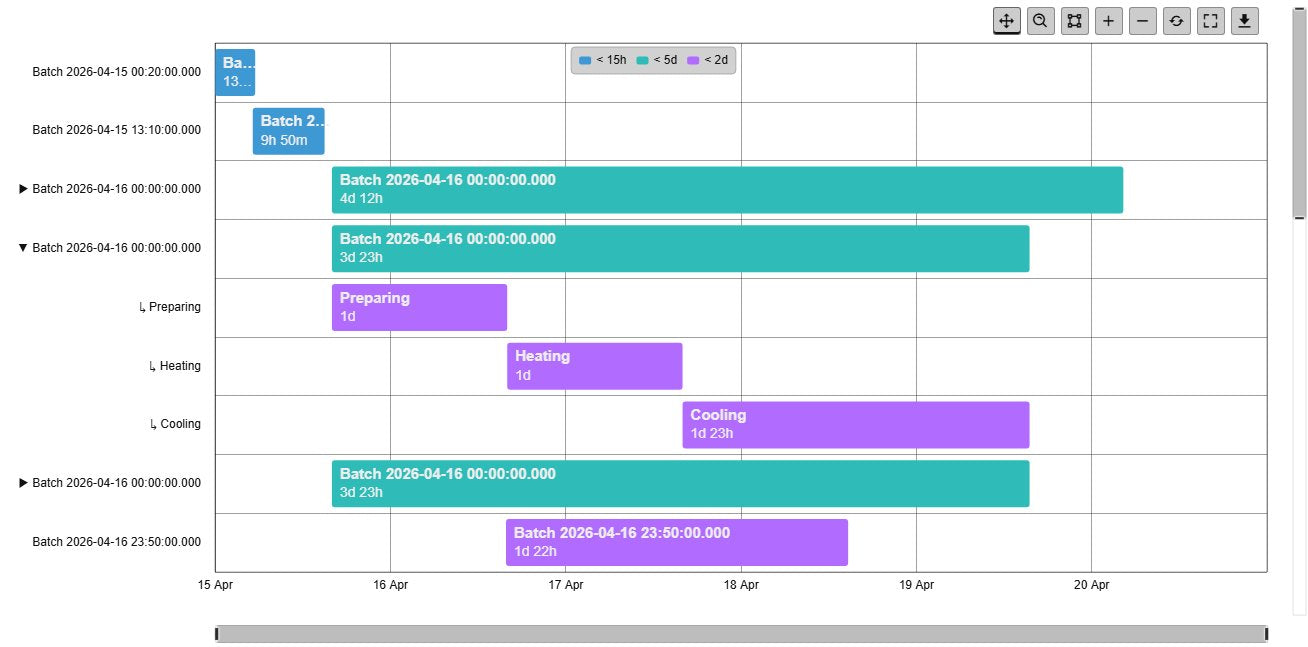
Event Gantt Chart+ with Event Hierarchy on: one row per batch Event Frame, with one batch expanded to its child events Preparing, Heating and Cooling as bars on the same time axis
Event Hierarchy on: a batch expanded to its phases Preparing, Heating and Cooling. Demo data. Select the image to enlarge.

Colours by series, duration or multi-state

Colour the bars by the property that explains them, so long stops, high-severity events or a particular reason stand out.

  • Colour by severity, reason, template, duration, acknowledgement or any attribute value.
  • Custom colours with your own labels per value or duration range, such as under 15 hours.
  • Multi-state colours from an Event Frame attribute.
  • One single colour when the rows already carry the meaning.
Event Gantt Chart+ with batch bars coloured by duration range (under 15 hours, under 2 days, under 5 days), a legend listing the ranges, and the Series settings with Property Duration, Custom Colors on and the colour ranges
Bars coloured by duration range, with the Series settings. Demo data. Select the image to enlarge.

Event labels, tooltips and bar styles

Put the information operators need on or next to each bar, and make the chart fit the look of the display.

Data labels and tooltips with event details

Read an event without opening it: the bar carries its key properties and the tooltip adds the rest.

  • Data labels from one or more properties or attributes, such as name and duration, aligned top, centre or bottom of the bar.
  • Labels that do not fit their bar can be hidden.
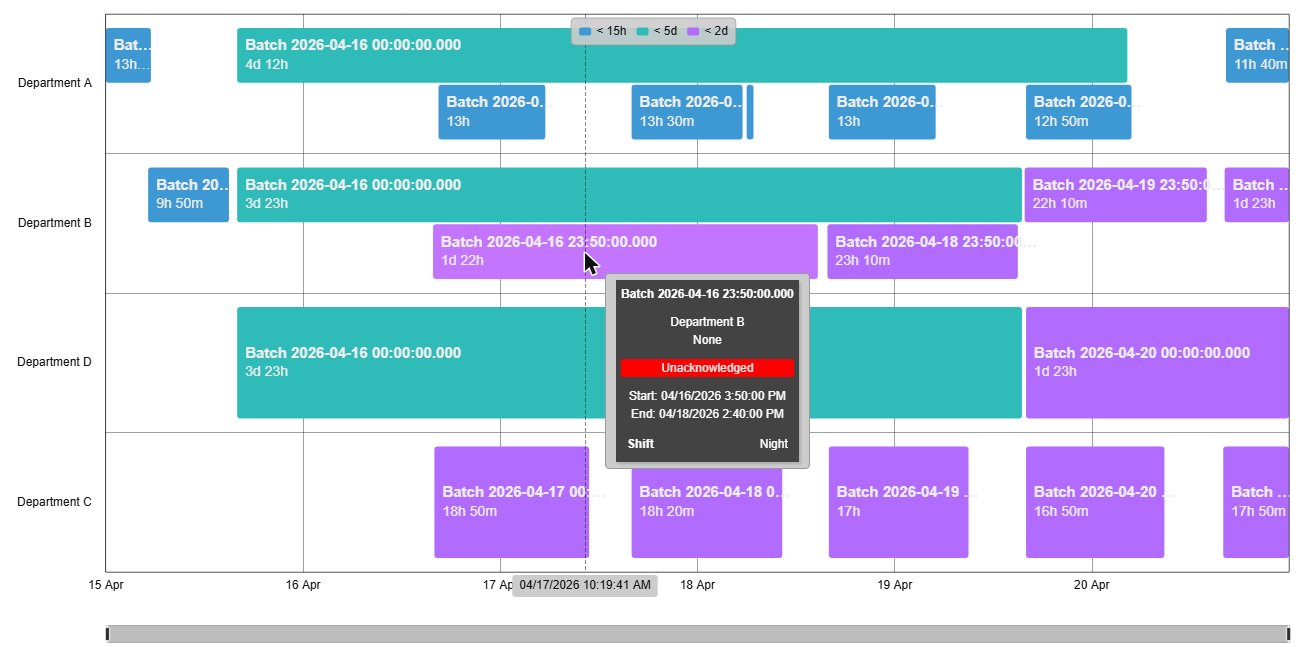
  • Tooltips with description, asset, severity, acknowledgement, start and end, and attributes.
  • Choose which of these details the tooltip shows.
Event Gantt Chart+ with event names and durations as data labels on the bars and a tooltip for one batch event listing its asset, severity, acknowledgement state, start and end time and a Shift attribute
Data labels on the bars and the tooltip for one batch. Demo data. Select the image to enlarge.

Bar styles, rows and axes

Choose a style that suits a dense overview or a few large events, and keep the time axis readable.

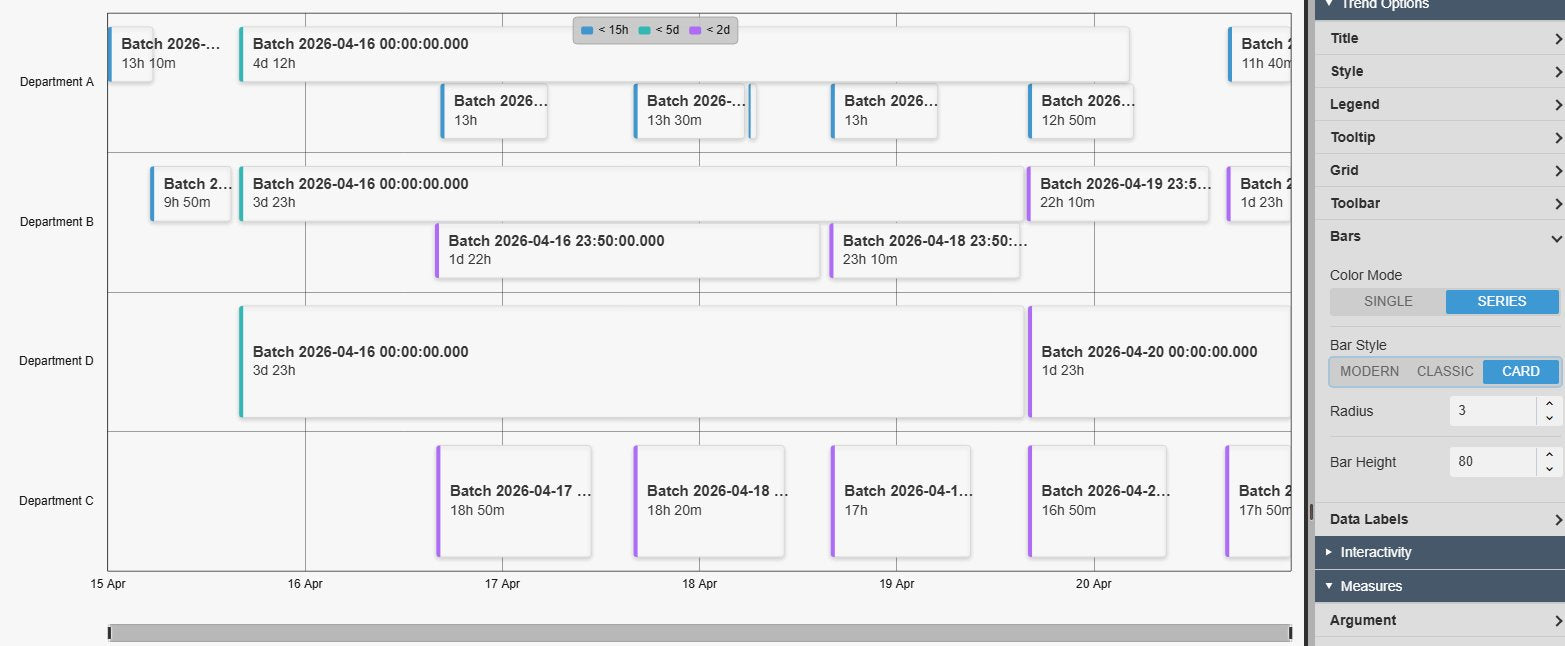
  • Modern, Classic or Card bars with a corner radius and bar height.
  • Rows that fit the symbol or keep a fixed minimum height.
  • Axis titles and positions, Scale or Range labels on the time axis and an option to invert the row order.
  • Title, subtitle, legend, grid and the shared style presets.
Event Gantt Chart+ with Card-style bars, each with a colour edge, the event name and its duration, next to the Bars settings with Color Mode, Bar Style, Radius and Bar Height
Card-style bars with the Bars settings. Demo data. Select the image to enlarge.

Zoom, event details and filtering in the Gantt chart

Move from the whole shift or week to a single event, and keep the chart in step with the rest of the display.

Zoom, measure and export the timeline

Zoom into a busy hour, measure the gap between two events or take the chart into a report.

  • Pan, box zoom and zoom buttons, plus an optional zoom bar under the time axis.
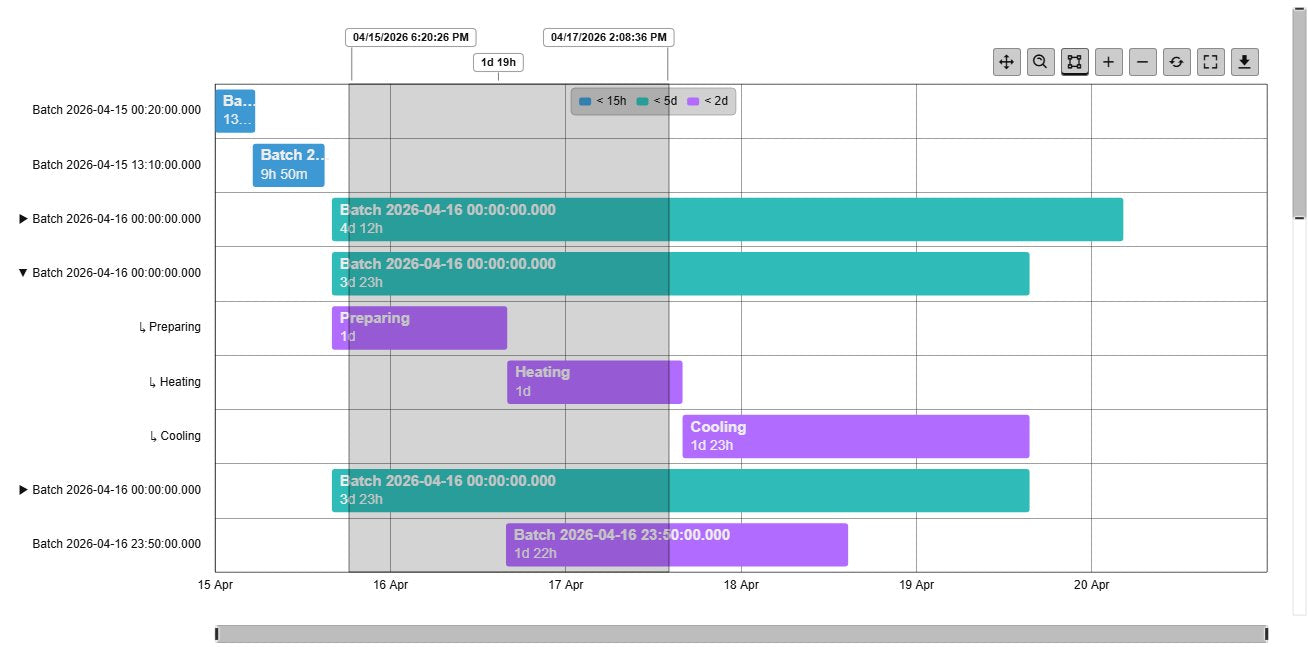
  • Select a time span on the chart to read its start, end and duration.
  • Full screen and download buttons in the toolbar, plus Export Data as CSV, JSON or XLSX.
  • Show the toolbar on hover or always.
Event Gantt Chart+ toolbar with pan, box zoom, select, zoom in, zoom out, reset, full screen and download buttons, and a selected time span on the chart with its start, end and duration of 1 day 19 hours
Toolbar and a measured time span. Demo data. Select the image to enlarge.

Event details from a click

Click a bar to see everything about that event without leaving the display.

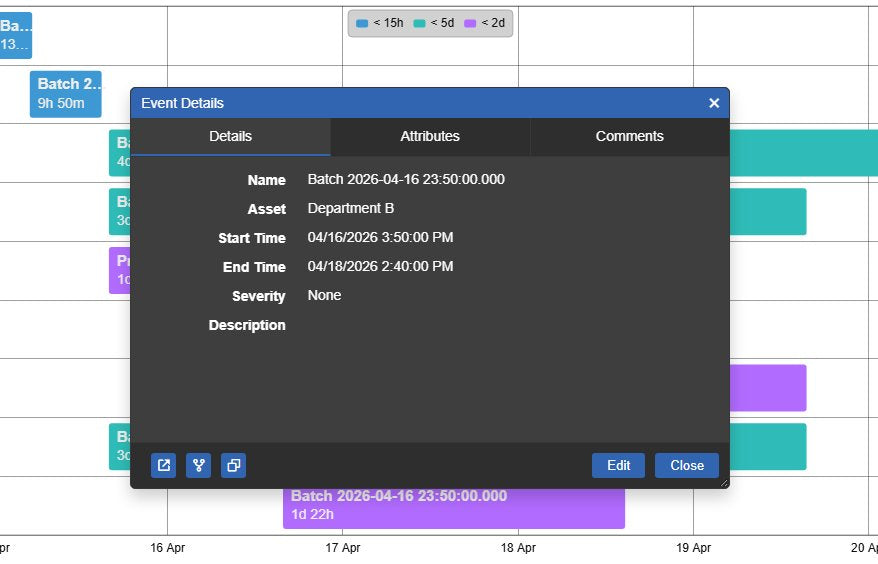
  • Open the Event Details window with the event’s properties, attributes and comments.
  • Edit an event or add a comment where your AF permissions allow it.
  • Or choose Event Details to open PI Vision’s event details page instead.
  • Or apply the event’s time range to the display.
Event Details window opened from a bar in Event Gantt Chart+, with the Details, Attributes and Comments tabs and the event name, asset, start and end time and severity
The Event Details window opened from a bar. Demo data. Select the image to enlarge.

Linked filters and its own time range

Let other symbols narrow the events, and look at a different period than the rest of the display.

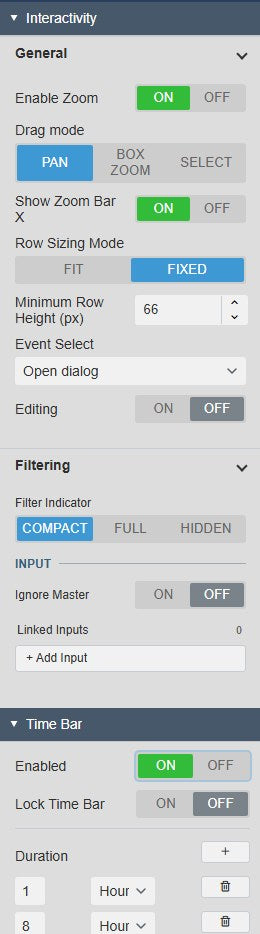
  • Receives master and linked filters from other Vision Library+ symbols, with a compact, full or hidden filter indicator.
  • Ignore Master lets a chart keep its own view.
  • A Time Bar gives the chart its own range with previous and next steps and duration presets from 1 hour to 1 month.
  • Lock the Time Bar to keep its range fixed.
Configure Gantt Chart pane with the Interactivity General settings (drag mode, zoom bar, row sizing, event select), the Filtering input settings and the Time Bar settings
Interactivity, Filtering and Time Bar settings. Demo data. Select the image to enlarge.

PI Vision Gantt chart examples

Four common ways teams use Event Gantt Chart+ on their displays.

Downtime timeline

Data
Downtime Event Frames for the lines of one area over the last shift
Settings
Rows by asset, colour by reason, event name as data label
Shows
When each line stopped, for how long and why

Batch phases

Data
Batch Event Frames with child phase events
Settings
Event Hierarchy on, colour by duration, name and duration as data labels
Shows
How the phases of each batch follow each other and where a phase ran long

Long events first

Data
Alarm or excursion Event Frames over a week
Settings
Colour by duration range, rows sorted by duration, descending
Shows
Which events lasted longest and whether they overlap

Filtered by the dashboard

Data
Event Frames for a whole site, with a filter symbol on the same display
Settings
Linked filter input on asset, Time Bar with 8-hour steps
Shows
The events of the asset the user picks, shift by shift

Event Gantt Chart+ FAQ

Questions we are asked most often. Read the Event Gantt Chart+ documentation or ask a technical question.

When should I use Event Gantt Chart+ instead of Events Table+ or PI Vision’s own event views?

Use Event Gantt Chart+ when duration, overlap and sequence matter: it draws each Event Frame as a bar on a time axis. Events Table+ shows the same events as rows you can filter, group, total, export or edit. PI Vision’s events table and event details page list events and describe one event; Event Gantt Chart+ can open that page from a bar.

Does Event Gantt Chart+ change data in the PI System?

The chart itself only reads Event Frames. Clicking a bar can open the Event Details window, where users can edit an event or add a comment if their AF permissions allow it. Those actions write to AF like they do in PI Vision.

How many events can it show?

Event Gantt Chart+ shows the Event Frames returned by the event search for the display or Time Bar range. Very large result sets are limited, so narrow the search or the Time Bar range to the period you need. The limit and the PI Web API settings can be raised by an administrator.

Can other symbols filter the Gantt chart?

Yes. Event Gantt Chart+ receives master and linked filters from other Vision Library+ symbols, so picking an asset or an event elsewhere on the display narrows the bars. Ignore Master keeps a chart out of the master filter. It does not publish filters itself.

What do we need to run it?

PI Vision 2021 or later with PI Web API, PI AF Server 2018 SP2 or later, and Event Frames in AF. Event Gantt Chart+ runs in PI Vision and uses each user’s existing PI permissions.

How do we get Event Gantt Chart+?

Event Gantt Chart+ is part of Vision Library+, together with the other Vision Library+ symbols. Request a trial to test it in your own PI Vision environment.

Try Event Gantt Chart+ in your PI Vision

Event Gantt Chart+ is included in Vision Library+, the PI Vision custom symbol library from Software Athlete. Test it on your own displays and data.