Radar Chart+ for AVEVA PI Vision

PI Vision radar chart to compare assets at a glance

See how several assets compare across several measures in one view. Radar Chart+ draws AF attributes on a common radial scale in your PI Vision display, one profile per asset or per attribute.

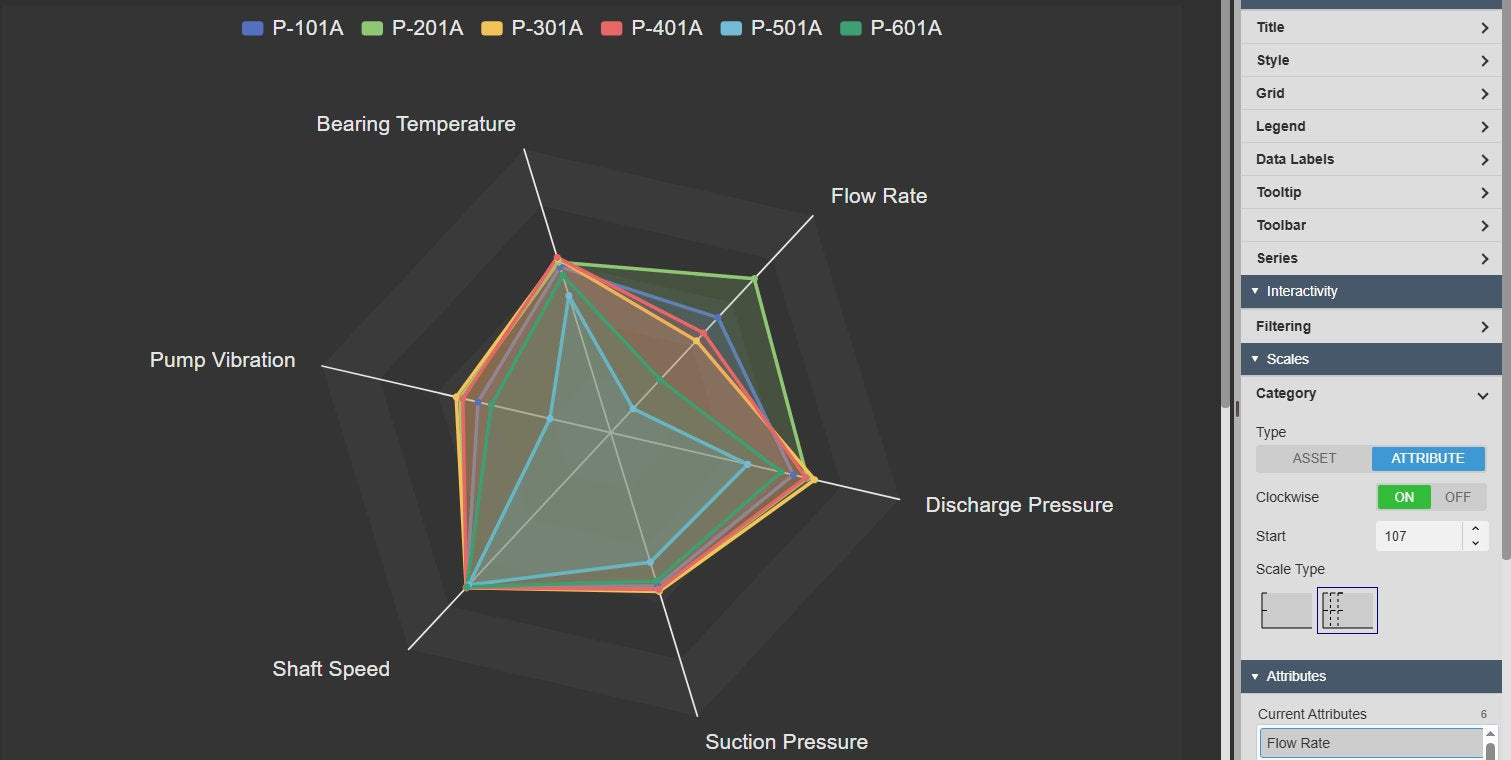
Radar Chart+ in PI Vision comparing six centrifugal pumps across flow rate, discharge and suction pressure, shaft speed, vibration and bearing temperature, one coloured profile per pump, next to the Scales settings with the attributes on the spokes and one scale per attribute
Radar Chart+ v2.0 in PI Vision: six pumps, one profile each, one scale per attribute. Demo data. Select the image to enlarge.

PI Vision radar chart for comparing assets and attributes

Pick the assets and the attributes to compare, and choose which of the two runs around the spokes.

Several attributes across several assets

Put the attributes on the spokes and draw one profile per asset, or turn it round and draw one profile per attribute across the assets.

  • Category type Attribute: attributes on the spokes, one series per asset.
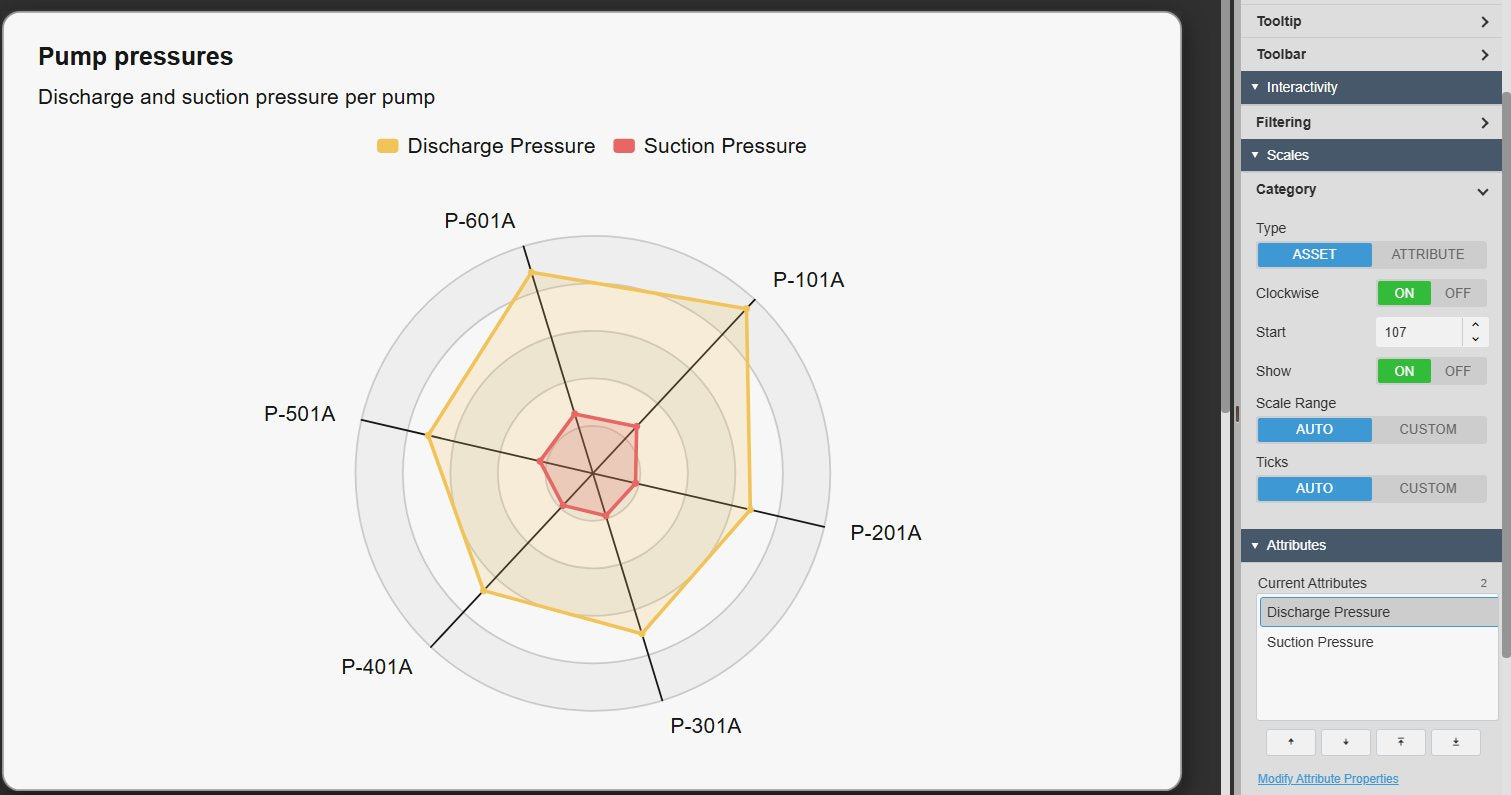
  • Category type Asset: assets on the spokes, one series per attribute.
  • Attributes added and reordered in one list, from the attributes the assets share.
  • A custom label per asset.
Radar Chart+ with six pumps on the spokes and one series each for discharge and suction pressure, next to the Category settings with the type set to Asset
Assets on the spokes, one series per attribute. Demo data. Select the image to enlarge.

Static asset list or dynamic AF search

Drag the assets onto the symbol, or let an AF search fill the chart, so new assets of the same kind appear without editing the display.

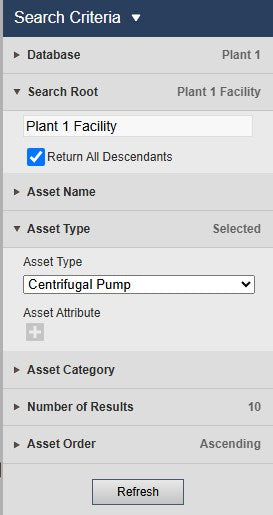
  • Search by database, search root, asset name, template and category.
  • Number of results and sort order.
  • Static assets keep their own label, colour, marker and line style.
  • Receives asset filters from Asset Filter+ and linked inputs on the display.
Radar Chart+ search criteria pane with database Plant 1, search root Plant 1 Facility with all descendants, asset type Centrifugal Pump, number of results and order
Search criteria that find every centrifugal pump in the plant. Select the image to enlarge.

Current values or summaries over the time range

Plot each attribute as its current value, or as a summary over the display time range.

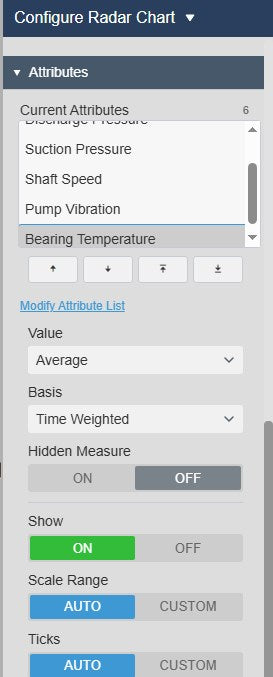
  • Value type per attribute: current value, total, average, minimum, maximum or range.
  • Also standard deviation, population standard deviation, count and per cent good.
  • Time-weighted or event-weighted calculation.
  • Set per attribute, so current and summary values can share a chart.
Radar Chart+ Attributes settings with Bearing Temperature selected, the value type Average, the calculation basis Time Weighted and the scale range
Attributes settings with the value type and calculation basis. Select the image to enlarge.

Radar chart scales, shapes and series styles

Choose how the spokes are scaled and how the grid and the profiles are drawn.

One shared scale or one range per attribute

Use one scale for comparable measures, or give each attribute its own range when they use different units.

  • Scale range Auto or Custom, shared by every spoke.
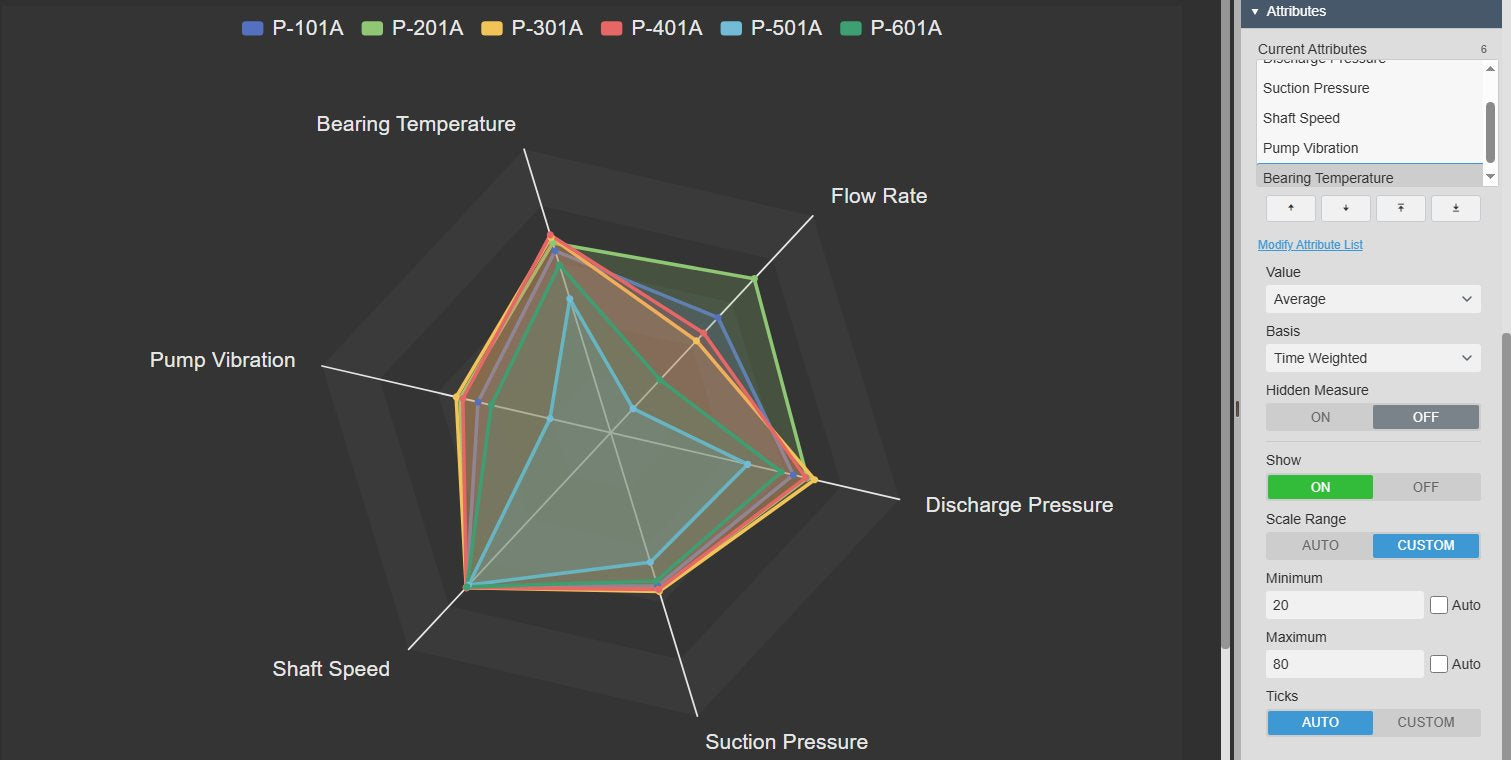
  • A separate minimum and maximum per attribute when the attributes are on the spokes.
  • Automatic or custom ticks, clockwise or counter-clockwise order and the start angle.
  • Spoke labels on or off.
Radar Chart+ with attributes in different units on their own spokes, next to the Attributes settings with a custom scale range of 20 to 80 for bearing temperature
A custom range for one attribute; the others scale automatically. Demo data. Select the image to enlarge.

Polygon or circle, markers and lines

Draw the grid as a polygon or a circle and style each series so the profiles are easy to tell apart.

  • Polygon or circle shape, with grid rings, shaded bands and spokes or an outer frame.
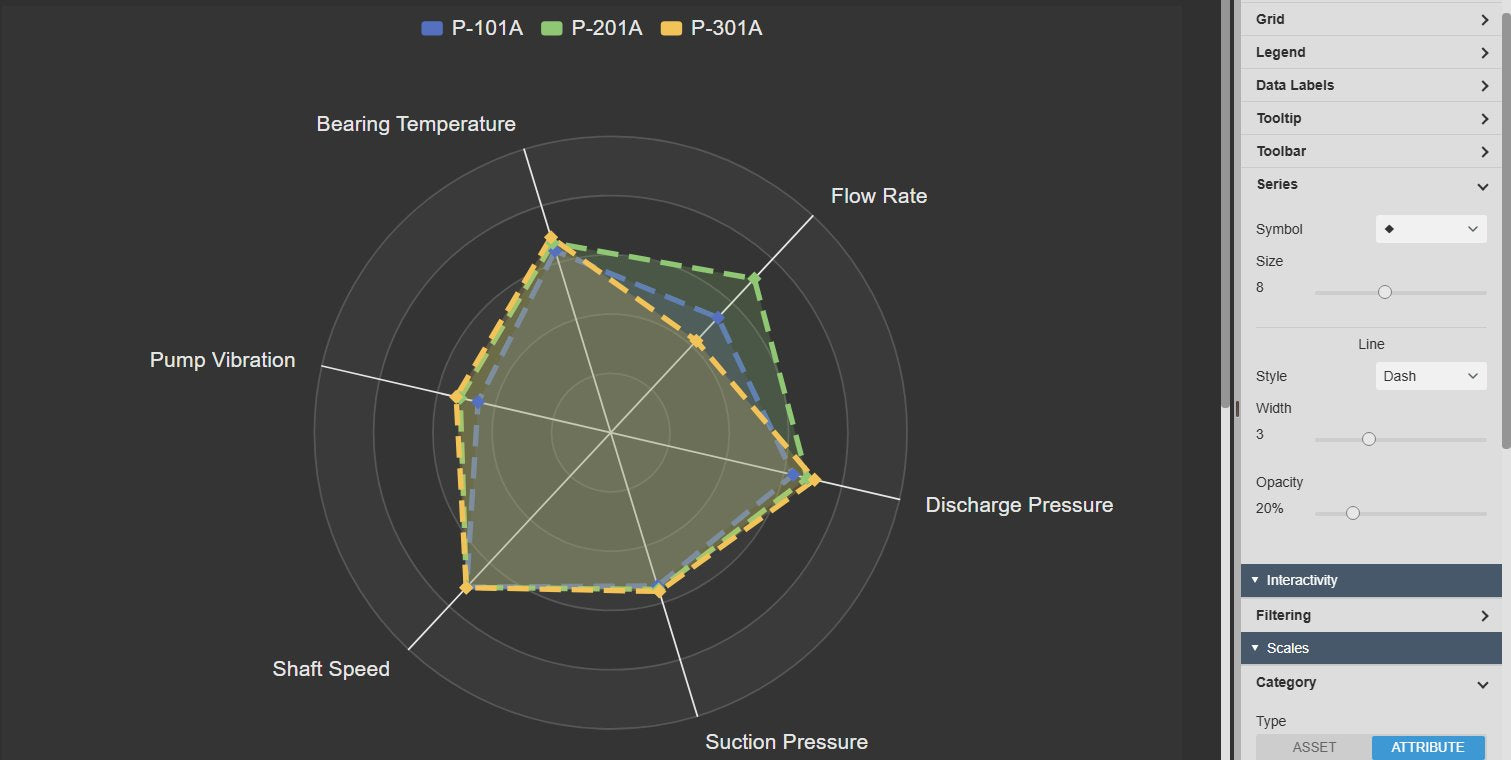
  • Marker symbol and size, line style, line width and area opacity.
  • Colour, marker and line per asset for a static asset list.
  • One series style for all assets when an AF search fills the chart.
Radar Chart+ drawn as a circle with shaded bands and three pumps as dashed lines with diamond markers, next to the Series settings
Circle shape with bands and one series style for every pump. Demo data. Select the image to enlarge.

Radar chart labels, themes and export

Put the numbers on the chart, match it to the display, and take the view or its data with you.

Data labels and tooltips with units

Read every value without hovering, or keep the chart clean and show the details on hover.

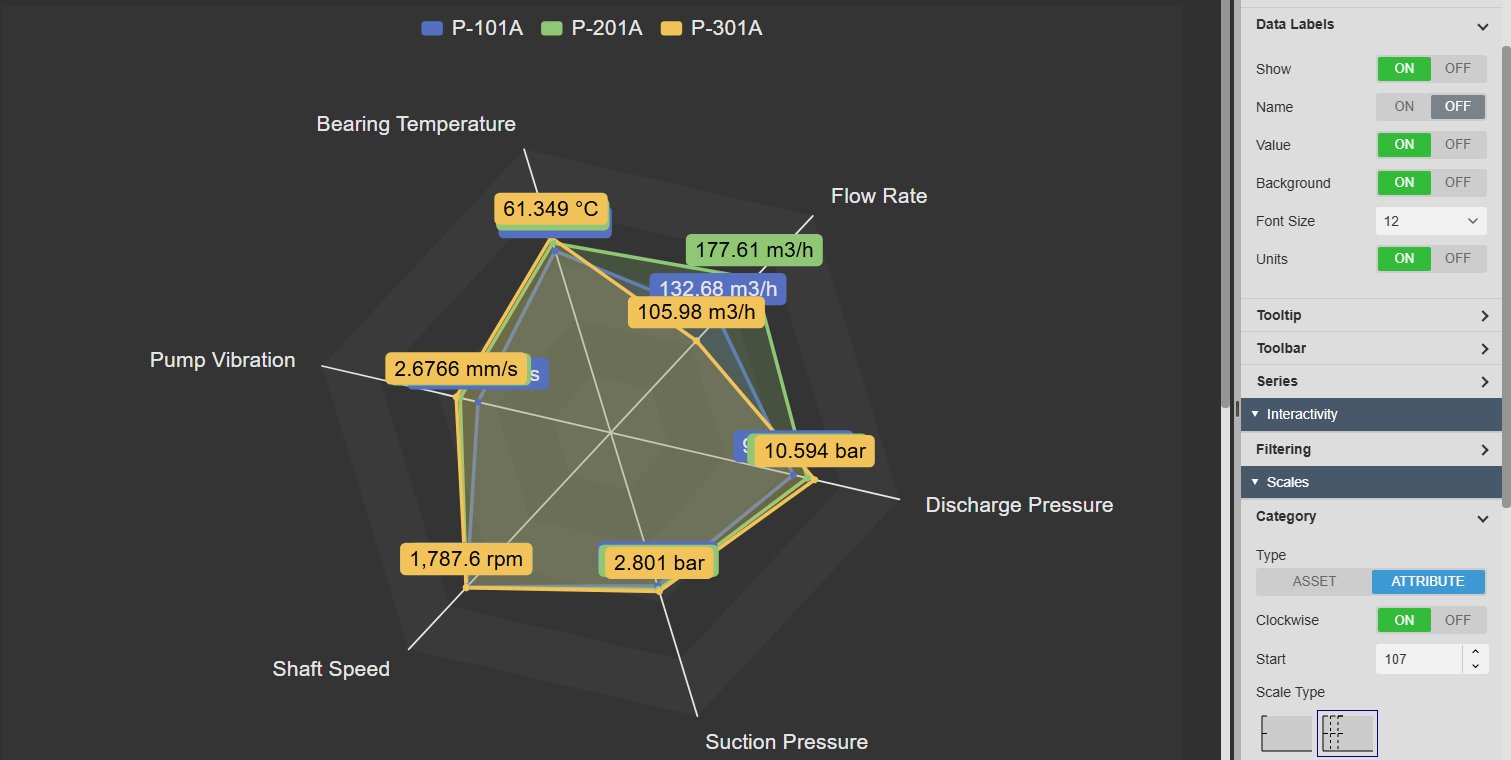
  • Data labels with value, name and units, with an optional background and font size.
  • One number format for labels and tooltip.
  • Hover tooltip with the spoke name and the value with units.
  • Legend with position, alignment, size and colour.
Radar Chart+ with data labels showing the value and units at each point, next to the Data Labels settings
Data labels with units, next to the Data Labels settings. Demo data. Select the image to enlarge.

Themes, containers and titles

Match the chart to the display with a built-in theme, or set the colours yourself.

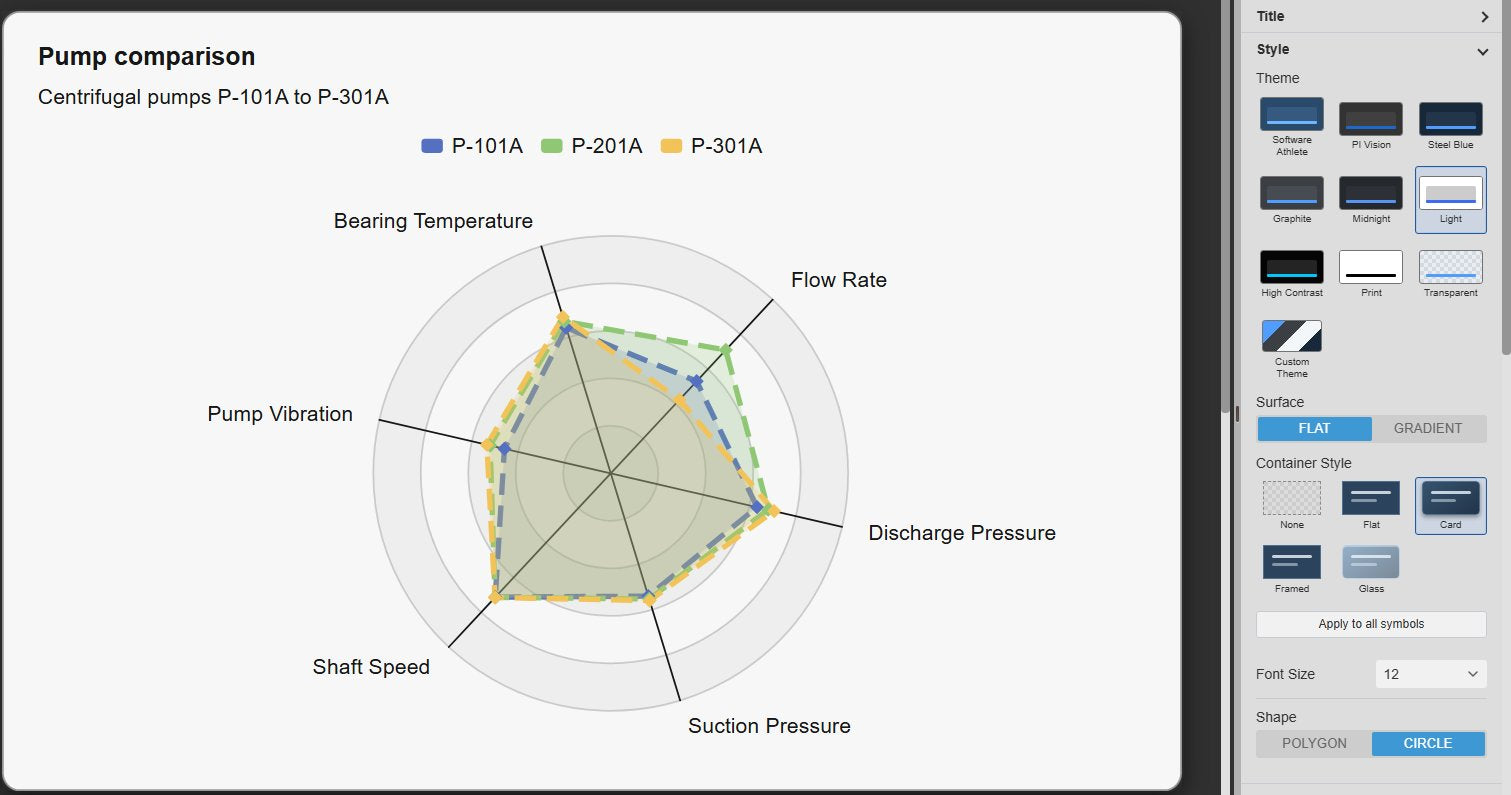
  • Nine built-in themes, including Light, Print and High Contrast, plus custom colours.
  • Flat or gradient surface, and a None, Flat, Card, Framed or Glass container.
  • Apply the style to every Vision Library+ symbol on the display in one step.
  • Title and subtitle with alignment and font size.
Radar Chart+ in the Light theme with a card container on a dark PI Vision display, with a title and subtitle, next to the Style settings with the theme grid, surface, container style and the Apply to all symbols button
Light theme with a card container, next to the Style settings. Demo data. Select the image to enlarge.

Full screen and download

Open the chart larger, or save it as an image or as data for a report.

  • Toolbar on hover, or always shown.
  • Full screen view of the chart.
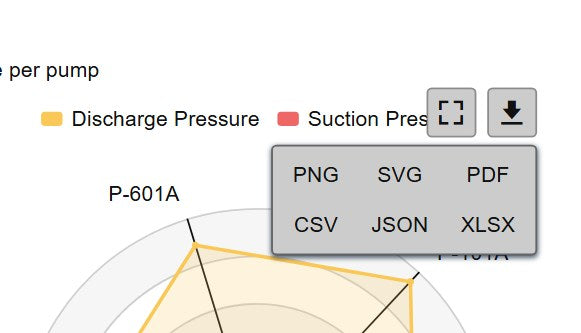
  • Download as PNG, SVG or PDF, or the plotted values as CSV, JSON or XLSX.
Radar Chart+ toolbar with the download menu open, offering PNG, SVG and PDF images and CSV, JSON and XLSX data
The download menu on the toolbar. Demo data. Select the image to enlarge.

PI Vision radar chart examples

Four common ways teams use Radar Chart+ on their displays.

Pump station comparison

Data
Flow, head, power and vibration of every pump from one AF template
Settings
Attributes on the spokes, one range per attribute, AF search on the pump template
Shows
Which pump runs differently from the others

Production line KPIs

Data
Speed, availability, quality and energy per unit of each line
Settings
Attributes on the spokes, value type Average over the shift, data labels with units
Shows
How each line performed across all KPIs in one view

Equipment health profile

Data
Temperatures, pressures and vibration of machines of one type
Settings
Attributes on the spokes, a custom range per attribute set to its normal band
Shows
Which machine and which measure sits outside its normal band

Site or area benchmark

Data
The same KPIs for several sites or areas
Settings
Custom range shared by every spoke, Light theme for reports
Shows
Strengths and gaps of each site against the others

Radar Chart+ FAQ

Questions we are asked most often. Read the Radar Chart+ documentation or ask a technical question.

When should I use a radar chart in PI Vision?

Use Radar Chart+ when you compare a handful of assets across several measures at once, for example pumps by flow, head, power and vibration. To compare one measure across many assets, a bar chart such as Asset Comparison Bar Chart+ is easier to read.

Should the assets or the attributes go on the spokes?

Set the category type to Attribute to put the attributes on the spokes and draw one profile per asset. This is the usual choice for comparing assets. Set it to Asset to put the assets on the spokes and draw one series per attribute.

Our attributes use different units. Can they share one chart?

Yes. With the attributes on the spokes, give each attribute its own minimum and maximum, so every spoke uses a sensible range. A single shared scale can be misleading when the units or ranges differ.

Can new assets appear on the chart automatically?

Yes. Add dynamic search criteria and the chart is filled from an AF search by search root, name, template and category. If assets are missing, check that the search returns all descendants and the number of results. Individual colours per asset are available only for a static asset list; with a search, one series style applies to all assets.

What do we need to run it?

PI Vision 2021 or later with PI Web API, and PI AF Server 2018 SP2 or later. Radar Chart+ runs in PI Vision and uses each user’s existing PI permissions.

How do we get Radar Chart+?

Radar Chart+ is part of Vision Library+, together with the other Vision Library+ symbols. Request a trial to test it in your own PI Vision environment.

Try Radar Chart+ in your PI Vision

Radar Chart+ is included in Vision Library+, the PI Vision custom symbol library from Software Athlete. Test it on your own displays and data.