DateTime Picker+ for AVEVA PI Vision

PI Vision time range picker for shifts, days and months

Give operators one-click periods instead of typing times into the PI Vision time bar. DateTime Picker+ sets the display time range from ready-made periods, a named list, the values of a shift or batch tag, or a calendar.

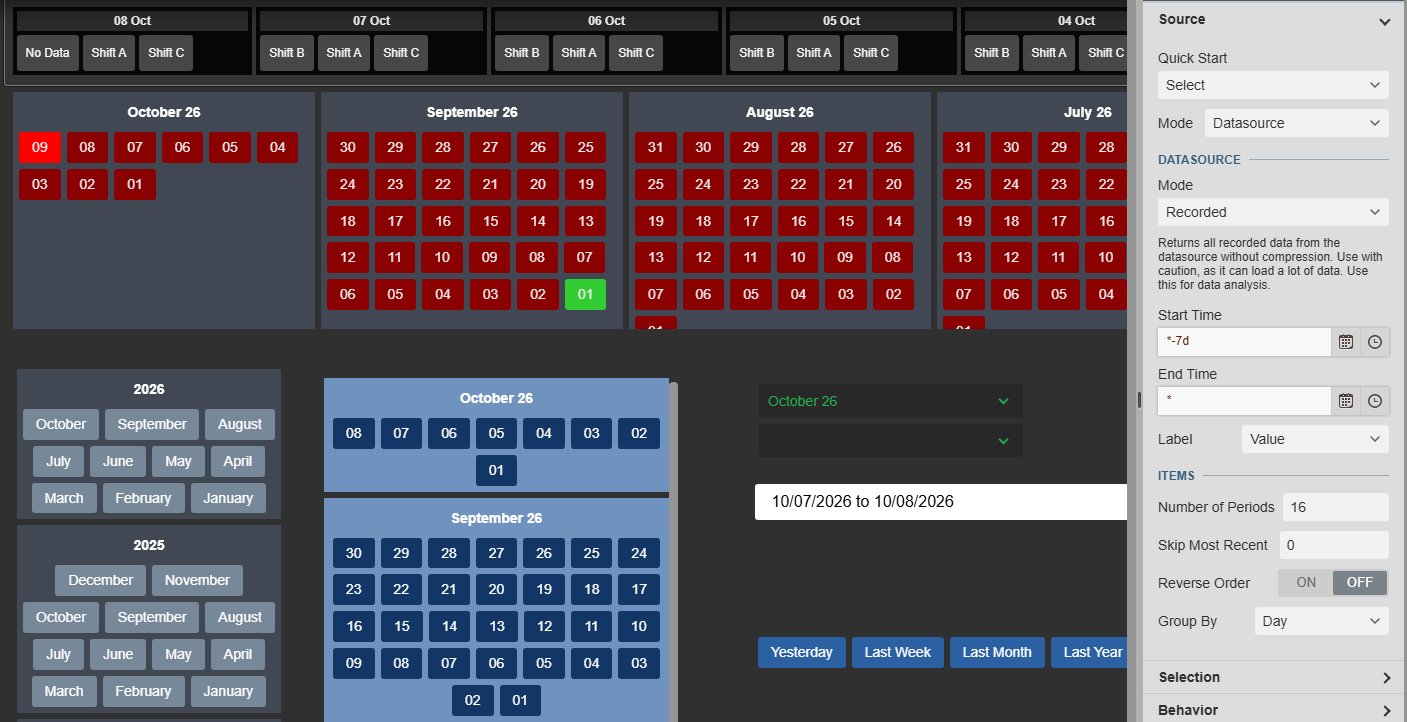
A PI Vision display with several DateTime Picker+ symbols: shift buttons grouped by day, day buttons coloured by a multi-state, months grouped by year, shift days grouped by month, a grouped dropdown, a date range input and a list with Yesterday, Last Week, Last Month and Last Year, next to the Source settings of the shift picker with Mode Datasource, Recorded, Start Time *-7d and Label Value
DateTime Picker+ v2.0 on one PI Vision display, with the configuration pane of the shift picker. Demo data. Select the image to enlarge.

PI Vision date and time range picker for every display

Select one item and the whole display moves to that range: every symbol that follows the display time refreshes, the selected item is highlighted, and hovering an item shows its exact start and end.

Ready-made periods or your own named ranges

Offer the periods your teams report on as one selectable item each, from production days to months.

  • Quick Start presets: Last 7 days, Shift days from 06:00, Months, Weeks and Shift tag.
  • Rolling periods of any length, aligned to the minute, hour, day, week, month or year.
  • An offset such as 6 hours makes each day run from 06:00 to 06:00.
  • Or a named list of ranges written as PI time, for example Yesterday from Y to T.
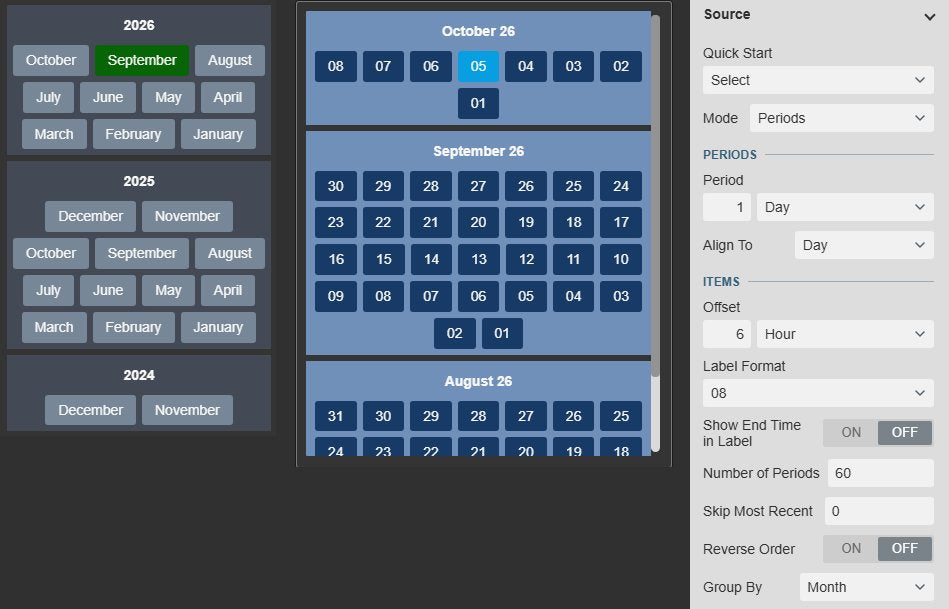
Two DateTime Picker+ symbols in PI Vision: month buttons grouped by year with September 2026 selected, and production-day buttons grouped by month with 5 October selected, next to the Source settings with Mode Periods, Period 1 day, Align To Day, Offset 6 hours, Label Format, Number of Periods 60 and Group By Month
Months grouped by year and production days from 06:00 grouped by month. Demo data. Select the image to enlarge.

A calendar for a date or a date range

Let users jump to any day or range without typing PI time expressions.

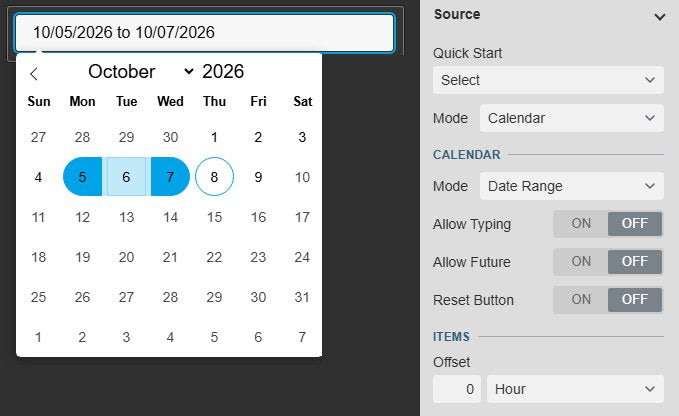
  • Single Date, Date Range in one input, or separate Start & End Time inputs.
  • A selected day can cover one day or any other duration.
  • Optional typing in the input, and future dates only when you allow them.
  • An optional reset button returns the display to the default range.
DateTime Picker+ in Calendar mode with Date Range: the calendar pop-up shows 5 to 7 October 2026 highlighted and today circled, next to the Calendar settings with Mode Date Range, Allow Typing, Allow Future, Reset Button and Offset
Calendar mode with a date range. Demo data. Select the image to enlarge.

Shift and batch periods from PI data

When the periods are recorded in PI, the picker can read them instead of calculating them.

One item per shift or batch from a data source

Drag a PI Point or AF attribute that marks the start of each period onto the picker, and every shift or batch becomes one selectable item.

  • One period per recorded value, or evenly spaced periods with an interval and a sync time.
  • Items named after the value, such as the shift name, or after their start or end time.
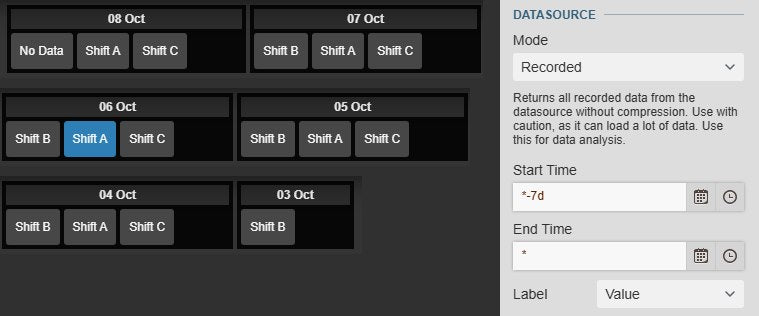
  • Read from a range you set, for example the last seven days.
  • Grouped under day, week, month or year headings, with an optional All item for the whole window.
DateTime Picker+ in Data source mode with shift buttons named Shift A, Shift B and Shift C, grouped under day headings from 3 to 8 October and Shift A on 6 October selected, next to the Data source settings with Mode Recorded, Start Time *-7d, End Time * and Label Value
Shifts from a shift tag, grouped by day. Demo data. Select the image to enlarge.

Status colours on every period

Add a multi-state to the data source and operators see at a glance which days or shifts need a closer look.

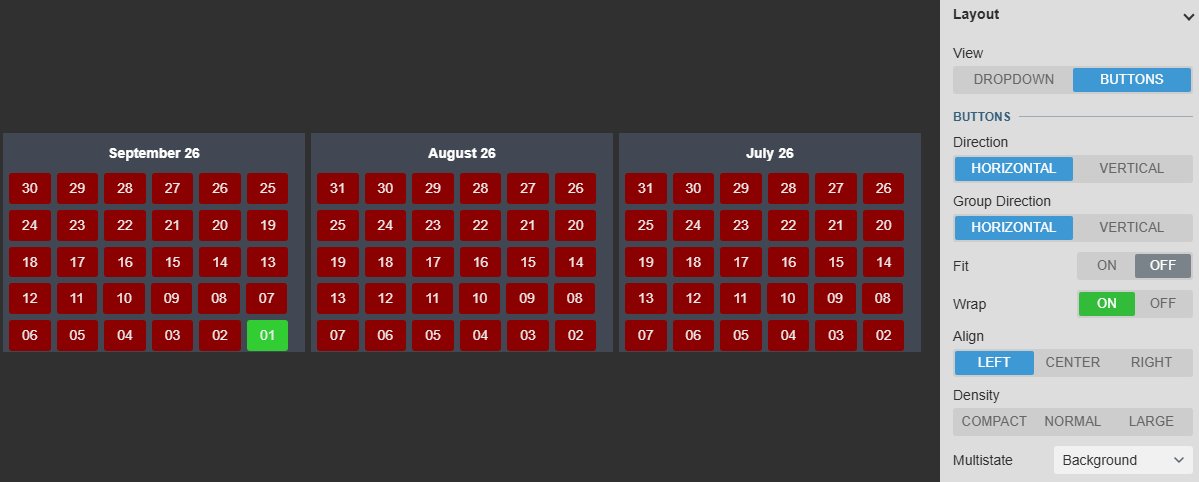
  • The PI Vision multi-state of the data source colours each item.
  • Colour the item background, its text or its border.
  • Works with evenly spaced periods, for example one button per day over several months.
  • The multi-state is added from the right-click menu, as on any PI Vision symbol.
DateTime Picker+ with day buttons grouped by month for July, August and September 2026, each coloured by the multi-state of its data source, one day green and the others red, next to the Layout settings with View Buttons, Direction, Group Direction, Fit, Wrap, Align, Density and Multistate Background
Day buttons coloured by a multi-state, with the Layout settings. Demo data. Select the image to enlarge.

Default time ranges, navigation and styles for PI Vision displays

Decide which range a display opens on, how users move between periods and how the picker fits the dashboard.

Open every display on a known range

Operators start from the period that matters, and the display can follow the newest period on its own.

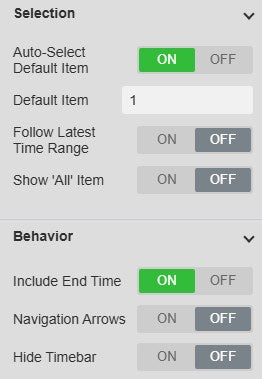
  • Auto-select a default item as soon as the display loads.
  • Follow Latest Time Range moves the display onto the new period when a day or shift rolls over.
  • Skip Most Recent hides the period that is still running.
  • An optional All item covers every period at once.
DateTime Picker+ Selection and Behavior settings with Auto-Select Default Item on, Default Item 1, Follow Latest Time Range, Show All Item, Include End Time on, Navigation Arrows and Hide Timebar
Selection and Behavior settings. Select the image to enlarge.

Step through periods and hide the time bar

Make the picker the one control for time on a display, from kiosk screens to shift reviews.

  • Navigation arrows step to the previous or next item in a dropdown, or day by day in a single-date calendar.
  • Hide Timebar hides the PI Vision time bar while the display is open.
  • Periods end exactly on their boundary, or one second earlier at 23:59:59.
  • Several pickers on one display share its time range: pick in one and the others follow.
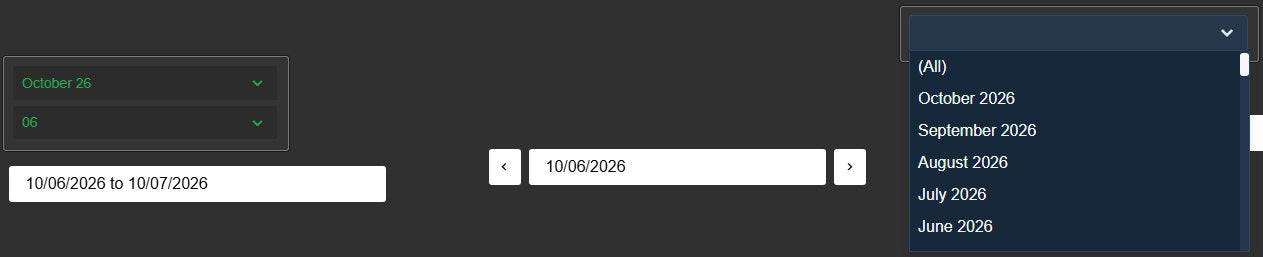
Four DateTime Picker+ symbols on the same range: a grouped dropdown with October 26 and day 06, a date range input showing 10/06/2026 to 10/07/2026, a single-date input with previous and next arrows showing 10/06/2026, and an open month dropdown with an All item above October to June 2026
Grouped dropdown, date range, single date with arrows and a month list with an All item, all following one range. Demo data. Select the image to enlarge.

Buttons or a dropdown that fit the dashboard

Use a strip of buttons for a few periods and a dropdown for many, styled like the rest of the display.

  • Buttons in a row or a column, or a dropdown, with groups side by side or stacked.
  • Fit, wrap and alignment, and Compact, Normal or Large density.
  • Shared Vision Library+ themes with a flat or gradient surface and None, Flat, Card, Framed or Glass containers.
  • A custom theme with surface, item, text, border, group and accent colours.
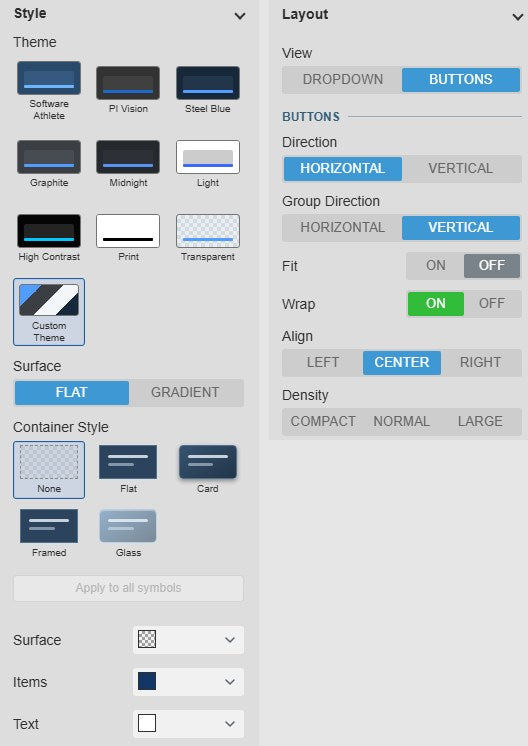
DateTime Picker+ Style settings with the theme grid, Surface Flat or Gradient, the container styles and custom colours, next to the Layout settings with View Buttons, Direction, Group Direction, Fit, Wrap, Align and Density
Style and Layout settings. Select the image to enlarge.

PI Vision time range picker examples

Four ways DateTime Picker+ is set up on the demo display.

Production days from 06:00

Data
No data source
Settings
Periods, Period 1 day, Offset 6 hours, Number of Periods 60, Group By Month, View Buttons
Shows
Production days as buttons grouped by month; each day runs from 06:00 to 06:00

Shift selector

Data
A PI Point that records the shift name at each shift change
Settings
Data source, Recorded, *-7d to *, Label Value, Group By Day, View Buttons
Shows
One button per shift of the last seven days, named after the shift and grouped by day

Daily status calendar

Data
An attribute with a multi-state
Settings
Data source, Interpolated every 1 day, *-4mo to *, Label Start Time, Group By Month, Multistate Background
Shows
Months of day buttons coloured by their status

Report periods

Data
No data source
Settings
List with Yesterday, Last Week, Last Month and Last Year written as PI time
Shows
Four named buttons for the ranges a team reports on

DateTime Picker+ FAQ

Questions we are asked most often. Read the DateTime Picker+ documentation or ask a technical question.

When should we use DateTime Picker+ instead of the PI Vision time bar or Playback Tool+?

Use DateTime Picker+ when operators should choose from fixed periods, such as shift days, weeks, months or the shifts recorded in a tag, or pick a date in a calendar, and when a display should open on a known range. If operators only need to move the current range backwards and forwards, the standard PI Vision time bar is enough; Hide Timebar makes the picker the only way to change the range. Use Playback Tool+ to replay a past range in steps and watch how the whole display changed during an event. All three change the display time range.

Can each shift or batch be one item?

Yes. In Data source mode the picker reads a PI Point or AF attribute that marks the start of each period, for example a shift name written at every shift change, and makes one item per recorded value. The Shift tag (data source) preset sets this up in one step. A multi-state on the same data source colours each item by its status.

What happens with several pickers on one display?

All pickers on a display share the display time range. Selecting an item in any picker applies it, and the other pickers show the new range. Only one picker applies its default item when the display opens, so two pickers never fight over the start range. A range whose start is later than its end is never applied.

Do displays built with an earlier version keep working?

Yes. Existing displays keep rendering as they did. Settings saved by an earlier version are mapped onto their replacements when the display loads, and the original values stay in the display until it is saved again.

What do we need to run it?

PI Vision 2021 or later with PI Web API, and PI AF Server 2018 SP2 or later for AF attributes. Periods, List and Calendar mode need no data source; Data source mode reads the values through PI Web API with each user’s existing PI permissions.

How do we get DateTime Picker+?

DateTime Picker+ is part of Vision Library+, together with the other Vision Library+ symbols. Request a trial to test it in your own PI Vision environment.

Try DateTime Picker+ in your PI Vision

DateTime Picker+ is included in Vision Library+, the PI Vision custom symbol library from Software Athlete. Test it on your own displays and data.