Event Analytics Chart+ for AVEVA PI Vision

PI Vision Event Frame analytics by asset, reason and period

Turn an Event Frame search into a chart of what happened, where and how often. Event Analytics Chart+ counts events, totals their duration and summarises their attributes by asset, reason code or time period in your PI Vision display.

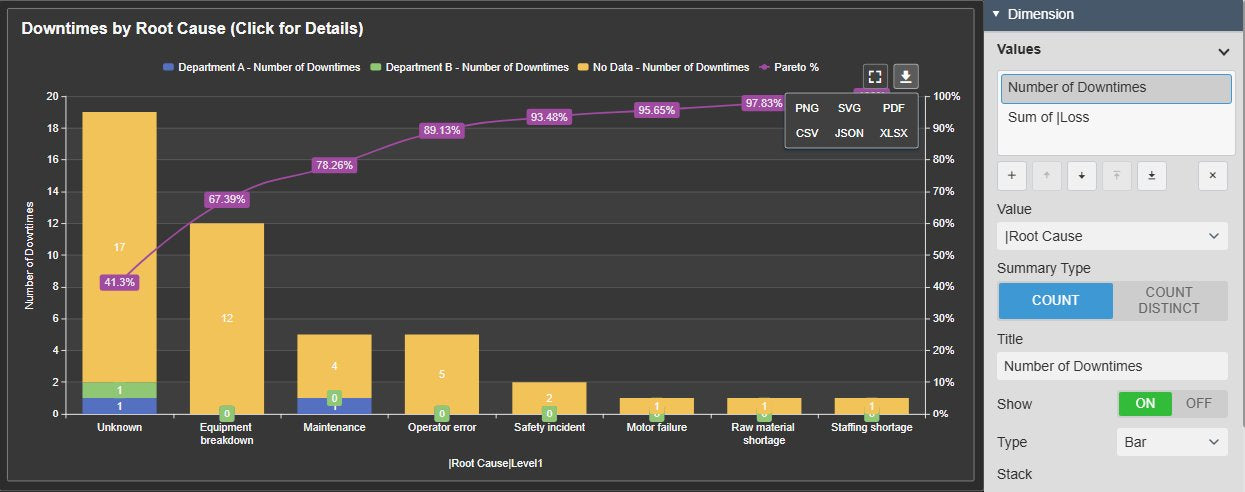
Event Analytics Chart+ in PI Vision showing the number of downtime Event Frames per root cause as stacked bars sorted from most to fewest, with a cumulative Pareto percentage line and the toolbar download menu open with PNG, SVG, PDF, CSV, JSON and XLSX, next to the Values settings with Count and Count Distinct
Event Analytics Chart+ v2.0 in PI Vision: downtimes per root cause with a Pareto line, the download menu and the Values settings. Demo data. Select the image to enlarge.

Event Frame aggregation in PI Vision

Pick the Event Frames with a search, then choose what to calculate and how to group it. No export to a spreadsheet first.

Count events, total their duration, summarise attributes

Answer how many events occurred, how long they lasted and what their attributes added up to, straight from the Event Frames.

  • Count and Count Distinct for every attribute, including text and enumeration attributes such as reason codes.
  • Sum, Minimum, Maximum, Average, Median and Standard Deviation for numeric attributes and durations.
  • Event duration, asset, template, severity and start time available next to your Event Frame attributes.
  • Several values in one chart, each with its own title, chart type and value axis.
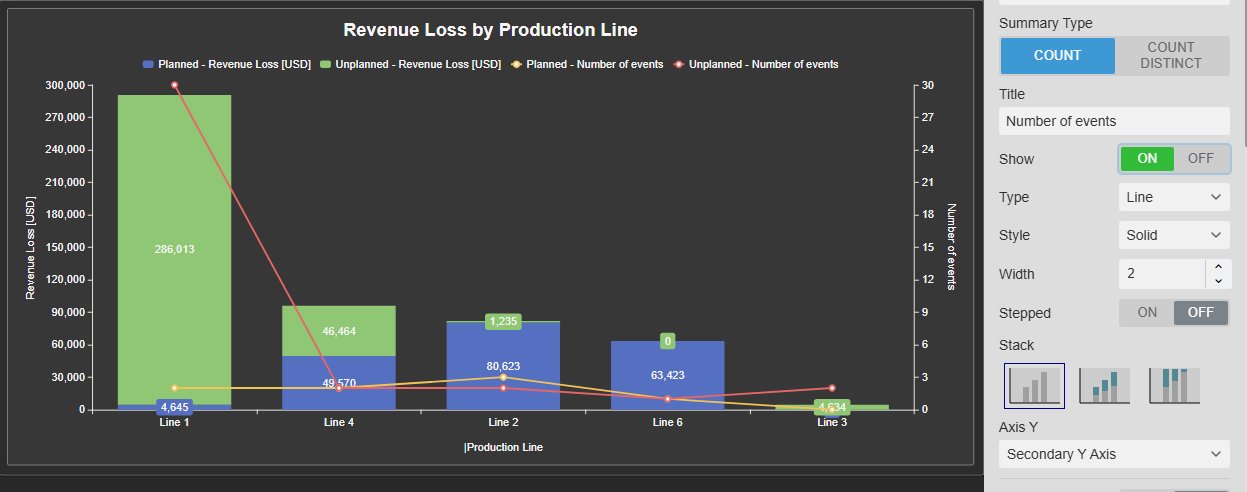
Event Analytics Chart+ with two values per production line: the sum of revenue loss as bars stacked into planned and unplanned events, and the number of events as lines on a secondary axis, next to the Values settings with Summary Type Count, Type Line and Axis Y set to Secondary Y Axis
Summed revenue loss and the number of events per production line. Demo data. Select the image to enlarge.

Group by asset, reason code or time period

Put any event property on the axis, combine properties, and split each category into series.

  • Arguments by asset, reason code, severity or any other attribute; several arguments form combined categories such as "Pump 1 - High".
  • Start and end times grouped by year, quarter, month, week, day, day of week, hour and more, in chronological order.
  • A series splits each category, for example events per month by reason code.
  • Vertical or horizontal orientation and a timeline or discrete axis for dates.
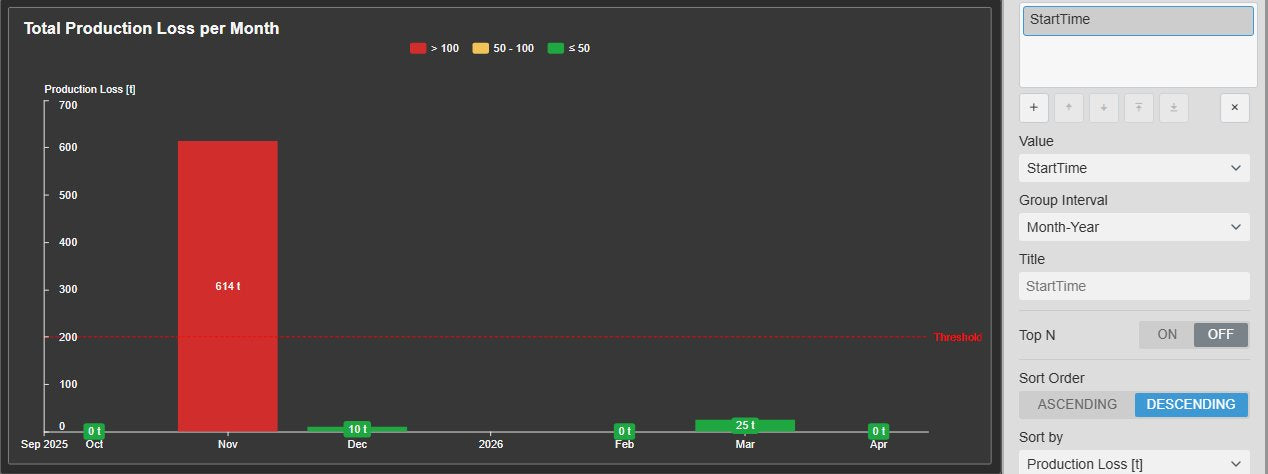
Event Analytics Chart+ showing the total production loss of Event Frames per month as bars in chronological order, coloured red, yellow or green by threshold, with a dashed threshold line, next to the Arguments settings with StartTime and Group Interval Month-Year
Production loss per month, coloured by threshold. Demo data. Select the image to enlarge.

Top N and Pareto analysis of Event Frames

Find the few assets or causes behind most of the events, downtime or losses.

Top N bad actors with an Others bar

Rank categories by any calculated value and keep only the top or bottom entries on the chart.

  • Top or Bottom N by a chosen value, for arguments and for series.
  • Others collects the remaining categories in one bar, so totals stay complete.
  • Sort the categories ascending or descending by any value, such as total downtime.
  • Data labels with the value, argument or series name, background and font size.
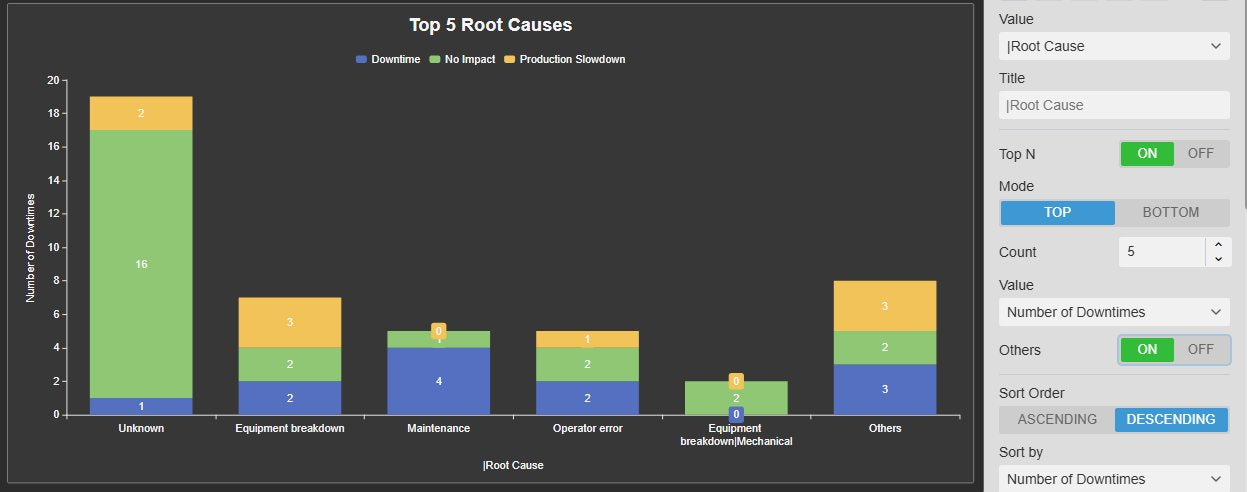
Event Analytics Chart+ showing the five root causes with the most downtime Event Frames as stacked bars split by impact, plus an Others bar for the remaining causes, next to the Arguments settings with Top N on, Mode Top, Count 5, the ranking value, Others on and Sort Order Descending
Top 5 root causes, the rest as Others. Demo data. Select the image to enlarge.

Pareto line for the vital few causes

Add a cumulative percentage line to sorted bars and see which causes account for most of the total.

  • Pareto Analysis draws the cumulative share of a chosen value as a line.
  • Its own colour and optional data labels on the line.
  • Combine with descending sort and Top N for a classic 80/20 chart.
  • The cumulative share runs on its own 0 to 100 % axis next to the values.
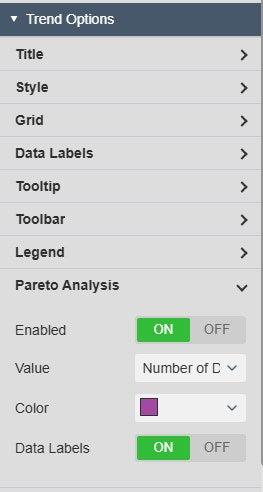
Pareto Analysis settings of Event Analytics Chart+ with Enabled on, the value for the cumulative line, the line colour and Data Labels on
Pareto Analysis settings; the hero chart shows the result. Select the image to enlarge.

Stacked event charts, drill-down and export

Shape the chart for the question, then let readers explore the result and take it with them.

Bars, lines, areas, stacks and limit lines

Choose the chart form per value and mark targets so readers see at once where events exceed them.

  • Bar, line, area or scatter per value; lines solid, dashed, dotted or stepped.
  • Grouped, stacked or 100 % stacked bars and areas, and a secondary value axis.
  • Limit lines with value, label, colour, width and style, plus threshold colours per value.
  • Automatic or custom colours per series, themes, title and subtitle, legend, grid and tooltip.
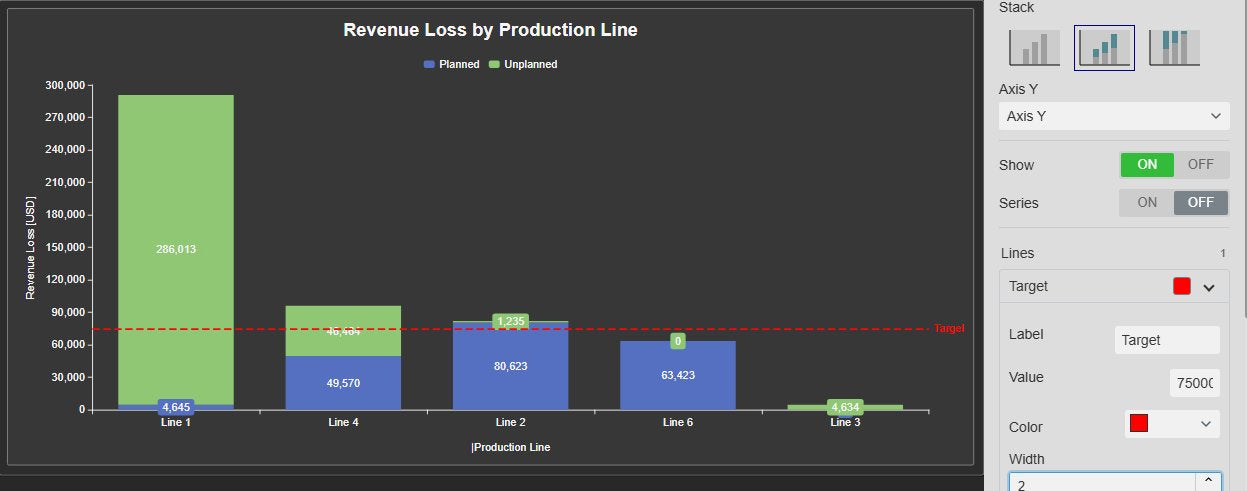
Event Analytics Chart+ with the revenue loss of Event Frames per production line as bars stacked into planned and unplanned, and a dashed red limit line labelled Target, next to the Values settings with Stack Stacked and a limit line with label, value, colour and width
Stacked revenue loss per production line with a target line. Demo data. Select the image to enlarge.

Drill down, filter other symbols and download

Click from the overview into the detail, drive other symbols from a selection, and export what the chart shows.

  • Drilldown steps from one argument or series level to the next, for example from root cause to sub-cause, with a back control.
  • Filter publishes the selected bar to other Event Frame symbols on the display, and Linked inputs narrow this chart.
  • A Time Bar gives the chart its own event range without changing the display time.
  • Full screen and download as PNG, SVG or PDF, or the plotted values as CSV, JSON or XLSX.
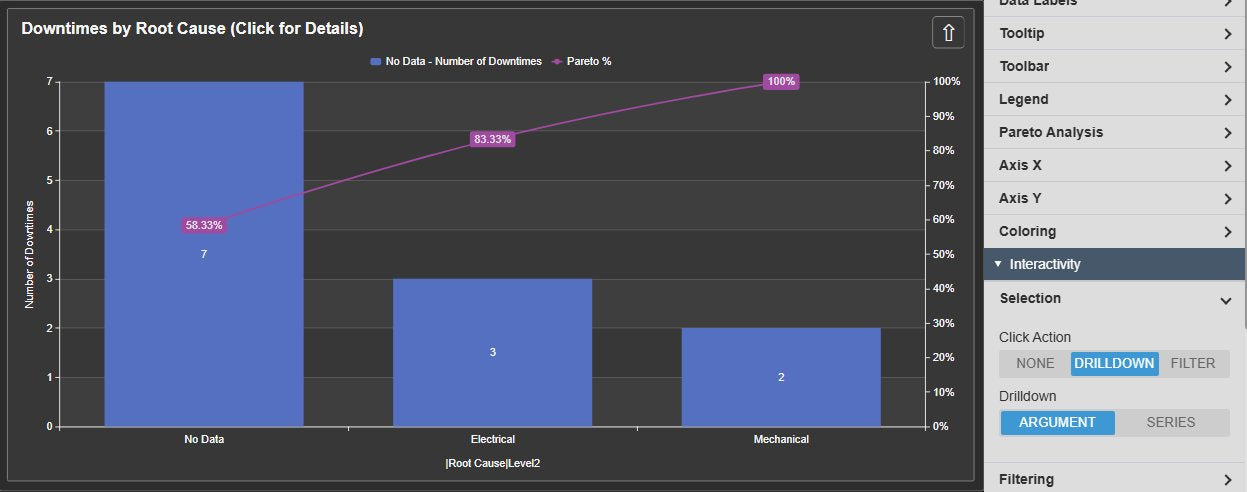
Event Analytics Chart+ after a click on the Equipment breakdown bar, showing its second-level causes Electrical and Mechanical with a Pareto line and a back control in the corner, next to the Selection settings with Click Action Drilldown and Drilldown Argument
Drilled down from a root cause to its sub-causes. Demo data. Select the image to enlarge.

PI Vision Event Frame chart examples

Four common ways teams use Event Analytics Chart+ on their displays.

Downtime Pareto

Data
Downtime Event Frames with a reason code attribute
Settings
Argument reason code, Sum of Duration, sorted descending, Pareto Analysis on
Shows
The few reasons behind most of the downtime

Worst assets this month

Data
Event Frames of one template across a unit
Settings
Argument Asset, Sum of Duration, Top N 5 with Others, horizontal bars
Shows
Which five assets lost the most time, and how much the rest lost

Events per week by severity

Data
Alarm or excursion Event Frames with a severity
Settings
Argument Start Time by Week-Year, series Severity, stacked bars of Count
Shows
Whether critical events become more or less frequent

Batch results by product

Data
Batch Event Frames with numeric result attributes
Settings
Argument product, Average of the result as bars, Max on the secondary axis, a target line
Shows
How each product performs against its target

Event Analytics Chart+ FAQ

Questions we are asked most often. Read the Event Analytics Chart+ documentation or ask a technical question.

When should I use Event Analytics Chart+ instead of the other Event Frame symbols?

Use Event Analytics Chart+ to compare aggregated Event Frame values across categories or time periods as bars, lines or areas, for example downtime by reason. Use Event Analytics Pivot+ for the same aggregations as a cross-table with rows and columns, Event Analytics Pie+ for shares of a total, and Event Analytics KPI+ for one headline number such as the event count. Event Comparison Chart+ overlays the process data of individual events, for example a batch against a golden batch, instead of aggregating them.

What can the chart calculate from Event Frames?

Count and Count Distinct work on every attribute, including text and enumeration attributes such as reason codes. Numeric attributes and durations also offer Sum, Minimum, Maximum, Average, Median and Standard Deviation. Event properties such as duration, asset, template, severity and start time can be used next to your own Event Frame attributes.

Which Event Frames does the chart use?

The Event Frames returned by the symbol’s own search criteria, which you set from the symbol’s context menu. The chart does not inherit the search you ran in the Event Frame Search pane. Enable the Time Bar to give the chart its own event range without changing the display time.

Can it show a Pareto chart?

Yes. Sort the categories descending by a value and turn on Pareto Analysis to add a cumulative percentage line for that value. Combine it with Top N and Others to keep the chart readable.

What do we need to run it?

PI Vision 2021 or later with PI Web API, PI AF Server 2018 SP2 or later, and Event Frames in AF. Event Analytics Chart+ runs in PI Vision, only reads Event Frames and uses each user’s existing PI permissions.

How do we get Event Analytics Chart+?

Event Analytics Chart+ is part of Vision Library+, together with the other Vision Library+ symbols. Request a trial to test it in your own PI Vision environment.

Try Event Analytics Chart+ in your PI Vision

Event Analytics Chart+ is included in Vision Library+, the PI Vision custom symbol library from Software Athlete. Test it on your own displays and data.