SQL Filter+ for AVEVA PI Vision

PI Vision SQL filter that narrows table rows with one click

Let operators choose which rows a display shows. SQL Filter+ lists the values of a column in an AF table, linked to a SQL database or static, and one click narrows SQL Table+ and other linked symbols on the same display.

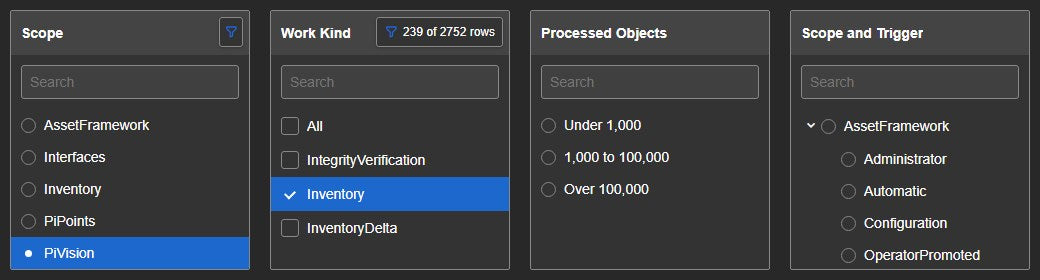
Four SQL Filter+ lists in PI Vision over one AF table: Scope with PiVision selected, Work Kind with Inventory selected and the indicator 239 of 2752 rows, Processed Objects with the ranges Under 1,000, 1,000 to 100,000 and Over 100,000, and a Scope and Trigger tree starting with AssetFramework
SQL Filter+ in PI Vision: lists for Scope and Work Kind, numeric ranges and a two-level tree over one AF table. Demo data. Select the image to enlarge.

PI Vision SQL filter for AF table rows

Build one display for the whole table and let operators narrow it to the rows they care about, without editing the display.

Click a value to narrow SQL Table+ and linked symbols

SQL Filter+ shows one entry per value of a column. Click a value and the symbols on the same AF table show only the matching rows.

  • A SQL Table+ on the same table follows the filter and shows only the matching rows.
  • A search field shortens a long list; All selects or clears every value in multiple mode.
  • A filter indicator shows that a filter is active and how many rows the other filters leave.
  • The selection changes the display for the viewer only. It does not write to the AF table or change the saved display.
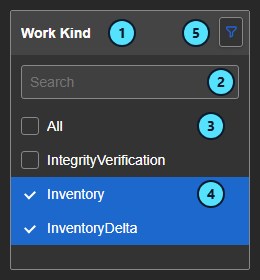
A Work Kind list in SQL Filter+ with Inventory and InventoryDelta selected, numbered callouts on the header, the search field, All, a selected value and the filter indicator
The parts of a SQL Filter+ list: header, search, All, values and indicator. Demo data. Select the image to enlarge.

Columns from an AF table, linked to SQL or static

The table is a normal AF table, so the query stays in AF and the filter works with whatever the table is linked to.

  • Pick the AF server, AF database and AF table, then choose the column the list is built from.
  • The AF table can be linked to a SQL database or hold static values; viewers need read access to the table.
  • Query parameters can be filled from the display start time, the display end time, a custom value or a data source.
  • The list reloads at an Auto Reload interval, one minute by default.
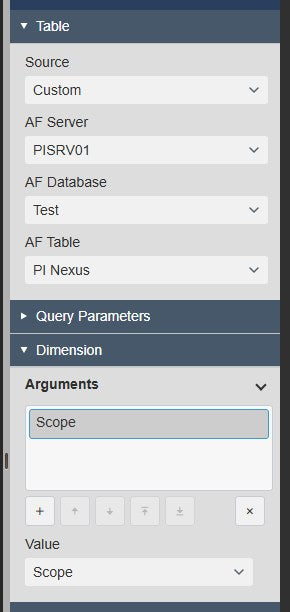
SQL Filter+ configuration pane with the Table section set to Custom, AF server PISRV01, AF database Test and the AF table PI Nexus, and the Dimension arguments with Scope as the value
Table and Dimension settings: AF table and the Scope column. Demo data. Select the image to enlarge.

Follow the asset to its own AF database

When the same table name exists in several AF databases, the filter can read the table of whichever asset the display shows.

  • Make an AF attribute the first data source and set the table source to its first option.
  • When the asset changes to another AF database, the symbol reads the table of the same name there.
  • One display can serve many assets or sites that each keep their own table.
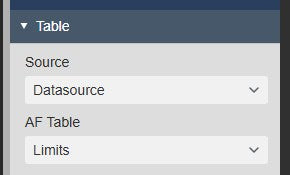
Table section of SQL Filter+ with Source set to the first data source and the table Limits picked
Table source set to the first data source, with the Limits table picked. Select the image to enlarge.

SQL filter lists, trees and numeric ranges

Present the choices in the form that fits the question: a flat list, a two-level tree or bands of a numeric column.

Numeric bands instead of every distinct number

Group a numeric column into bands you define when it has too many distinct values to list.

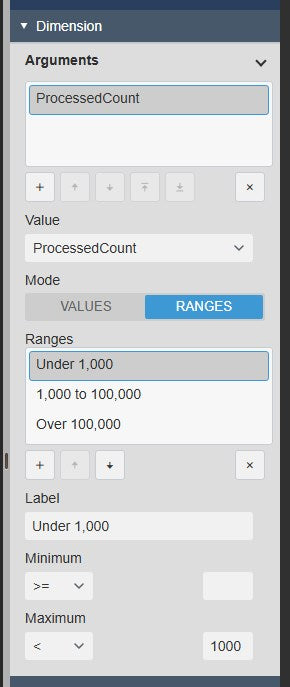
  • Set the mode to Ranges and add ranges with a label and a minimum, a maximum or both.
  • A range that is not valid is shown in red in the configuration pane.
  • A clicked range narrows the symbols on the same table.
  • Ranges publish no linked channels; they narrow symbols on the same table.
Dimension section of SQL Filter+ with the value ProcessedCount, the mode Ranges selected and three ranges, Under 1,000, 1,000 to 100,000 and Over 100,000, with the label, minimum and maximum of the first range
Dimension settings: ProcessedCount in Ranges mode with three ranges. Demo data. Select the image to enlarge.

A two-level tree for scope and trigger

Use a tree when one column groups another, such as a scope and what triggered it.

  • Add a second column and set the view to Tree.
  • Clicking a parent filters on the parent value; clicking a child filters on both.
  • Start Expanded opens the branches when the display loads.
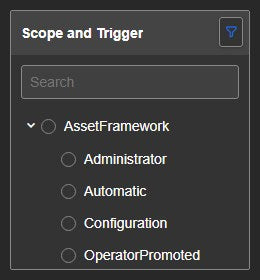
SQL Filter+ as a tree headed Scope and Trigger with the scope AssetFramework expanded and its triggers Administrator, Automatic, Configuration and OperatorPromoted below it
A two-level tree of scopes and the triggers below each. Demo data. Select the image to enlarge.

Open a display with a value already selected

Have a display open filtered, either always or from a link, so one display can serve many entry points.

  • Set a default selection with specific values, or use the last item.
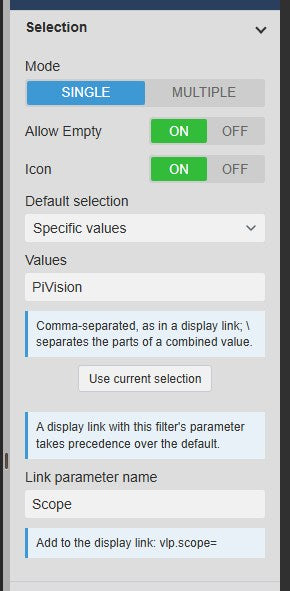
  • Enter a link parameter name such as Scope, and a link ending in ?vlp.scope=PiVision opens the display with PiVision selected.
  • A value in the link takes priority over the default.
  • Single or multiple selection, with an option to keep one value always selected.
Selection section of SQL Filter+ with Mode Single, Default selection set to Specific values with the value PiVision and the link parameter name Scope
Selection settings: default value PiVision and the link parameter Scope. Select the image to enlarge.

Combine SQL filters and link table values to events

Layer several filters on one table and pass a selected table value to symbols that use other data, such as event frames.

Several filters on one AF table

Combine filters such as scope and work kind, so a symbol on that table shows only the rows that match every filter.

  • Add a second SQL Filter+ on the same table with another column as its value.
  • Turn Ignore Master off and the second list offers only the values the first filter leaves.
  • Set the filter indicator to Full to show the remaining row count at all times, such as 239 of 2752 rows.
  • A filter on another AF table is not affected.
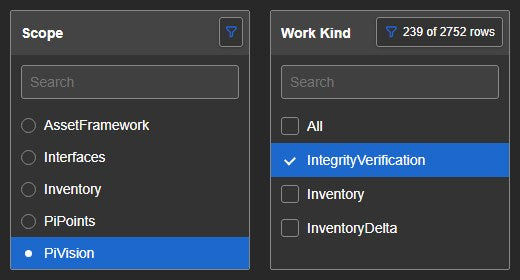
A Scope filter with PiVision selected and a Work Kind list narrowed to IntegrityVerification, Inventory and InventoryDelta, with the indicator 239 of 2752 rows
Scope filter with PiVision selected and a Work Kind list narrowed to the values left. Demo data. Select the image to enlarge.

Filter event symbols through a channel

When another symbol uses different data, a column value can still drive it, as long as the same value exists as one of its properties.

  • Set the output mode to Linked, or Both if symbols on the same table should follow too.
  • Add an output with a channel name and the column as its source; add an input with the same channel on the other symbol and name its target property.
  • Click a value and the other symbol shows only its rows with that value, with its own count.
  • A channel carries values, so it also connects two different AF tables. Values must match exactly, including their type.
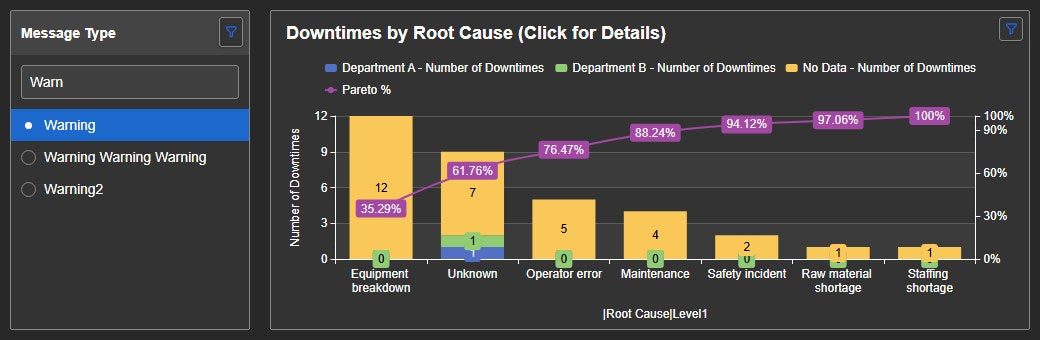
SQL Filter+ headed Message Type with the search text Warn and Warning selected, next to an Event Analytics Chart+ titled Downtimes by Root Cause that follows the selection
A SQL Filter+ selection driving an Event Analytics Chart+ through a linked channel. Demo data. Select the image to enlarge.

PI Vision SQL filter examples

Four common ways teams use SQL Filter+ on their displays.

Rows by scope

Data
An AF table with a Scope column, linked to SQL or static
Settings
Argument Scope, single selection, SQL Table+ on the same table beside it
Shows
Only the table rows of the selected scope

Two columns, narrowing step by step

Data
An AF table with columns such as Scope and WorkKind
Settings
Two SQL Filter+ symbols, Ignore Master off on the second, filter indicator Full
Shows
A second list with only the values left, and the remaining row count such as 239 of 2752 rows

Numeric bands

Data
A numeric column such as a processed count
Settings
Mode Ranges with labelled bands such as Under 1,000 and Over 100,000
Shows
The rows inside the clicked band

Events by table value

Data
An AF table column and an event symbol with a matching property
Settings
Output Mode Linked, channel Severity with the source column, input with the same channel on the event symbol
Shows
Only the events whose property matches the clicked value

SQL Filter+ FAQ

Questions we are asked most often. Read the SQL Filter+ documentation or ask a technical question.

How is SQL Filter+ different from Asset Filter+ and Event Filter+?

SQL Filter+ builds its list from a column of an AF table. Asset Filter+ and Event Filter+ take their values from AF assets or event frames. Choose SQL Filter+ when the values live in a table; a SQL Table+ on the same table follows it, and a linked channel can carry a table value to symbols that use other data.

Does SQL Filter+ connect to our database directly?

No. It reads an AF table, and the query lives in AF, not in the symbol. The AF table can be linked to a SQL database or hold static values. Display viewers need read access to the table.

Which symbols follow the filter?

A SQL Table+ on the same AF table shows only the matching rows. Filters on another AF table are not affected. To drive symbols that use other data, such as event frames, publish the selected value through a linked channel; the value and its type must match the target property exactly. A selection changes the display for the viewer only: it does not write to the AF table or change the saved display.
Can we use it with a very large table?

SQL Filter+ reads every row of the AF table in the browser, and PI Web API offers no paging for AF tables. A very large table therefore takes longer to load. The list reloads at the Auto Reload interval, one minute by default.

What do we need to run it?

Vision Library+ 2.2 with PI Vision 2021 or later and PI Web API, and PI AF Server 2018 SP2 or later. The AF table is created in the AF database, and viewers need read access to it.

How do we get SQL Filter+?

SQL Filter+ is part of Vision Library+, together with the other Vision Library+ symbols. Request a trial to test it in your own PI Vision environment.

Try SQL Filter+ in your PI Vision

SQL Filter+ is included in Vision Library+, the PI Vision custom symbol library from Software Athlete. Test it on your own displays and data.