
PI VISION OPERATOR-LOG GUIDE
Create an Operator Log in PI Vision with Events Table+
Define a structured PI AF Event Frame template, place Events Table+ in a PI Vision display, and let operators create and update log entries without leaving the display.
An operator log is useful only when the entries can be found, compared, and understood later. A free-text note in a spreadsheet may record what someone saw, but it does not automatically carry the event time, affected asset, status, or operator context into the PI System.
This guide uses PI AF Event Frame Templates for the record structure and Events Table+ for the editable PI Vision workflow. Vision Library+ provides the custom symbol library; Vision Report+ is optional if the completed log must also be distributed as a report.
Define the record
Create one Event Frame template with the fields operators actually need to complete.
Build the display
Configure the Event Frame search and add Events Table+ with the right columns and actions.
Use and share the log
Create entries, update them as work progresses, and optionally generate a repeatable report.
Step 1 · PI AF configuration
Define the operator-log Event Frame template
Start in PI System Explorer. Under the appropriate AF database, create an Event Frame Template for the log. The name is not important as long as users can recognize it; Production Operator Log is a practical example.
For each attribute, decide whether it is entered by the operator, calculated from the process, or selected from a controlled list. Mark fields for manual data entry only when the operator should be able to edit them through the display.


| Attribute | Purpose | Example values |
|---|---|---|
| Log Type | Classifies the entry for filtering and review. | Information, Warning, Downtime, Maintenance, Safety, Quality |
| Operator | Identifies who created or completed the entry. | User name or operator ID |
| Description | Records what was observed or what action was taken. | Pump vibration observed during startup |
| Status | Shows whether the item is open, being investigated, or closed. | Open, In progress, Closed |
| Severity | Supports prioritization in the table and later analysis. | Low, Medium, High |
| Asset or area | Connects the log entry to the affected process context. | Reactor B, Unit 3 Boiler, Well Pad C |
Keep the template small: required fields should help a user make or communicate a decision. Add optional attributes later when the workflow proves that the information is useful.
Step 2 · PI Vision display
Configure Events Table+ for the operator log
Open a new or existing PI Vision display and configure the Event Frame search before placing the table. Use the template name, element context, and time range that match the area where the log will be used.

Add the symbol
Insert Events Table+ from the Vision Library+ symbols available on your PI Vision server.
Choose the Event Frame source
Select the configured operator-log search and expose the columns that operators need: time, log type, operator, status, severity, asset, and description.
Enable Event Frame creation
Turn on the creation action and select the operator-log template. Map the fields that should appear in the creation form.
Configure the editable properties
Allow edits only for the attributes that operators are expected to maintain, such as status, severity, description, and action taken.
Save and test the display
Save the display with a name that tells users what it is for, then test it with the same permissions used by the operating team.


Step 3 · Logging and maintenance
Create, update, and find log entries
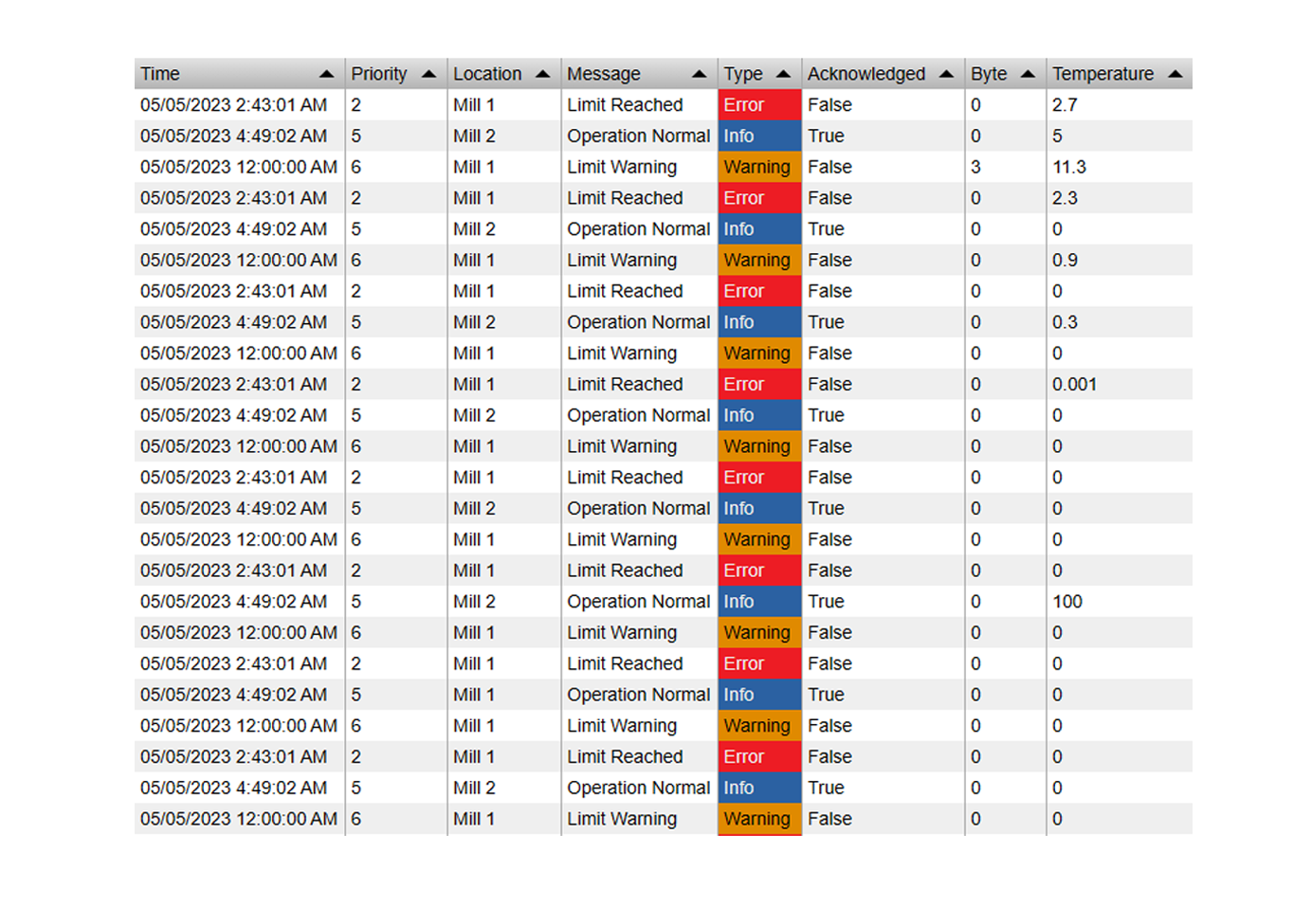
When the display is open, Events Table+ shows the operator-log Event Frames that match the search. To create a new entry, select the creation action, choose the template, set the start and end time, and complete the configured fields.
After saving, the Event Frame is stored in PI AF and appears in the table. Operators can then update editable attributes as the situation changes, for example moving a status from Open to Closed or adding the action taken after a problem is resolved.


Search
Find entries by the configured text and Event Frame context instead of scanning a separate spreadsheet.
Filter
Narrow the table by time range, log type, status, severity, asset, or another configured field.
Update
Change editable attributes as the work progresses and keep the current state with the original event.
Review
Use the timestamps and structured fields to reconstruct what happened during a shift or investigation.
Optional reporting
Distribute the completed log with Vision Report+
If the operator log must be sent to a shift supervisor, stored as a PDF, or reviewed on a schedule, connect the PI Vision display to Vision Report+. The display remains the working record; the report is the repeatable output.
Configure the report to use the same Event Frame context and time range as the log. Test the output with a small set of entries before setting up recurring delivery or an Event Frame trigger.

Rollout and verification
Test the operator log before production use
Test the template
Confirm the Event Frame name, attribute data types, manual-entry flags, enumerations, and affected-asset context.
Test creation
Create a non-production entry and confirm that the start time, end time, operator, and required fields are saved correctly.
Test editing
Update status, severity, and description with the intended user permissions, then refresh the display and verify the values remain.
Test search and filters
Change the time range and filter values to confirm that the correct Event Frames appear and unrelated records are excluded.
Test reporting if enabled
Generate one report manually and check that the display, time range, and operator-log entries are represented correctly.
FAQ
Operator-log questions
Does an operator log need Event Frames?
For a structured PI Vision log, Event Frames provide the time-bounded record that carries the operator fields. A separate note or spreadsheet does not provide the same PI AF context and search behavior.
Which fields should operators edit?
Common editable fields include description, status, severity, action taken, and comments. Keep technical or calculated fields read-only unless there is a clear operational reason to change them.
Can the table show only the current area or shift?
Yes. Configure the Event Frame search, affected elements, time range, and filters for the operating context. Test the result with the same display permissions used by the team.
Is Vision Report+ required?
No. Events Table+ can be used as the working operator log by itself. Vision Report+ is optional when the completed log also needs scheduled, triggered, or on-demand distribution.
Put the operator log in the PI Vision workflow
Use Events Table+ to connect structured Event Frame data with the display where operators already review process information.