



PI System infrastructure monitoring
How to Monitor PI System Servers and Interfaces Before Data Gaps Reach Operators
A PI interface stops, an archive disk fills or a PI Vision application pool halts, and the first report is often an operator with a flat trend. This guide shows how to watch PI System servers, interfaces and services in PI Nexus+, then acknowledge and track what it finds.
Before you begin
PI Nexus+ calls a monitored Windows server a host: a PI Data Archive, AF Server, PI Vision server, SQL Server or interface node. Each host has sensors such as a disk, a Windows service, a PI interface or a SQL Server log, and a host shows the status of its worst sensor.
This guide covers whether servers, services and interfaces are running now. To check PI Points, AF analyses and displays for configuration problems instead, use the PI System health check guide. For a value on a display that has stopped updating, see how to flag stale values in PI Vision.
Prerequisites
- PI Nexus+ with Host Monitoring, which is documented in the user guide and the reference.
- A PI Nexus+ Admin to add hosts, and the Operator role to acknowledge or suppress issues. The Viewer role can read the Monitoring page.
- A Windows account that PI Nexus+ can use to read each host. That account does not need administrator rights on the monitored servers, but a local administrator runs the rights script once on each host (see step 2).
1. Decide what to watch on each server role
PI System infrastructure tends to fail quietly. The table lists what PI Nexus+ reads for each role and the issues it can raise, so you know what you are asking it to catch. Limits shown are the defaults and can be adjusted by an administrator.
| Server role | What it reads | Issues it can raise |
|---|---|---|
| Every host | Disks, CPU, memory, clock, uptime, watched Windows services | Low disk space (Warning below 10 % free, Error below 5 %), Disk filling up (full within 30 days), Host not answering, Clock drift, Host restarted, Windows service stopped |
| PI Data Archive | Snapshot event queue, primary archive fill, PI Backup result, availability check | PI Backup failed, PI event queue growing, Service not answering |
| Interface node | PI Interfaces and PI Adapters, PI Buffer queued events and connection | Interface or adapter Down, PI Buffer queue growing |
| AF Server | Availability check, watched AF and analysis services | Service not answering, Windows service stopped |
| SQL Server | Per database: log used, last full backup; blocked sessions | SQL log filling (Warning above 80 %, Error above 95 %), SQL backup old (no full backup for 2 days), SQL blocking (off by default) |
| PI Vision server | IIS application pool state and recycles, web site connections and requests, w3wp memory, URL availability check | Application pool stopped, Service not answering |
2. Add the servers as monitored hosts
An administrator does this once per server. In Admin > Hosts, choose Add host (or Add beside a server under Suggested hosts, which includes PI Interface and PI Adapter nodes), enter the server's DNS name and choose Add & test access. Polling starts only after the access test passes, so wait for Access to show Ready. If it shows No access, the failed step is named with its remedy.
Root\CIMV2 and, for CPU, disk latency and role counters, Performance Monitor Users. The Grant-PINexusHostAccess.ps1 script from Admin > Hosts sets these up. Run it on the host in Windows PowerShell 5.1 as a local administrator, with -WhatIf first. SQL Server reads are optional and use SELECT statements only. See the administration guide for the full procedure.Within five minutes the Monitoring board shows the host's CPU, memory and disks. Checks that are not available on a host, such as an unreadable SQL Server, do not raise issues and do not stop the rest of the monitoring.
3. Read the Monitoring board
Open Monitoring > Board to see what is down right now. The counters at the top (Down, Error, Warning, Stale, Up, Maintenance, Paused) count sensors. Select a counter to show only those sensors, search by host or sensor name, and select a green chip such as 18 ok to see the healthy sensors. The board refreshes every minute and follows the selected Site.
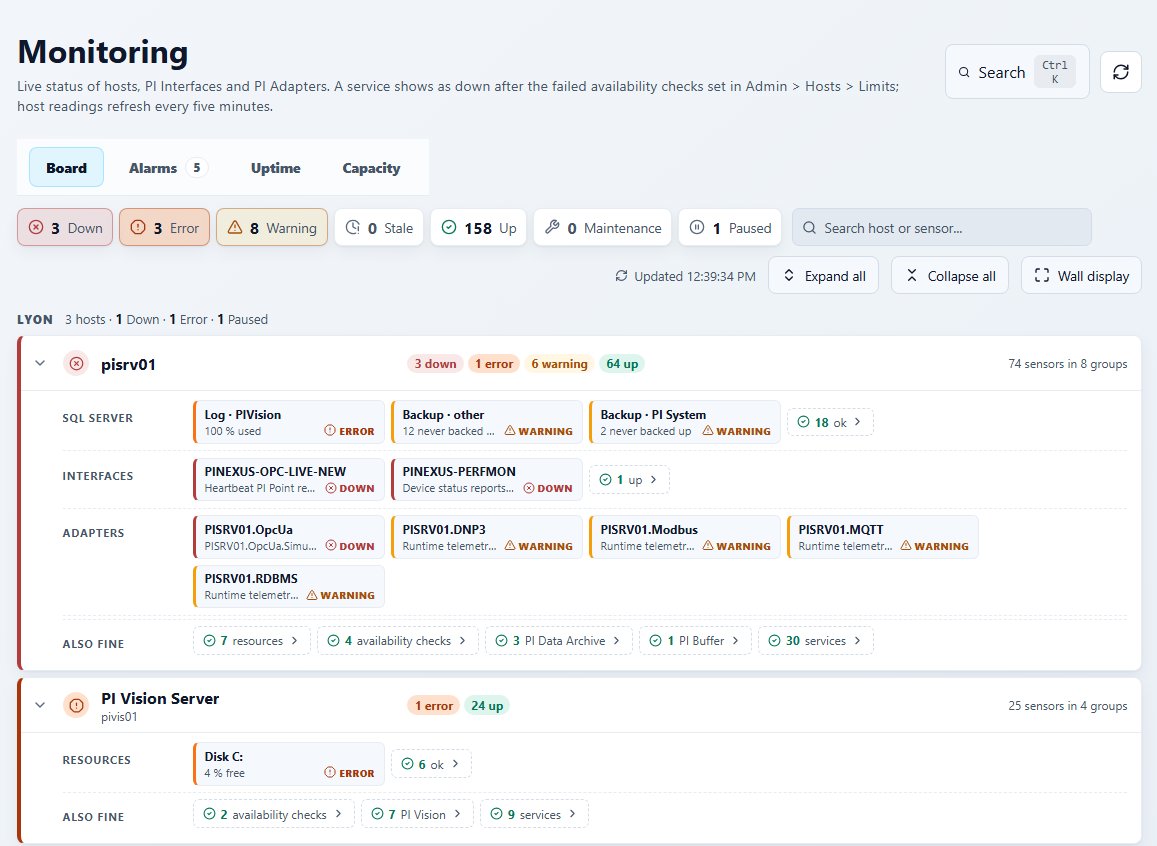
The status words have different triggers. Down means no answer: three failed polls in a row, a failed availability check, or an interface or adapter reporting Error. Error and Warning mean an open issue. Stale means no fresh data for three intervals (15 minutes for a polled host). Servers carrying PI Interfaces or Adapters that are not added as hosts appear under Not on a monitored host, which is a sign that a node is missing from step 2.
For a control-room screen, choose Wall display on the Board or Alarms tab. Press Esc to leave it.
4. Work through the Alarms list
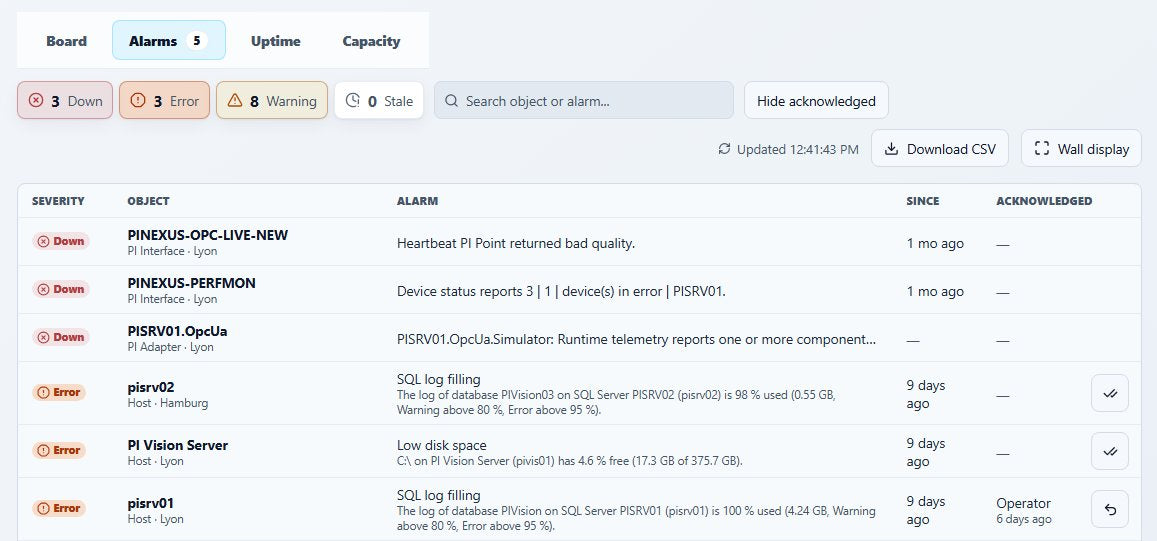
The Alarms tab lists every board problem as one row, worst first, with its age and who acknowledged it. Select a severity count to filter, turn on Hide acknowledged to see only issues nobody has taken, and use Download CSV (Operator role) to export the filtered list. Selecting a row opens its host, interface or adapter.
5. Open one host and check its services, interfaces, SQL Server and IIS
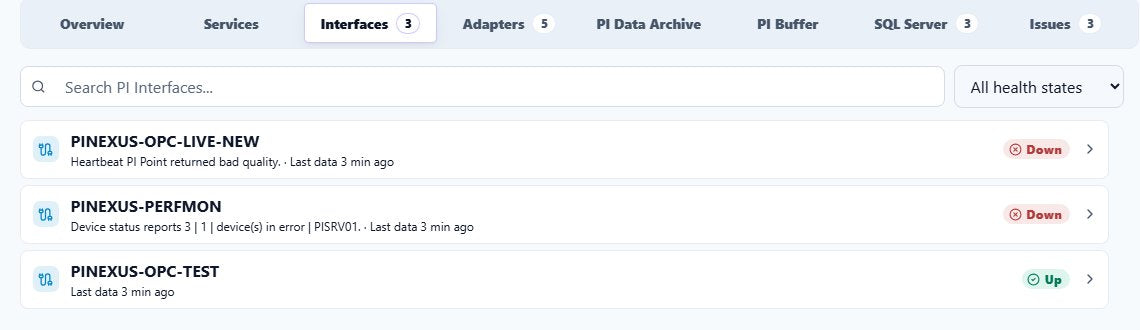
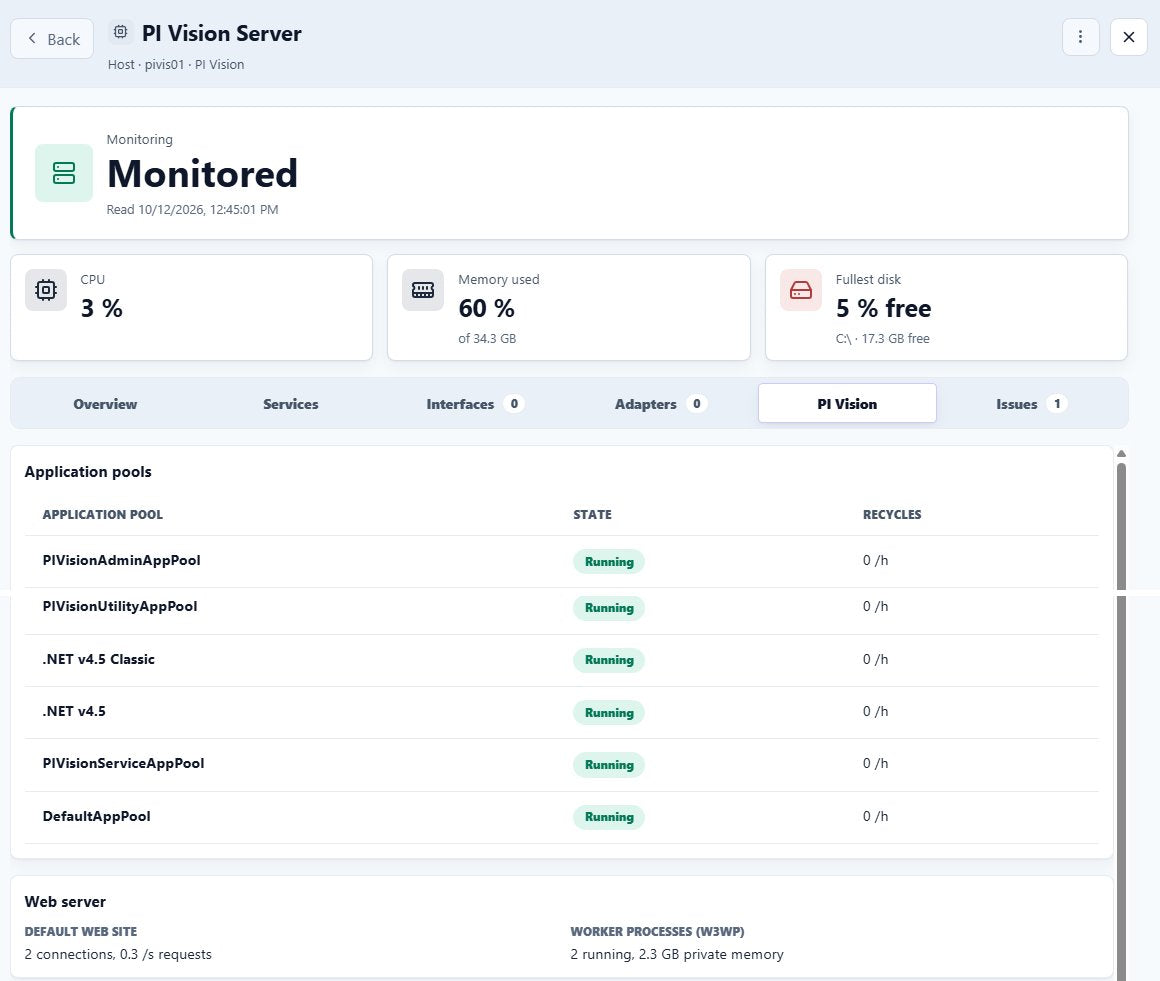
Open a host from its name on the board. Start with the monitoring state (Monitored or Not answering) and the CPU, Memory used and Fullest disk cards, then work through the tabs. The trend range can be set to 24 hours, 7 days or 30 days. Under each availability check, a green strip means every check answered, amber means some did not, and red means none did.
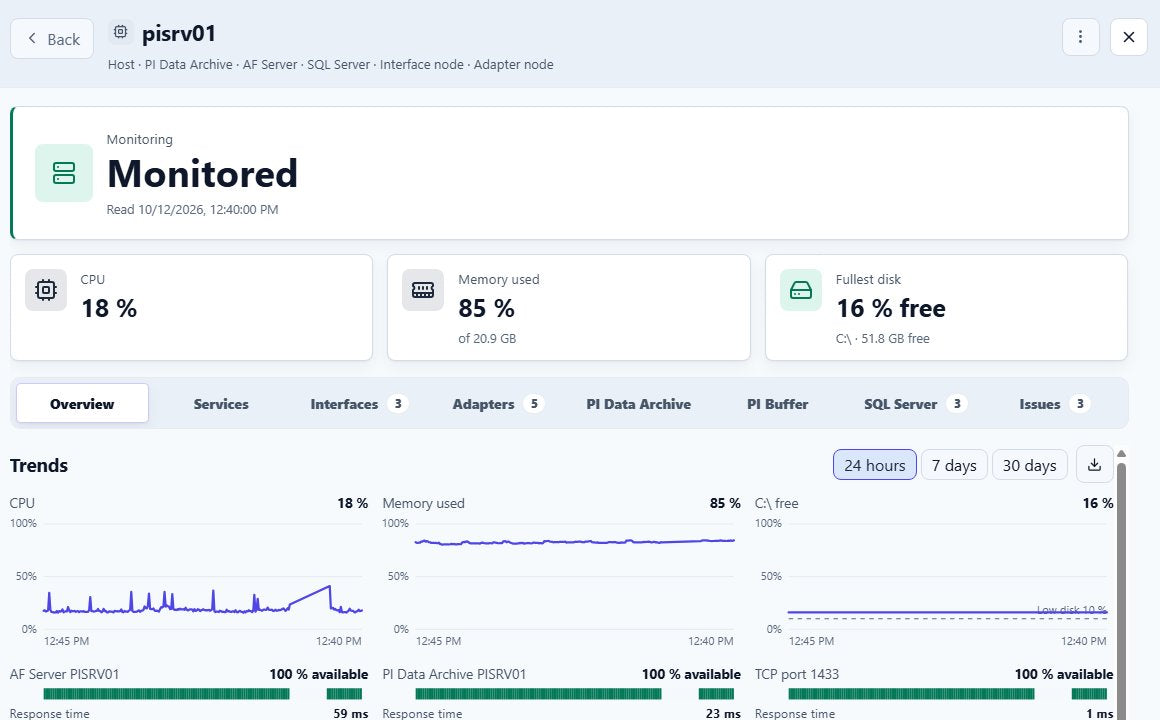
- Interfaces: each PI Interface with its health and the time of its last data. A Down row carries the reason the interface reported.
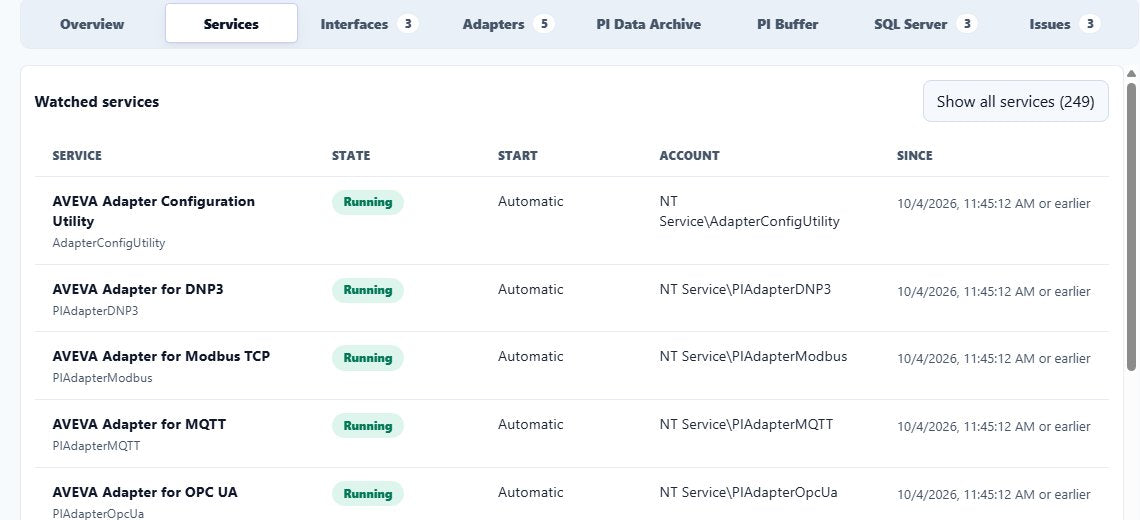
- Services: the watched Windows services with state, start type and account. A watched automatic-start service that is not running raises an error, and Show all services lists the rest.
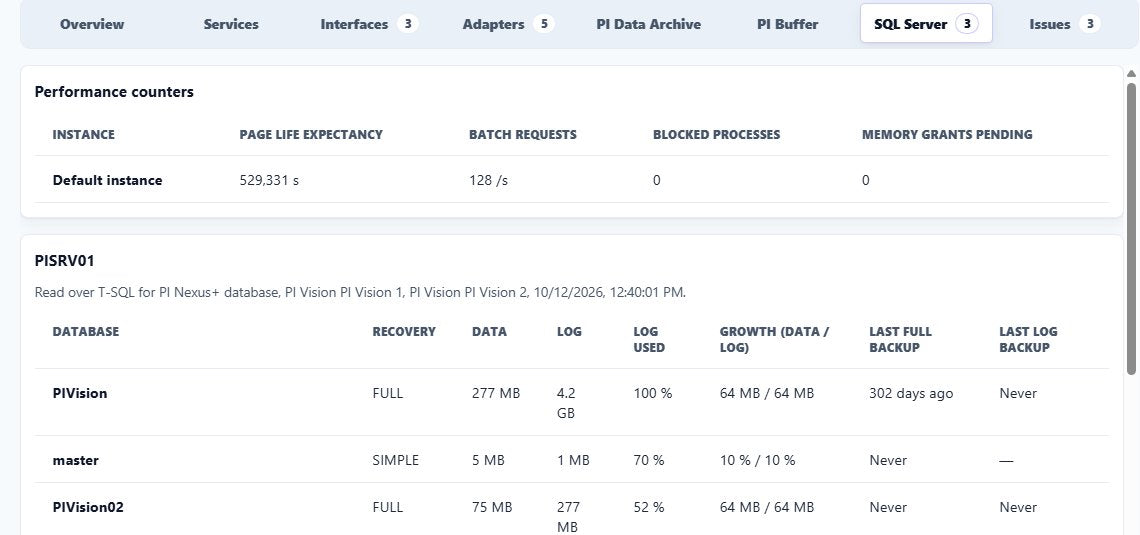
- SQL Server: log used, recovery model, last full backup and last log backup for each database.
- PI Vision: application pool state and recycles, web site connections and requests, and w3wp memory.
6. Acknowledge or suppress the issue
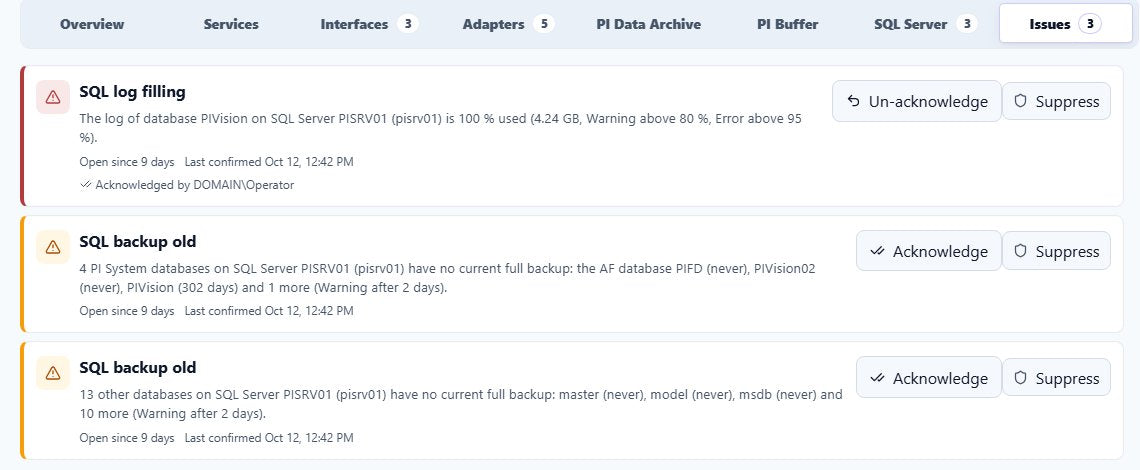
With the Operator role, respond from the host's Issues tab, the Issues page or the Alarms list. Acknowledge means someone is working on it. Suppress is only for conditions you have decided to accept, and asks for a reason and an optional expiry. The difference matters:
| Acknowledge | Suppress | |
|---|---|---|
| Board and Alarms | Issue stays, with its severity | Issue disappears |
| Emails | Stops reminders and escalation; the recovery email is still sent | Stops all emails |
| Applies to | This occurrence. A recurring issue starts unacknowledged again | Every issue of that type on the host |
| Ends | When the issue resolves | When restored or when the expiry passes |
Host emails are off by default and are configured under Admin > Notifications > Delivery Rules. Reminders and escalations are separate options that are also off by default. When switched on, they apply to open, unacknowledged, unsuppressed Error issues outside maintenance windows.
7. Use Capacity and Uptime to catch slow problems
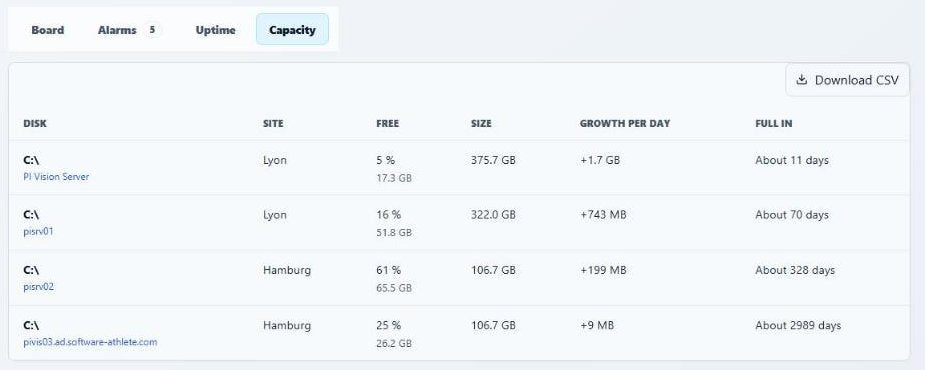
Some failures build up gradually. Monitoring > Capacity lists every disk with its free space, Growth per day and Full in, soonest first. The forecast uses the trend of the last seven days, needs at least 24 hours of data, and is recalculated hourly. A Disk filling up warning is raised when a disk is forecast to fill within 30 days, which can be well before the Low disk space thresholds are reached.
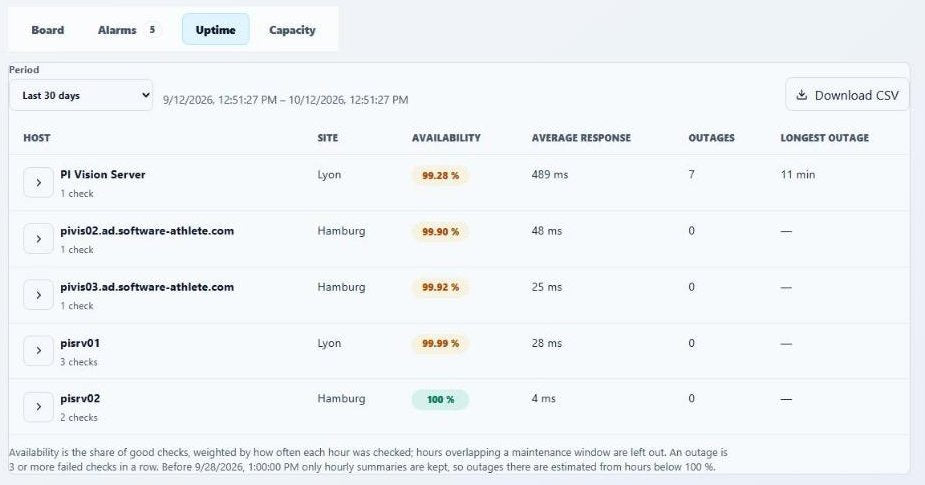
Use the Uptime tab to see which hosts have been unreliable over a period of the last 30 days, the last 90 days or a calendar month. It shows Availability (maintenance window hours are excluded), the number of Outages (three or more failed checks in a row by default) and the Longest outage. Expand a host to see its individual checks, and use Download CSV to export the figures.
Verify the result
Monitoring works when a problem reaches your team before it reaches operators. Check these points after adding your first servers:
- Every server you named in step 1 shows Ready under Admin > Hosts and appears on the Monitoring board with CPU, memory and disks.
- The board and Alarms list show the same open problems, and Not on a monitored host contains no interface node you meant to monitor.
- Each open issue is either acknowledged by a named person or suppressed with a reason and, where appropriate, an expiry.
- Capacity lists the disks of the servers that matter, with their Full in forecast.


