Event Frame Form+ for AVEVA PI Vision

PI Vision event frame data entry one card per event

Let operators work through Event Frames one at a time on the PI Vision display: each event becomes a card where they classify downtime, complete attributes and acknowledge the event, then save or revert their changes.

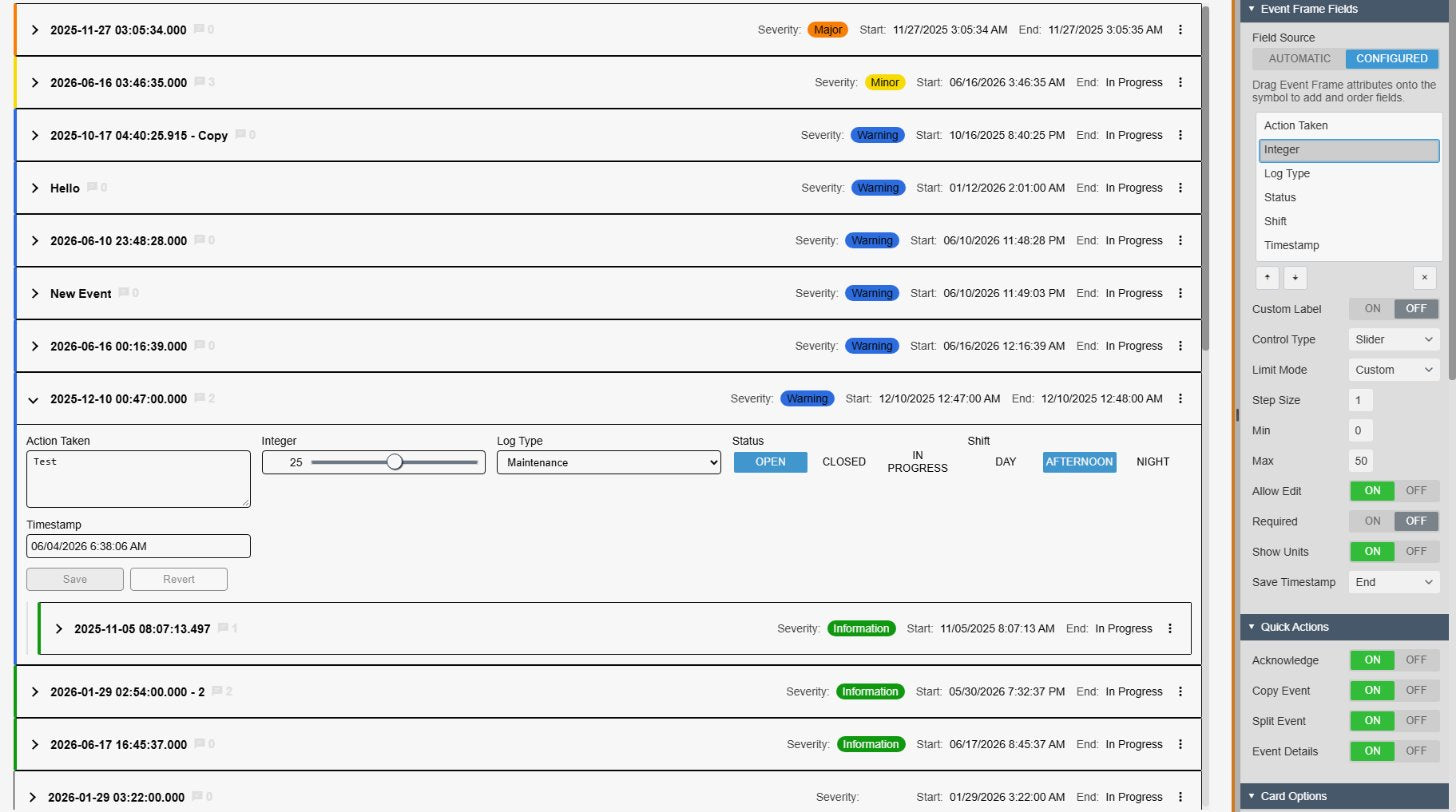
Event Frame Form+ in PI Vision with a list of event cards sorted by severity; one expanded card shows an action text area, an integer slider, a log type dropdown and status and shift button groups with Save and Revert, and a child event card sits inside it. Next to the cards are the Event Frame Fields settings with Field Source Configured and the field options
Event Frame Form+ v2.0 with the Event Frame Fields settings. Demo data. Select the image to enlarge.

Event Frames as editable cards in PI Vision

Every Event Frame the PI Vision event search returns becomes a card. Operators scan the collapsed headers and open the event they need to complete.

A card for every Event Frame

Show operators the events that need attention without a table full of columns.

  • The collapsed header shows the event name, severity, start and end time, with a coloured edge for the severity.
  • One click expands a card to its fields; cards can also start expanded.
  • With Event Hierarchy on, child event frames appear inside their parent card.
  • A comment button shows the number of comments on each event.
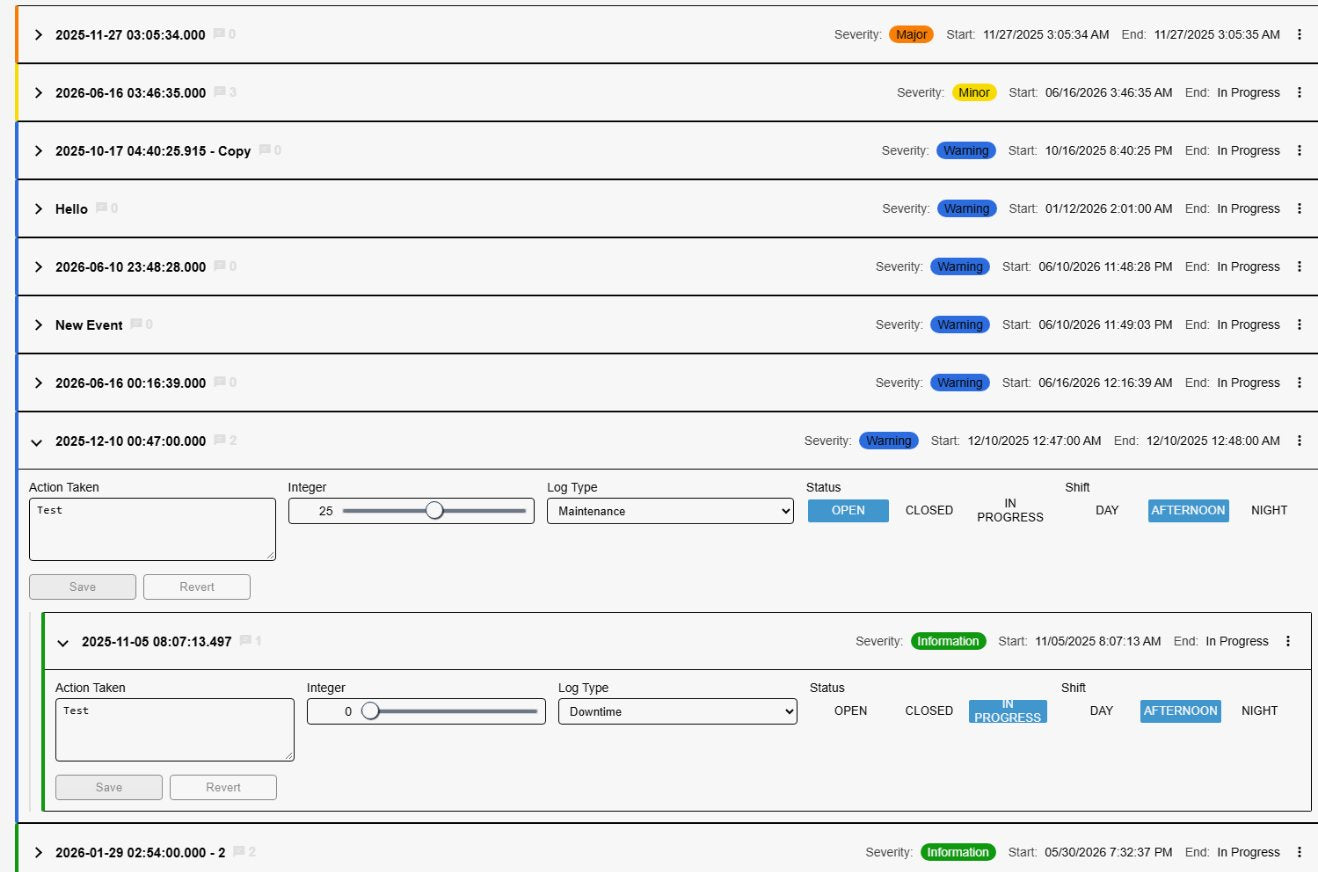
Event Frame Form+ with several collapsed event cards showing the event name, a comment count, a severity badge, start and end time and a coloured severity edge, and one expanded card with its fields and an expanded child event card inside it
Collapsed and expanded event cards, with a child event inside its parent. Demo data. Select the image to enlarge.

Choose what the card header shows

Put the information operators use to pick the next event right in the header.

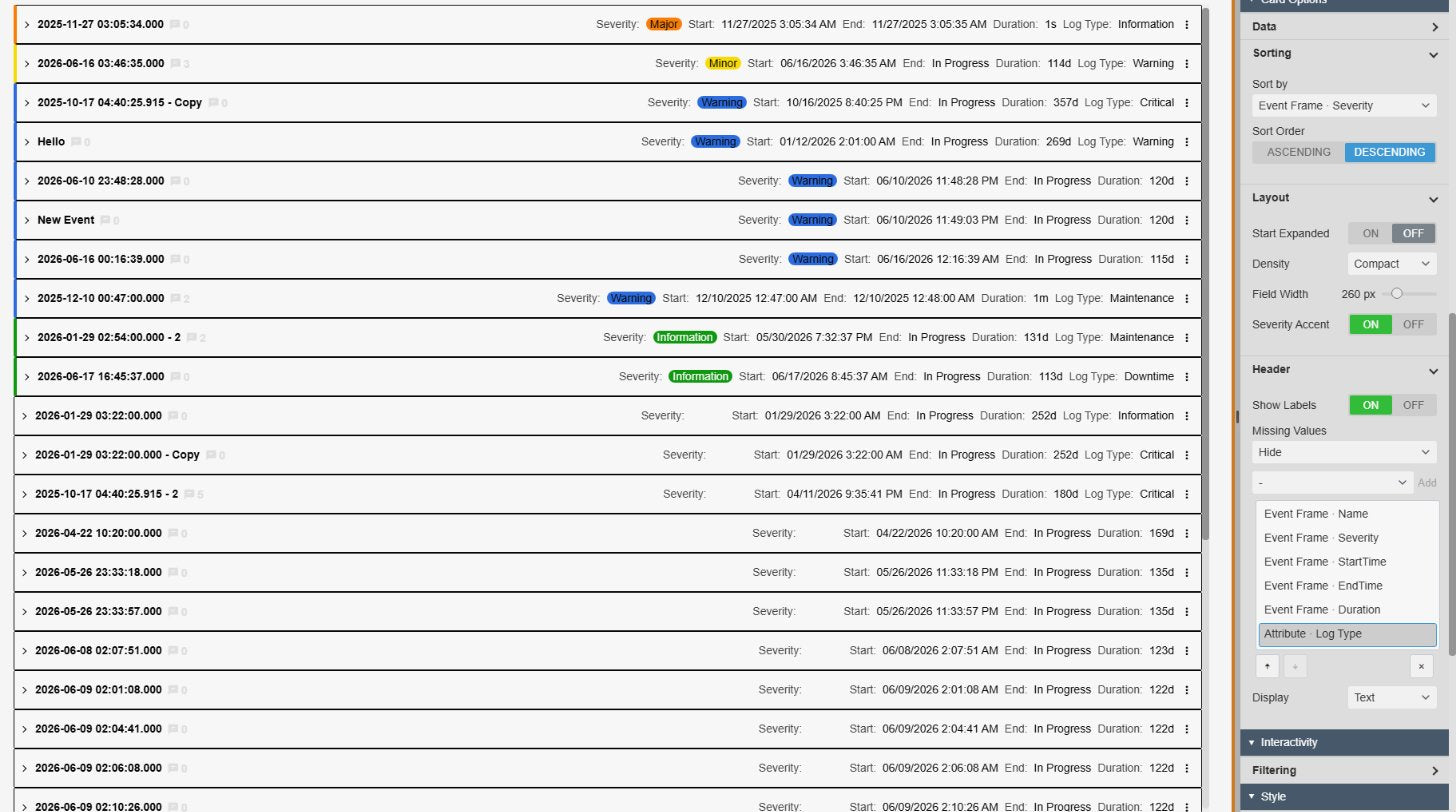
  • Header fields from Event Frame properties such as duration, template or status, or from attributes.
  • Sort the cards by severity, start time or any attribute, ascending or descending.
  • Comfortable or Compact density, an adjustable field width, labels on or off, and hidden empty values or a placeholder.
  • Optionally show the last known value of a PI Point attribute from before the event started when none was recorded during it.
Event Frame Form+ at compact density with many collapsed cards whose headers show severity, start and end time, duration and log type, next to the Card Options settings with Sorting, Layout and the Header field list
Compact cards with extra header fields, and the Sorting, Layout and Header settings. Demo data. Select the image to enlarge.

Type-aware fields for event frame data entry

Each field gets an editor that matches its AF data type, so operators choose from valid values instead of typing codes.

The right editor for every AF data type

Make complete and correct event records the easy path for operators.

  • Text or text area, number or slider, switch, button group, dropdown and a date and time picker.
  • Enumerations get buttons or a dropdown automatically, depending on the number of states.
  • Custom labels and state names without changing the stored values.
  • Show units beside the value, and switch off Allow Edit for fields operators should only read.
An expanded Event Frame Form+ card with a text area, an integer slider, a log type dropdown, status and shift button groups and a date and time field, with Save and Revert disabled
One card with different field editors. Demo data. Select the image to enlarge.

Automatic fields or an approved list

Start without configuration, or decide exactly which attributes operators may see and change.

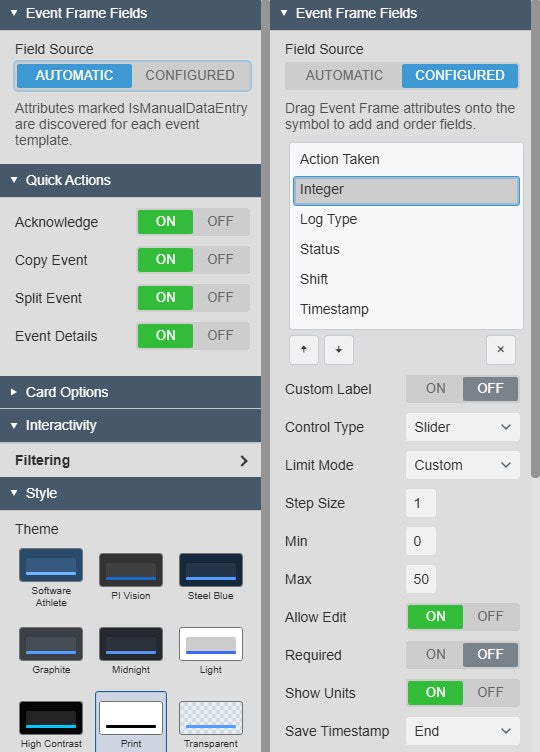
  • Automatic finds the attributes marked for manual data entry in each Event Frame template.
  • Configured shows only the attributes you drag onto the symbol, in your order.
  • Per field: allow editing, make it required, apply AF or custom limits, and write the value at the event’s start or end.
  • Add a multi-state to colour fields by value, as a fill, text or card accent.
Two views of the Event Frame Fields settings of Event Frame Form+: Field Source Automatic with its hint, and Field Source Configured with the field list and the options of one field: Custom Label, Control Type, Limit Mode, Step Size, Min, Max, Allow Edit, Required, Show Units and Save Timestamp
Field Source Automatic (left) and Configured with one field’s options (right). Select the image to enlarge.

Save, revert and act on events from the card

Operators see exactly what they changed, save one card at a time and run the event actions you enable.

Save or revert each card

No half-finished records and no lost work.

  • Edited fields are outlined and an Unsaved badge appears next to the event name until the card is saved.
  • Save and Revert apply to the whole card; Revert discards the edits.
  • Mark fields as required in the field settings.
  • Each card is saved on its own, so edits on one event do not touch another.
An Event Frame Form+ card with an edited text field outlined, an Unsaved badge next to the event name and the Save and Revert buttons enabled
A card with an unsaved edit, before Save or Revert. Demo data. Select the image to enlarge.

Acknowledge, copy, split and open event details

Handle the event itself from the same card.

  • An Acknowledge button in the header of events that support acknowledgement.
  • Copy Event and Split Event in the card’s action menu.
  • Event Details opens the event details.
  • Only the quick actions you switch on are shown.
Event Frame Form+ event cards with the open action menu of one card listing Copy Event, Split Event and Event Details
The card action menu with Copy Event, Split Event and Event Details. Demo data. Select the image to enlarge.

Part of the event dashboard

Combine the form with event charts and filters on the same display.

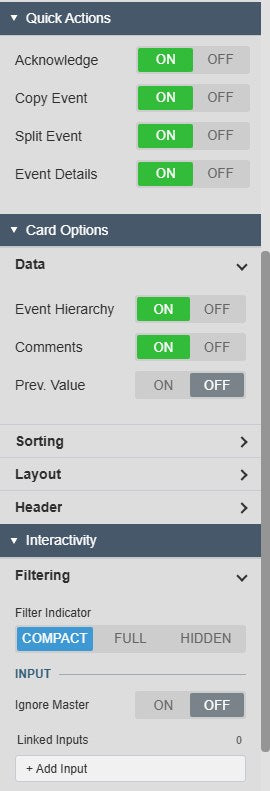
  • Receives Master and Linked filters, for example from Event Filter+, and narrows its cards to the filtered events.
  • A filter indicator in compact, full or hidden form shows when a filter is active.
  • Theme presets, flat or gradient surfaces and container styles match the display.
Event Frame Form+ settings with the Quick Actions Acknowledge, Copy Event, Split Event and Event Details, the Card Options Data group with Event Hierarchy, Comments and Prev. Value, and the Filtering input with Filter Indicator, Ignore Master and Linked Inputs
Quick Actions, Card Options and Filtering settings. Select the image to enlarge.

PI Vision event frame data entry examples

Four ways teams can set up Event Frame Form+. Templates and attribute names are examples.

Downtime classification

Data
Open downtime Event Frames with Reason and Comment attributes
Settings
Configured fields, Reason as a dropdown and required, Comment as a text area, header with asset and duration
Shows
Operators give every stop a reason and a note before saving the card

Shift log

Data
One Event Frame per shift with status, actions and remarks attributes
Settings
Automatic fields, Start Expanded, Status as a button group, Comments on
Shows
The current shift’s record ready to complete, with earlier shifts below

Excursion review

Data
Limit-excursion Event Frames that support acknowledgement
Settings
Quick action Acknowledge, cause and action fields, Severity Accent, Compact density
Shows
Excursions worked through one by one, acknowledged and documented

Batch quality record

Data
Batch Event Frames with sample result attributes
Settings
Numeric fields with custom limits and units, Save Timestamp End, Event Details quick action
Shows
Lab values recorded on each batch, checked against limits before they are saved

Event Frame Form+ FAQ

Questions we are asked most often. Read the Event Frame Form+ documentation or ask a technical question.

When should we use Event Frame Form+ instead of Events Table+ or Manual Input Form+?

Use Event Frame Form+ when operators work through Event Frames one at a time, for example to classify downtime, write a comment or acknowledge an event. Use Events Table+ when comparing, grouping, filtering or exporting many events matters more. Use Manual Input Form+ when operators record values on PI Points or AF attributes that are not tied to an Event Frame.

Which actions change data in the PI System?

Saving a card writes the edited field values. Acknowledging an event, and saving in the Copy Event and Split Event windows or the Event Details window, also write to AF. Every write goes through PI Web API with the user’s own permissions, so PI Web API must allow writes and users need write access to the Event Frames. Attributes that reference a PI Point are written at the event’s start or end time, as set per field.

Which attributes does the form show?

With Field Source Automatic, the form shows the attributes marked for manual data entry in each Event Frame template, so different templates get their own fields. With Configured, it shows only the attributes you drag onto the symbol, in your order, with per-field labels, editors, limits and required flags.

Can the form work with filters from other symbols?

Yes. Event Frame Form+ receives Master and Linked filters, for example from Event Filter+ or Events Table+, and narrows its cards to the filtered events. The form does not publish filters itself.

What do we need to run it?

PI Vision 2021 or later with PI Web API, and PI AF Server 2018 SP2 or later with Event Frames that the PI Vision event search finds. To save, acknowledge, copy or split, PI Web API must allow writes and users need write permission on the Event Frames. Administrators can cap the number of events loaded per search and restrict the configuration pane to PI Vision administrators.

How do we get Event Frame Form+?

Event Frame Form+ is part of Vision Library+, together with the other Vision Library+ symbols. Request a trial to test it in your own PI Vision environment.

Try Event Frame Form+ in your PI Vision

Event Frame Form+ is included in Vision Library+, the PI Vision custom symbol library from Software Athlete. Test it on your own displays and data.