Quick Input+ for AVEVA PI Vision

PI Vision input controls for one value, one action

Put a switch, button, slider, step input, list or text field on a PI Vision display and let operators write one value to a PI Point or AF attribute. Quick Input+ offers the controls that fit the data type and writes when the value changes, or when the operator applies it.

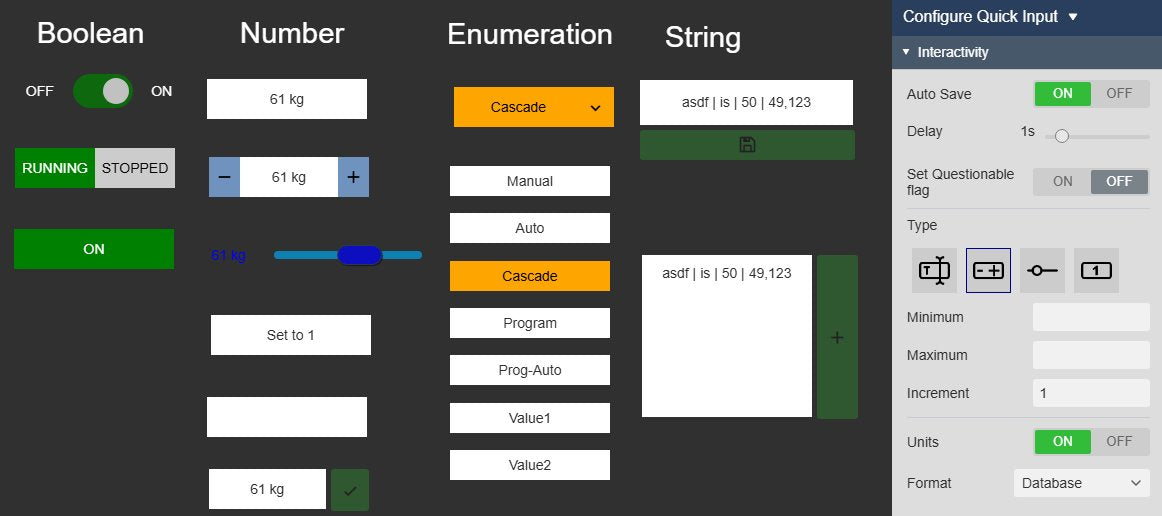
Quick Input+ controls on a PI Vision display, grouped by data type: a switch, a segmented button and a toggle button for on/off values; an input field, a step input, a slider, a value button and an input field with an Apply button for numbers; a dropdown and a list of operating modes; and two text fields with save buttons. Beside them the Interactivity settings of the step input with Auto Save, Delay, Set Questionable flag, the numeric control types, Minimum, Maximum, Increment, Units and Format
Quick Input+ v2.0 in PI Vision: one control per value, chosen by data type, with the settings of the step input. Demo data. Select the image to enlarge.

PI Vision input controls for every data type

Quick Input+ reads the data type of the PI Point or AF attribute and offers the controls that fit it, so operators see a switch for a flag and a slider for a setpoint.

Switches and buttons for on/off values

Let operators set a flag, mode or check to on or off with a control they recognise.

  • Toggle switch, segmented button or toggle button for Boolean and two-state digital values.
  • Your own labels for the true and false states, such as Running and Stopped.
  • Your own colours for the true and false states, and the switch size.
  • A value button that writes a fixed value on every click, for one-shot entries.
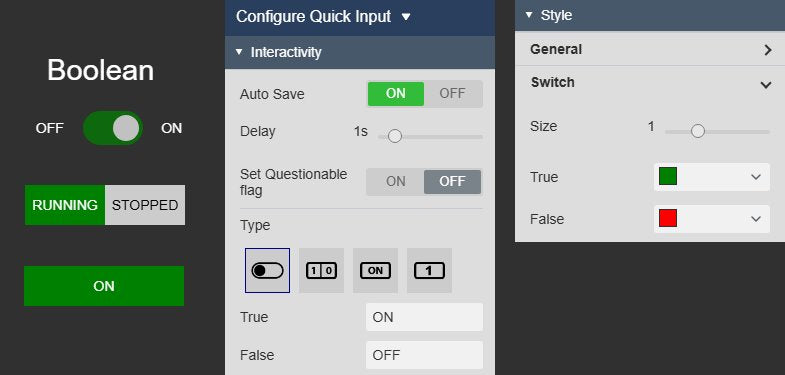
Three Quick Input+ controls for on/off values, a toggle switch with OFF and ON labels, a segmented button labelled RUNNING and STOPPED and a toggle button, next to the Interactivity settings with the four Boolean control types and the True and False labels, and the Style settings for the switch size and the true and false colours
Switch, segmented button and toggle button for on/off values, with custom labels and colours. Demo data. Select the image to enlarge.

Sliders, step inputs and fields for numbers

Enter setpoints, counts and lab values with the control that fits the range.

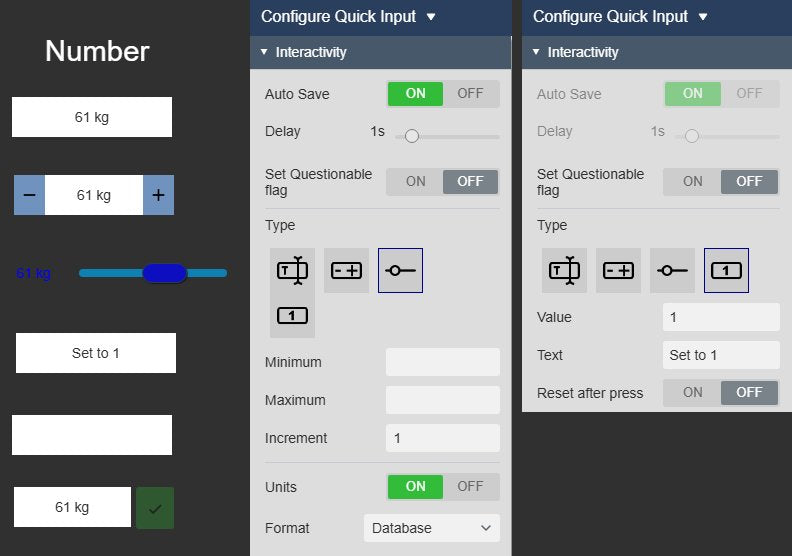
  • Input field, step input with − and + buttons, slider, or a button that writes a fixed value.
  • Minimum, maximum and increment keep entries inside the range you set.
  • Units and the number format next to the value.
  • Reset after press makes a value button write a second value after a delay, for pulse signals.
Quick Input+ for numbers as an input field, a step input with minus and plus buttons, a slider, a value button labelled Set to 1, an empty input field and an input field with an Apply button, next to the Interactivity settings of the slider with Minimum, Maximum, Increment, Units and Format, and of the value button with Value, Text and Reset after press
Input field, step input, slider and value button for numeric values, with the slider and button settings. Demo data. Select the image to enlarge.

Lists, dropdowns, text and dates

Pick a state from an enumeration set, write a note or set a date without leaving the display.

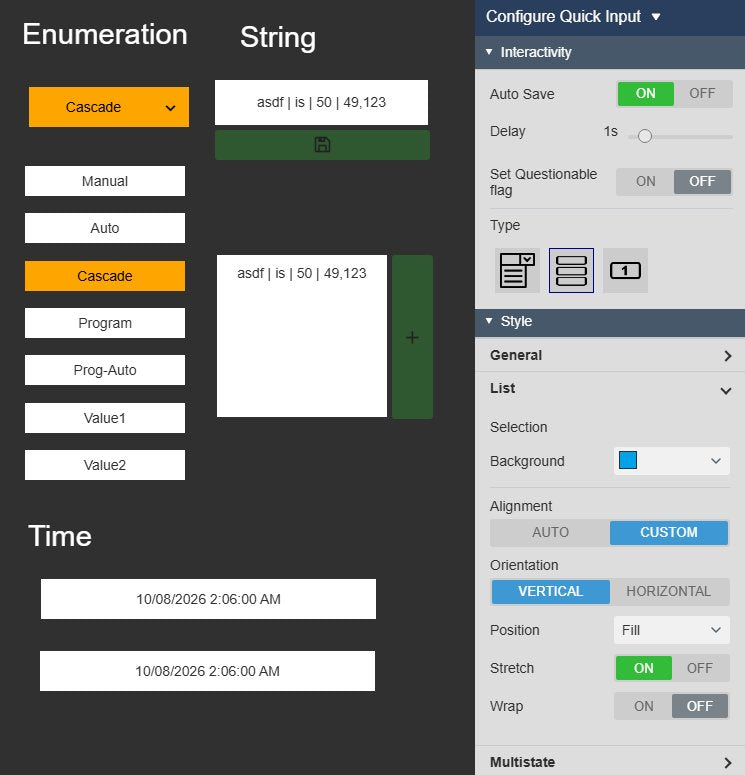
  • Dropdown, visible list or fixed-value button for enumeration sets.
  • Multi-state colours on the selected state, and list layouts in rows or columns.
  • Single-line or multiline text, with or without the current value.
  • Calendar or plain input for date and time values, with optional seconds and a Now button.
Quick Input+ as a dropdown and a list of operating modes with the current mode highlighted in its multi-state colour, as a single-line text field with a save button and a multiline text field with a plus button, and as two date and time fields, next to the Interactivity settings for an enumeration set with the Dropdown, List and Button types and the List style settings
Enumeration states as a dropdown and a list, text fields and date fields, with the list settings. Demo data. Select the image to enlarge.

Write values to PI Points and AF attributes from PI Vision

Decide when a value is written and which timestamp it gets.

Auto Save or an Apply button

Write as soon as an operator changes the value, or let them check it and apply it.

  • Auto Save writes after a short delay that you set in seconds.
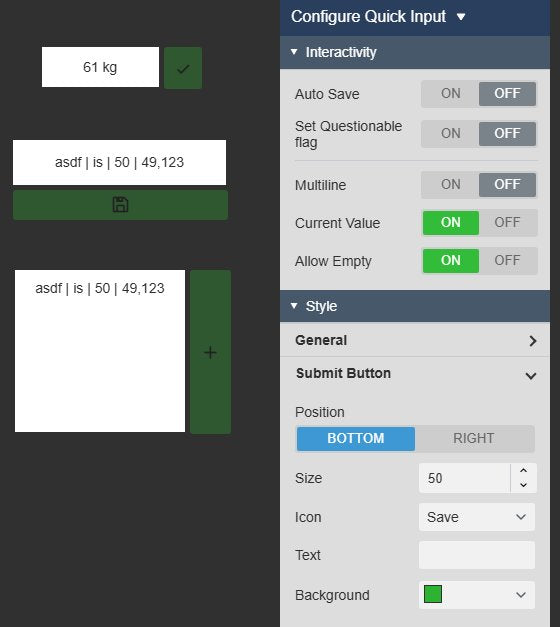
  • With Auto Save off, an Apply button writes the value; place it below or to the right of the field.
  • Button size, icon (such as a checkmark, save or plus symbol), text and colour are configurable.
  • Value buttons write on every click.
Quick Input+ with Auto Save off: a numeric input field with a checkmark Apply button on its right, a text field with a save button below it and a multiline text field with a plus button, next to the settings of the text field with Auto Save Off, Multiline, Current Value, Allow Empty and the Submit Button settings Position, Size, Icon, Text and Background
Auto Save off: the value is written only when the operator applies it. Demo data. Select the image to enlarge.

Timestamps from the display time range

Write the value at the current time, or at a time tied to the display’s time range.

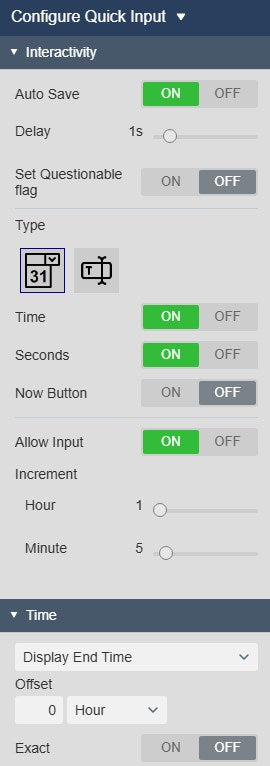
  • Time: Current, Display End Time, Display Start Time or a custom time.
  • An offset with a time unit, such as minus one hour, for the start or end time.
  • The same time reads the current value and stamps the new one.
  • Exact shows only a value recorded at exactly that time.
Settings of a Quick Input+ date field: Auto Save, Delay, Set Questionable flag, the Calendar and Input types, Time, Seconds, Now Button, Allow Input and the hour and minute increments, followed by the Time section with Display End Time, an Offset in hours and the Exact switch
Date field settings and the Time section, which sets the timestamp for reading and writing. Select the image to enlarge.

Input validation and write permissions

Catch out-of-range numbers before they reach the archive, and keep PI security in charge of who can write.

Limits from AF, the PI Point or your own values

Warn operators about an out-of-range number, or block it.

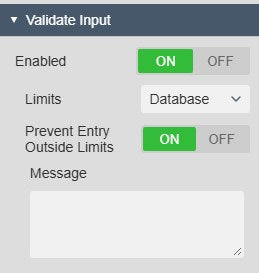
  • Validate Input with database limits or custom minimum and maximum values.
  • Database limits come from the AF Minimum and Maximum attribute traits, or from the PI Point’s zero and span.
  • Prevent Entry Outside Limits blocks the write; without it, operators can continue after the warning.
  • Your own message in the warning tells operators which range is expected.
The Validate Input settings of a numeric Quick Input+ with Enabled On, Limits Database, Prevent Entry Outside Limits On and a Message box for operators
Validate Input with database limits and a box for your own message. Select the image to enlarge.

Writes under each user’s PI permissions

Quick Input+ adds no login or service account of its own: PI and AF security decide who can write.

  • Values are written through PI Web API as the signed-in PI Vision user.
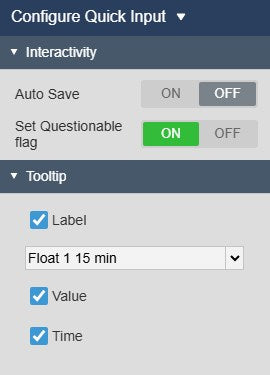
  • An optional Questionable flag marks every value written from the symbol.
  • In edit mode the controls do not react to clicks, so displays can be arranged without writing values.
  • A tooltip shows the label, value and timestamp of the current value.
Quick Input+ settings with Auto Save Off and Set Questionable flag On, and the Tooltip settings with Label, the data source name, Value and Time
Set Questionable flag and the tooltip settings. Select the image to enlarge.

PI Vision data entry examples with Quick Input+

Four common ways teams put Quick Input+ on their displays.

Lab result

Data
A numeric PI Point for one lab value, with compression off and Step on
Settings
Input field, Validate Input with database limits, Auto Save off with an Apply button
Shows
A warning for an out-of-range result before the operator applies the value

Downtime reason

Data
An AF attribute with an enumeration set of downtime reasons
Settings
List type, multi-state colours on the selected item
Shows
Every reason in view; the selected one is written to the attribute

Shift handover note

Data
A string PI Point or AF attribute
Settings
Multiline text field, Current Value off, Auto Save off with an Apply button
Shows
An empty note field for each shift; the note is written when applied

Pulse signal

Data
A numeric PI Point used as a trigger
Settings
Button with value 1, Reset after press with value 0 and a delay
Shows
One click writes 1 and, after the delay, 0

Quick Input+ FAQ

Questions we are asked most often. Read the Quick Input+ documentation or ask a technical question.

When should we use Quick Input+ instead of the other data entry symbols?

Use Quick Input+ when operators set one value or trigger one action with a compact control: a switch, button, list, slider or text field. Use Manual Input Form+ for a guided form with several related fields, grouping and validation. Use Manual Data Entry+ when operators enter values and timestamps for several data sources in a grid and then save them together. Use Manual Input Table+ when operators need to see historical values and add, edit, delete, paste or import rows.

When is a value written?

With Auto Save on, which is the default, the value is written a short, configurable delay after the operator changes it. With Auto Save off, an Apply button appears and the value is written only when the operator clicks it. Value buttons write on every click. The timestamp comes from the Time setting: the current time, the display start or end time with an optional offset, or a custom time.

Can we stop operators from entering out-of-range values?

Yes, for numeric data sources. Switch on Validate Input and use the database limits (the AF Minimum and Maximum attribute traits, or the PI Point zero and span) or your own minimum and maximum. Operators see a warning with your message; with Prevent Entry Outside Limits on, the value is not written. Sliders and step inputs also keep to the minimum, maximum and increment you set.

Who can write values, and how are entries traced?

Quick Input+ writes through PI Web API as the signed-in PI Vision user, so your PI Data Archive and AF security decide who can write to which point or attribute. It has no separate login or service account. You can mark every value written from the symbol as Questionable. If each entry needs a confirmation step or a logged user and reason, use Manual Input Form+ or Manual Data Entry+, which offer confirmation, auditing and user logging.

What do we need to run it?

PI Vision 2021 or later with PI Web API, and PI AF Server 2018 SP2 or later. PI Web API must allow writes, and users need write permission on the PI Points and AF attributes. Manual-entry PI Points should have compression off and, for numbers, Step on.

How do we get Quick Input+?

Quick Input+ is part of Vision Library+, together with the other Vision Library+ symbols. Request a trial to test it in your own PI Vision environment.

Try Quick Input+ in your PI Vision

Quick Input+ is included in Vision Library+, the PI Vision custom symbol library from Software Athlete. Test it on your own displays and data.