SQL Table+ for AVEVA PI Vision

PI Vision AF table and SQL table with filters, sorting and editing

Bring the rows of an AF table into your PI Vision display: a reference list stored in AF, a linked CSV file or the result of a SQL query. SQL Table+ lets users sort, filter and group the rows, colours them by state, follows the filters of SQL Filter+ and can edit static tables.

SQL Filter+ listing message types with Error selected next to SQL Table+, which shows only the matching rows with a filter chip reading 16 of 143 rows and its edit toolbar below
SQL Table+ in PI Vision with SQL Filter+: Error selected, 16 of 143 rows shown. Demo data. Select the image to enlarge.

Show AF tables and SQL tables in PI Vision

Display reference and configuration records next to your process data, without switching to PI System Explorer or another application.

Static, CSV-linked and SQL-linked AF tables

Show any table from the AF database library, whether its rows are stored in AF, read from a CSV file or returned by a SQL query. Users sort and filter it right on the display.

  • Choose the AF table directly, or let it follow the asset on the display.
  • Per column: show or hide, your own label, units, a tooltip, alignment, number format and links that open in a tab or a dialog.
  • Sort by clicking a column header, and filter any column with a box under its header.
  • Column widths that fit the data or the table width, paging, row numbers and automatic reload at an interval you choose.
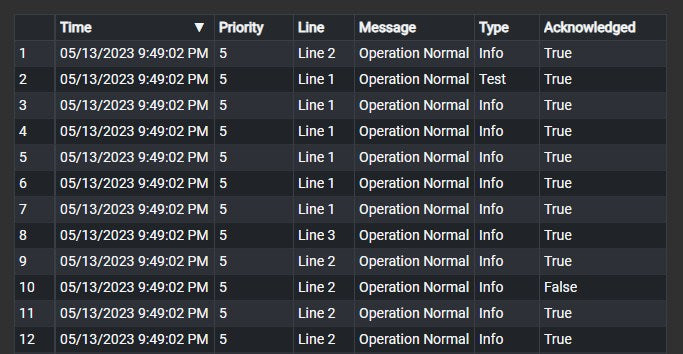
SQL Table+ showing an AF table after hiding helper columns and relabelling the Location column as Line, with the columns time, priority, line, message, type and acknowledged
Helper columns hidden and the Location column relabelled as Line. Demo data. Select the image to enlarge.

Multi-state colours, grouping and export

Let colours mark the rows that need attention, group long tables by a column, and give readers the rows in the format they need.

  • Multi-state colours per column from text states such as Info, Warning and Error, or from numeric thresholds.
  • Nine styles, from text colour, border and soft fill to status dot, value badge, solid fill and progress bars, on the cell or the whole row.
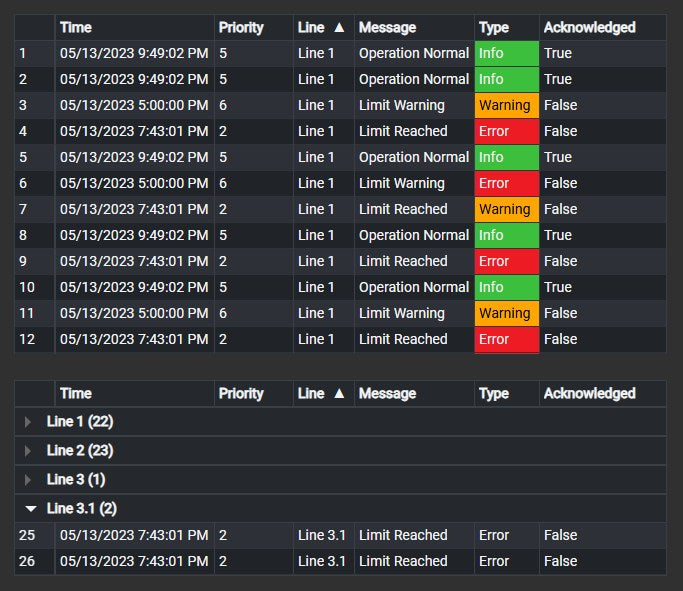
  • Rows grouped by a column, with a row count in each group header, expanded automatically or collapsed.
  • Export the rows on screen to CSV, JSON, Excel (XLSX) or PDF.
SQL Table+ with the Type column filled red, amber and green by multi-state, and a second view of the same table grouped by line with the group headers Line 1 (22), Line 2 (23), Line 3 (1) and Line 3.1 (2) showing their row counts
Cells coloured by multi-state with Solid Fill, and rows grouped by line with row counts. Demo data. Select the image to enlarge.

Filter AF table rows by display time, values and SQL Filter+

Show only the rows that belong to the display period, the asset the user is looking at or the value picked in another symbol.

Display time and attribute value filters

Tie the table to the display, so the rows follow the time range and the values on screen.

  • A DateTime column filters the rows to the display time range.
  • Basic conditions compare a column with a fixed value or with a data source value, such as an AF attribute: equal, not equal, greater, greater or equal, less or less or equal.
  • Advanced expressions combine conditions with and/or and reference data sources as [1], [2].
  • Column filters in the header row: text for text columns, minimum and maximum for numbers.
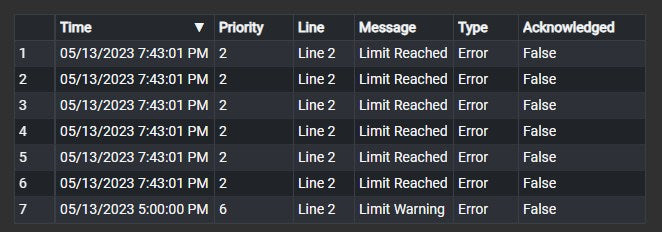
SQL Table+ after a basic filter, showing only the rows of line 2 whose type is Error
A basic filter keeps the Error rows of line 2. Demo data. Select the image to enlarge.

Filter the table from SQL Filter+ and other symbols

Let operators narrow the table by clicking a value in another symbol, and see at a glance how many rows remain.

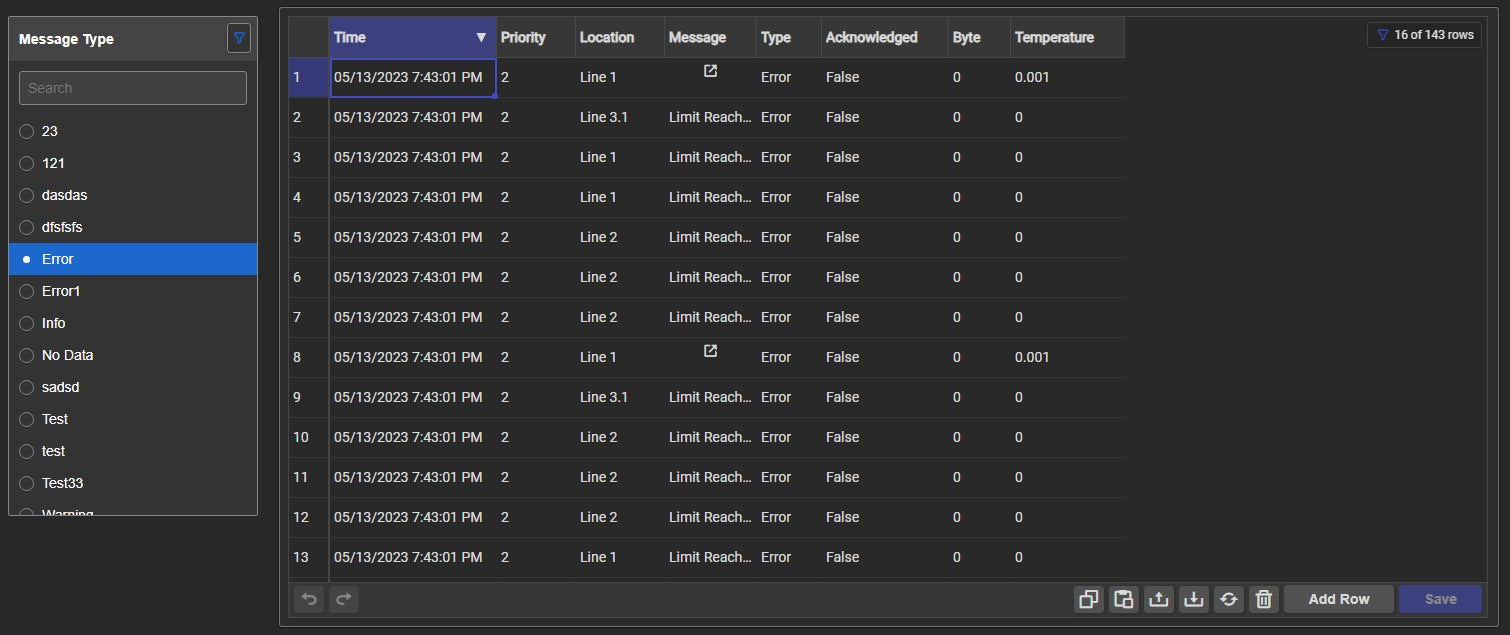
  • SQL Filter+ on the same AF table filters this table by any column, such as Type.
  • A filter chip shows the count of matching rows, for example 16 of 143 rows.
  • Linked inputs follow a symbol that uses other data, and several inputs must all match.
  • Choose whether a table with no selection shows every row or none.
SQL Filter+ listing message types with Error selected next to SQL Table+, which shows only the matching rows and a filter chip reading 16 of 143 rows, with its edit toolbar below
SQL Filter+ selects Error; SQL Table+ shows 16 of 143 rows. Demo data. Select the image to enlarge.

Query parameters for SQL-linked tables

Filter a large SQL table on the database server, so only the rows the display needs reach the browser.

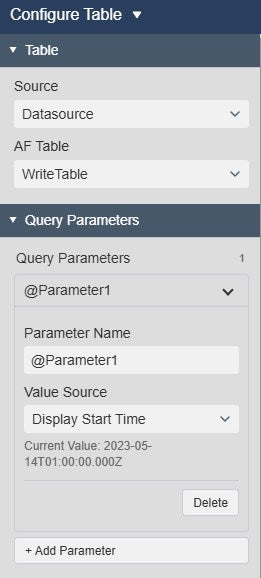
  • Display start time, display end time, a fixed value or a data source value passed to @ parameters of the linked table query.
  • The SQL query and its parameters stay in PI System Explorer; SQL Table+ only supplies the values.
  • The current value of each parameter is shown in the settings.
  • Automatic reload at an interval from seconds to months, for SQL tables whose rows change.
SQL Table+ Table and Query Parameters settings with one parameter whose value source is Display Start Time, its current value, and the Delete and Add Parameter buttons
A query parameter that takes the display start time, with its current value. Select the image to enlarge.

Edit static AF tables from PI Vision

Maintain reference lists and configuration tables on the display where they are used.

Write mode with add, paste, import and undo

Switch a static AF table to Write mode and let users update its rows, then save the changes back to AF.

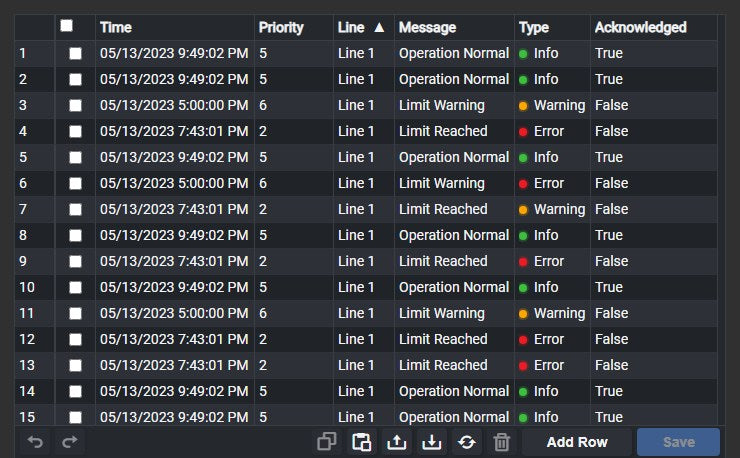
  • Edit cells, add rows and delete the selected rows, with undo and redo before saving.
  • Copy and paste cells, import rows from a CSV file or export them to CSV.
  • Changes stay in the browser until Save, or Ctrl+S, writes the edited table back to AF; a failed save keeps the edits.
  • Writes run through PI Web API as the signed-in user, so AF security decides who can change the table.
SQL Table+ in Write mode with a tick box on every row and the edit toolbar below the table with undo, redo, copy, paste, CSV import, CSV export, reload and delete buttons, Add Row and a Save button
Write mode with row tick boxes and the edit toolbar; nothing was changed or saved. Demo data. Select the image to enlarge.

Editable columns and dropdown lists

Decide which columns users may change, and offer fixed choices where free text would cause errors.

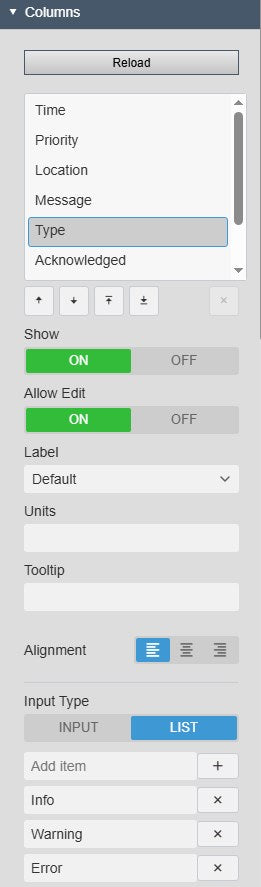
  • Allow Edit per column, so key columns stay read-only.
  • Free text input, or a dropdown list of the values you define.
  • Editing is meant for static AF tables; tables with query parameters are always read-only.
SQL Table+ Columns settings in Write mode with the Type column selected, Show and Allow Edit on, Label, Units, Tooltip, Alignment and Input Type set to List with the items Info, Warning and Error
Allow Edit and a dropdown list of predefined values for one column. Select the image to enlarge.

PI Vision AF table and SQL table examples

Four common ways teams use SQL Table+ on their displays.

Production rows from SQL

Data
A SQL-linked AF table whose query has @StartTime and @EndTime parameters
Settings
Query parameters from Display Start Time and Display End Time, Auto Reload
Shows
Only the rows of the display period, filtered on the SQL server

Records for the current asset

Data
A static AF table with a column that matches an attribute of the displayed asset
Settings
Basic filter: that column equals the data source value
Shows
The rows that belong to the asset on screen

Editable reference list

Data
A static AF table of targets, limits or product settings
Settings
Write mode, Allow Edit on the value columns, dropdown lists for fixed choices
Shows
Engineers update the rows and save them to AF

Status list from a CSV file

Data
A CSV-linked AF table with a status column
Settings
Multi-state colours on the status column with Apply to row, grouping by status
Shows
Rows grouped and coloured by their status

Watch the PI Vision SQL table in action

A walkthrough of SQL Table+ on a PI Vision display: sort and filter columns, show the rows of the display time range, colour rows by state, group rows, filter from SQL Filter+ and link a table to SQL.

SQL Table+ product demo. Demo data.

SQL Table+ FAQ

Questions we are asked most often. Read the SQL Table+ documentation or ask a technical question.

Which AF tables can SQL Table+ show?

Any table in the AF database library: static tables stored in AF, tables linked to a CSV file and tables linked to a SQL database. For SQL tables, use a database view or a query that returns only the rows the display needs. The SQL decimal type is not supported; cast decimal columns to float in the table link query.

What happened to AF Table+?

SQL Table+ was called AF Table+ before Vision Library+ 2.2. It is the same symbol under a new name, and it still shows AF tables: static tables, linked CSV files and linked SQL tables.

When should we use SQL Table+ instead of the other Vision Library+ tables?

Use SQL Table+ for rows stored in an AF table: reference and configuration records, a linked CSV file or the result of a SQL query. Use Time Series Table+ for recorded or calculated values of PI Points and AF attributes over a time range. Use Alarm Table+ when rows should be created from limits or conditions on attributes, with acknowledgement and sound. Use Events Table+ when the rows are event frames.

Can users edit the table?

Yes, for static AF tables. Set the Mode to Write and turn on Allow Edit for the columns users may change, with free text or a dropdown list. Users can edit cells, add and delete rows, paste cells or import a CSV file, and Save writes the table back to AF. Tables with query parameters are always read-only, and linked CSV or SQL tables are not meant for editing. Writes use each user’s existing AF permissions.

Does SQL Table+ load the whole SQL table?

Without query parameters, the linked table returns every row of its query, and the display time, attribute and column filters then work in the browser. With query parameters, SQL Table+ passes values such as the display start and end time to @ parameters that already exist in the linked table query, so the SQL server filters the rows first. Check that your PI Web API version supports parameters for Table GetData.

What do we need to run it?

Vision Library+ 2.2 on PI Vision 2021 or later with PI Web API, and PI AF Server 2018 SP2 or later. The AF tables are created in PI System Explorer. To edit static tables, PI Web API must allow writes and users need write permission in AF.

How do we get SQL Table+?

SQL Table+ is part of Vision Library+, together with the other Vision Library+ symbols. Request a trial to test it in your own PI Vision environment.

Try SQL Table+ in your PI Vision

SQL Table+ is included in Vision Library+, the PI Vision custom symbol library from Software Athlete. Test it on your own displays and data.