WebView+ for AVEVA PI Vision

Embed web pages in PI Vision with the display context passed along

Show another PI Vision display, an internal web page or a Seeq worksheet inside your display. WebView+ hands the embedded page the display time range and the asset in focus, and shows several pages as tabs or a slideshow.

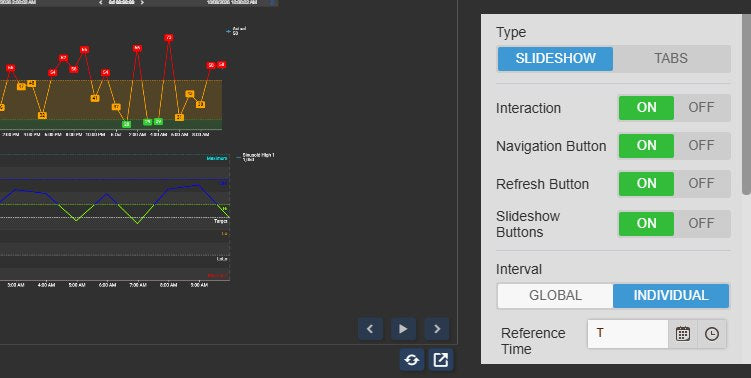
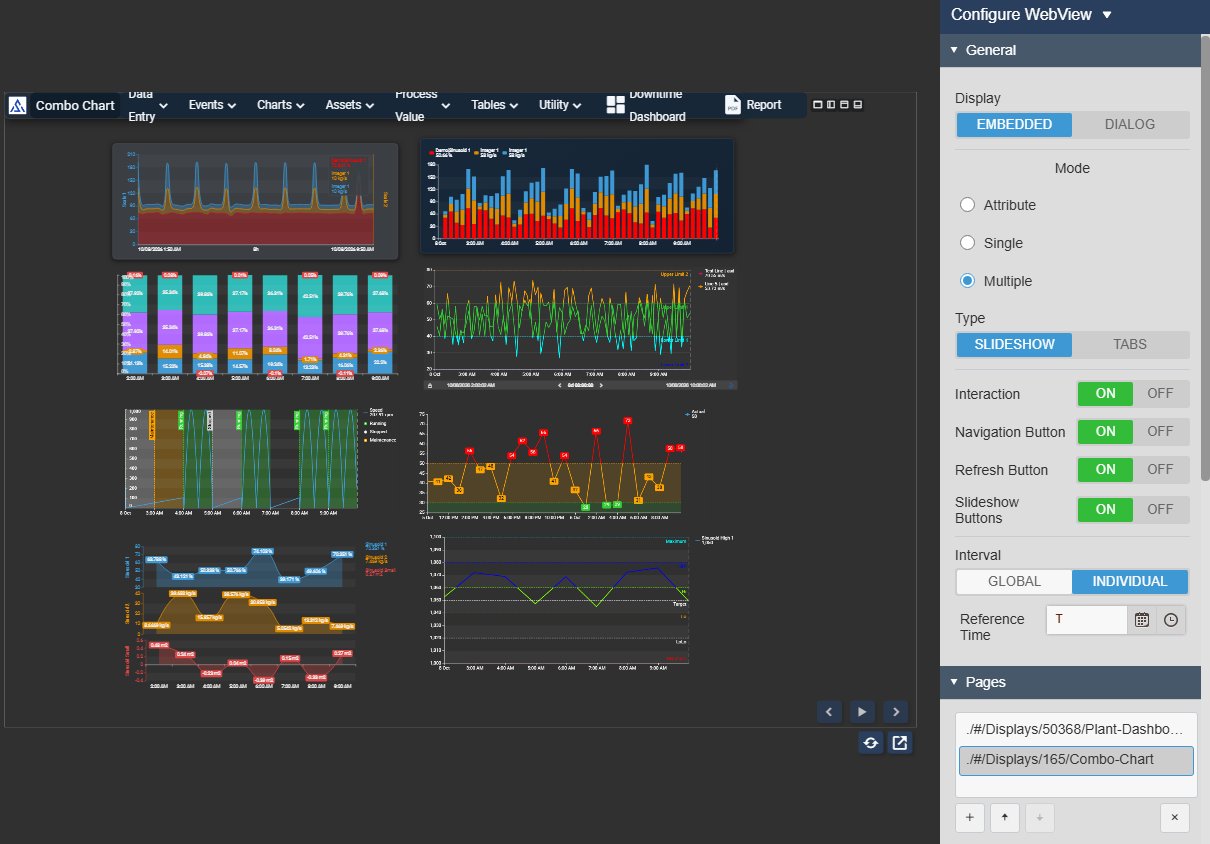
WebView+ in AVEVA PI Vision embedding a second PI Vision display with eight charts, shown without its time bar, toolbar and sidebar, with previous, play and next buttons and reload and open-in-new-tab buttons in the lower-right corner, next to the Configure WebView pane with Display Embedded, Mode Multiple, Type Slideshow, Interaction, Navigation Button, Refresh Button and Slideshow Buttons on, Interval Individual, Reference Time and the Pages list
WebView+ v2.0 embedding another PI Vision display, with its configuration pane. Demo data. Select the image to enlarge.

Embed PI Vision displays and web pages in a display

Bring related content into the display operators already use, instead of switching between browser tabs.

PI Vision displays, web pages and Seeq worksheets

Place a detail display, an internal web application or a Seeq analysis right next to your process data.

  • PI Vision pages: search for a display, zoom it to fit and choose whether its time bar, toolbar, sidebar, context menu and zoom buttons show.
  • Custom pages: any iframe-compatible web page with an http or https address, with optional URL parameters.
  • Seeq pages open a workbook and worksheet on your Seeq server with the symbol’s attributes or assets and the display time, once the Seeq server is configured.
  • A scale from 10% to 100% fits a page designed for a larger screen into the symbol.
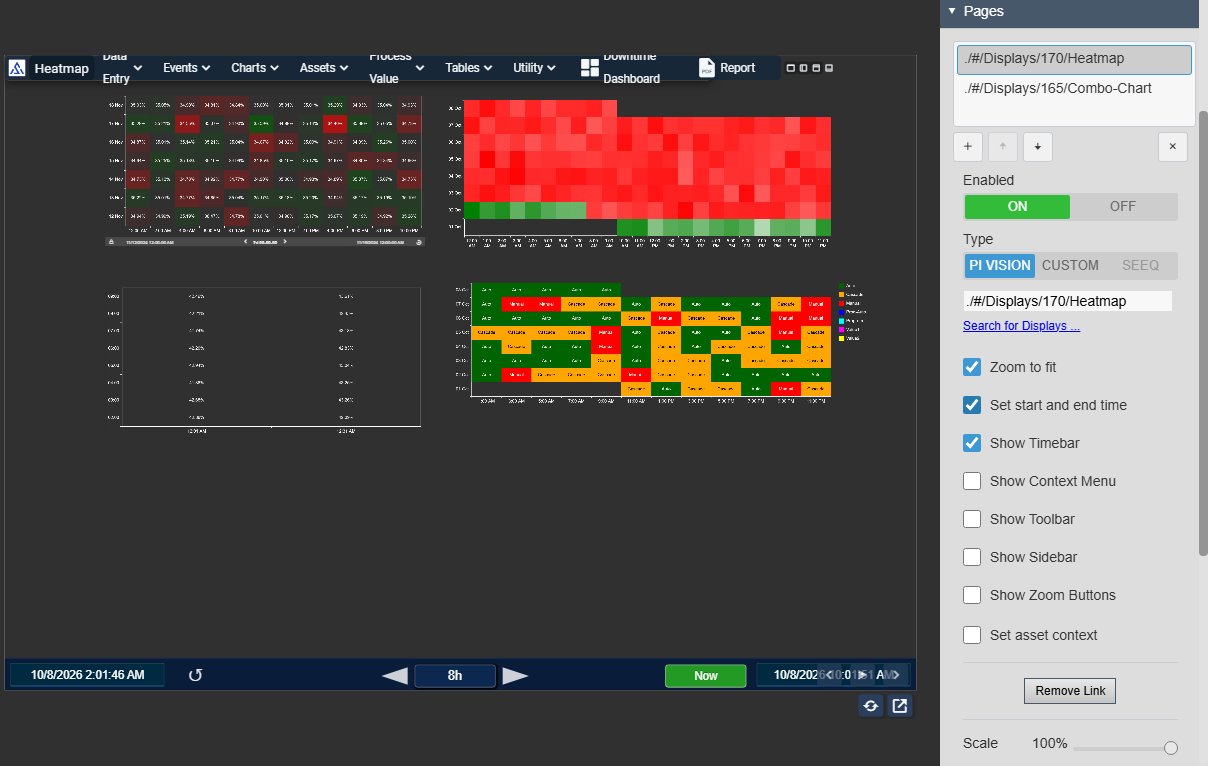
WebView+ showing an embedded PI Vision heatmap display scaled to fit the symbol with its own time bar switched back on, next to the page settings with Type PI Vision, the display address, Search for Displays, Zoom to fit, Set start and end time and Show Timebar ticked, Show Context Menu, Show Toolbar, Show Sidebar, Show Zoom Buttons and Set asset context unticked, Remove Link and Scale 100%
An embedded PI Vision display with only its time bar switched back on. Demo data. Select the image to enlarge.

Embedded in place or opened in a window

Show the page inside the display, or keep the display compact with a button that opens it in a window.

  • Embedded display shows the page in the symbol; Dialog display shows a button that opens it in a window.
  • Window size fixed in pixels or relative to the browser window; button text from the URL, an icon or your own text, with its own colours, font size and border.
  • Interaction can be switched off, so operators view the page without clicking into it.
  • Optional buttons reload the page or open it in a separate browser tab.
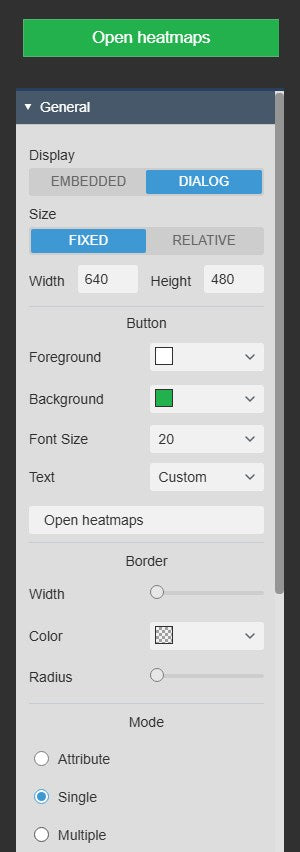
A green WebView+ button labelled Open heatmaps above the WebView+ settings with Display Dialog, Size Fixed with Width 640 and Height 480, button Foreground, Background, Font Size 20 and Text Custom, Border Width, Color and Radius, and Mode Single
Dialog display: a button with your own text opens the page in a window. Select the image to enlarge.

Pass the time range and asset context to the embedded page

The embedded page follows the display, so operators see the same period and the same equipment in both.

Time range and assets for embedded PI Vision displays

Change the time range or select another asset on the display, and the embedded display follows.

  • Set start and end time passes the current display time range.
  • Set asset context passes the display’s assets, the asset selected on the display or a fixed AF element.
  • Pass it as the embedded display’s asset or as the root of its asset tree.
  • The asset travels in the embedded display’s address, so it opens on that element.
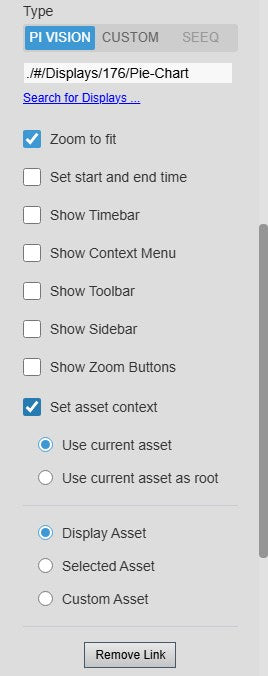
WebView+ page settings for an embedded PI Vision display with Zoom to fit and Set asset context ticked and the asset options Use current asset, Use current asset as root, Display Asset, Selected Asset and Custom Asset
Time range and asset context options for an embedded PI Vision display. Select the image to enlarge.

URL parameters from the display context

Build the address of any web page from the display, so a report, a dashboard or an internal application opens on the right period and asset.

  • Placeholders for the display start and end time, as configured, as ISO 8601 timestamps or as epoch milliseconds.
  • Placeholders for a data source’s value, attribute, element and their paths, including the second or third data source.
  • Placeholders for the selected asset and every asset on the display, repeated or joined with a separator.
  • Placeholders work in parameters and in the address itself, and Attribute mode reads the whole address from a data source.
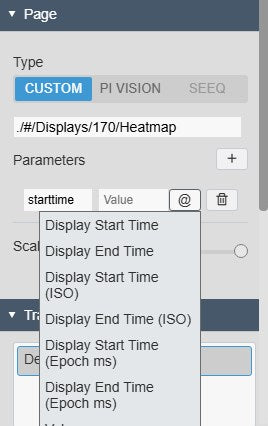
WebView+ Custom page settings with a page address, a parameter named starttime and the placeholder menu open with Display Start Time, Display End Time and their ISO 8601 and epoch millisecond variants
A URL parameter with the placeholder menu open. Select the image to enlarge.

Tabs, slideshows and auto reload for several pages

Combine several pages in one symbol, for an operator to switch between or for a control room screen that cycles by itself.

Several pages as tabs

Offer related displays and web pages as tabs in one place on the display.

  • Each page has its own title, type, address, scale and context settings, and can be switched off.
  • Load only selected tab stops background requests from the tabs nobody is looking at.
  • Each tab can reload on its own interval.
  • Tab colours, font size, border and Fill or Auto sizing match the display.
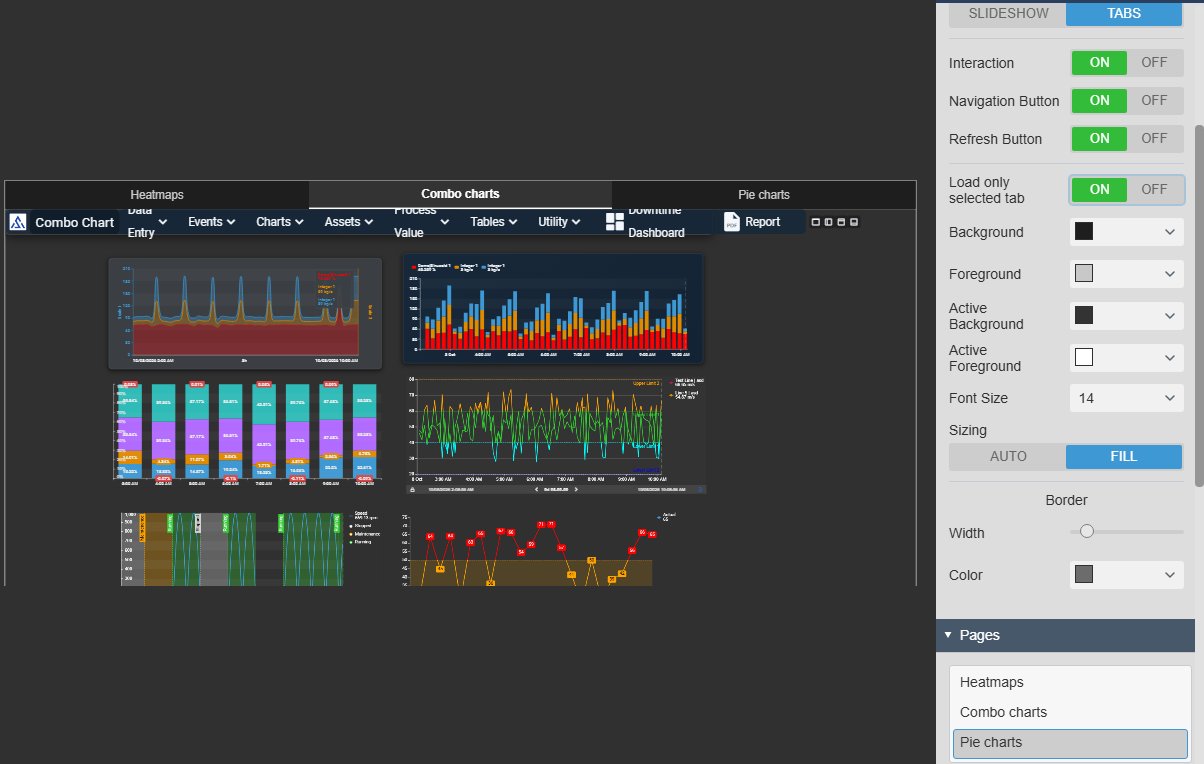
WebView+ in Tabs mode with three tabs titled Heatmaps, Combo charts and Pie charts above an embedded PI Vision display, the Combo charts tab active, next to the Tabs settings with Load only selected tab on, Background, Foreground, Active Background, Active Foreground, Font Size 14, Sizing Fill, Border Width and Color, and the Pages list
Three PI Vision displays as tabs. Demo data. Select the image to enlarge.

Slideshows for control room screens

Rotate through displays and web pages on a wall screen, and keep several screens in step.

  • One dwell time for every page, or an individual time per page.
  • A shared reference time keeps the slideshows of several displays in sync.
  • Previous, pause and next buttons let operators hold a page or step through the slides.
  • In single-page modes, auto reload refreshes the page at a set interval.
WebView+ in Slideshow mode with the previous, play and next buttons and the reload and open-in-new-tab buttons in the lower-right corner of an embedded display, next to the settings with Type Slideshow, Interaction, Navigation Button, Refresh Button and Slideshow Buttons on, Interval Individual and Reference Time
Slideshow paused, with step buttons and the slideshow settings. Demo data. Select the image to enlarge.

PI Vision embedded content examples

Four common ways teams use WebView+ on their displays.

Overview with detail display

Data
The assets on an overview display
Settings
PI Vision page, Set start and end time, Set asset context with Selected Asset
Shows
The detail display of the selected unit for the same period, inside the overview

Control room slideshow

Data
Four PI Vision displays and an internal web page
Settings
Multiple, Slideshow, Individual interval, Slideshow Buttons, a shared Reference Time
Shows
A wall screen that rotates by itself, in step with the screens next to it

Seeq analysis beside the process

Data
The symbol’s attributes
Settings
Seeq page, Use Current Attributes, Display Time, a Workbook with search scope Shared With Me
Shows
The team’s Seeq worksheet trending the same attributes over the display time range

Procedure per asset

Data
An AF attribute that holds the address of the asset’s procedure page
Settings
Attribute mode, Dialog display, Icon button
Shows
A button that opens the current asset’s procedure in a window

WebView+ FAQ

Questions we are asked most often. Read the WebView+ documentation or ask a technical question.

Which pages can WebView+ embed, and what does the PI Vision administrator need to allow?

PI Vision’s Content Security Policy blocks framed pages until their site is allowed. The recommended setting lists only the hosts you embed in the FrameSrcPolicy entry of the PI Vision web.config; PI Vision’s own displays keep working without being listed. Removing the frame restriction altogether affects every display and user, so use it only temporarily. The target site still decides for itself: a site that sends X-Frame-Options sameorigin or a restrictive frame-ancestors policy cannot be embedded. When PI Vision runs on HTTPS, embed HTTPS pages, because browsers block mixed content. Addresses must start with http, https or ./#/.

Which display context can the embedded page receive?

Embedded PI Vision displays can receive the display time range and the display’s assets, the selected asset or a fixed AF element, as their asset or asset-tree root. Other web pages receive context through URL parameters and placeholders: the display start and end time (as configured, ISO 8601 or epoch milliseconds), data source values, attribute and element names and paths, the selected asset and all assets on the display. Everything you put in a parameter is sent to the target site in its address, so pass only what that site should receive.

Does an embedded PI Vision display keep its time bar and toolbar?

By default it opens without its time bar, toolbar and sidebar, in kiosk mode without the context menu. Show Timebar, Show Toolbar, Show Sidebar and Show Context Menu bring each one back separately, and Zoom to fit scales the embedded display to the symbol.

Can WebView+ open Seeq worksheets?

Yes, once a Seeq server URL is set in the Vision Library+ config.js. A Seeq page opens a workbook and worksheet by name, with the symbol’s attributes, the display’s assets or the selected asset as trend items, the display or a custom time range, and options for asset swap, the expanded asset, the tab and the view mode. Older Seeq releases may not support every parameter, so check yours before relying on it.

What do we need to run it?

PI Vision 2021 or later with PI Web API, and PI AF Server 2018 SP2 or later. The PI Vision administrator allows the embedded sites in the FrameSrcPolicy setting of the PI Vision web.config, and Seeq pages need the Seeq server URL in config.js. Embedded pages load in each viewer’s browser with that viewer’s own sign-in to the target site.

How do we get WebView+?

WebView+ is part of Vision Library+, together with the other Vision Library+ symbols; in the PI Vision symbol gallery it is listed as Web View+. Request a trial to test it in your own PI Vision environment.

Try WebView+ in your PI Vision

WebView+ is included in Vision Library+, the PI Vision custom symbol library from Software Athlete. Test it on your own displays and data.