Vision Library+ / Embedded content and navigation
Web View+
Web View+ embeds an iframe-compatible website, a Seeq worksheet, or another PI Vision display inside the current display. It can pass the display time range, asset context, and data source values to the target page, present several pages as tabs or an automatic slideshow, and open content in a dialog instead of in place.
Overview
Web View+ embeds an iframe-compatible website, a Seeq worksheet, or another PI Vision display inside the current display. It can pass the display time range, asset context, and data source values to the target page, present several pages as tabs or an automatic slideshow, and open content in a dialog instead of in place.
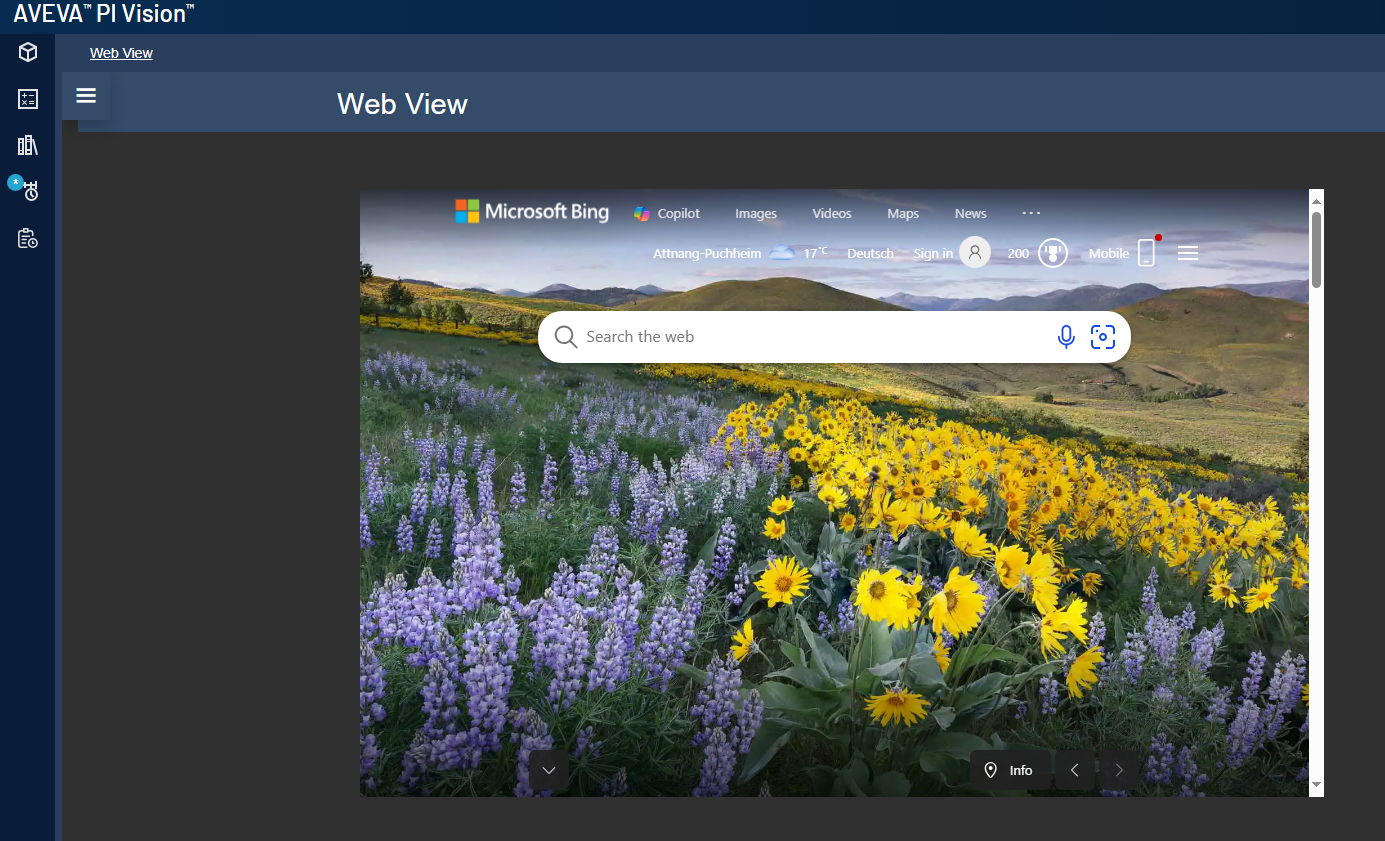
Watch the demo
See Web View+ in a practical PI Vision workflow.
When to use it
Use this symbol when you need to:
- Show another PI Vision display inside the current display.
- Place related web content, a report, or a Seeq worksheet beside process data.
- Cycle through several pages as a slideshow, or offer them as tabs.
- Pass the time range, asset context, or a data source value to another page.
Use Navigation Button+ when the target should replace the current page instead of remaining embedded.
Before you begin
- Confirm that the target website permits iframe embedding.
- Ask the PI Vision administrator to allow the target site in PI Vision's frame-source policy. See the section Allow the embedded site in PI Vision below.
- Use HTTPS content when PI Vision is served over HTTPS, and confirm that browser security policies and authentication permit the target page.
- Prepare any AF attribute that will provide a dynamic URL.
- For Seeq pages, confirm that a Seeq URL is configured in
config.js. The SeeQ page type stays disabled until it is.
Allow the embedded site in PI Vision
PI Vision sends a Content Security Policy that restricts which sites may be shown in a frame. Until the target site is allowed, an embedded page stays blank. The setting is an administrator change to the appSettings section of the PI Vision web.config, normally C:\Program Files\PIPC\PIVision\web.config. Recycle the PI Vision application pool afterwards.
Recommended: allow only the sites you embed
List the hosts this symbol embeds, separated by spaces:
xml <add key="FrameSrcPolicy" value="*.company.com trustedsite.com" />
PI Vision appends these hosts to its own 'self' source, so PI Vision's own displays continue to work without being listed. Add only the hosts that Web View+ symbols actually target, and review the list when a display stops using one.
Last resort: remove the frame restriction
xml <add key="FrameSrcPolicy" value="Disable" />
This removes the frame-src rule from the Content Security Policy of the entire PI Vision application - every display, every symbol, and every user, not only this symbol. Any site can then be framed anywhere in PI Vision. Use it only as a temporary step while identifying the hosts to allow, and treat replacing it with the allowlist form as follow-up work.
Neither setting overrides the target site's own decision. A site that sends X-Frame-Options: sameorigin or a restrictive frame-ancestors directive refuses to be framed regardless of what PI Vision allows.
Add and set up the symbol
- Select the symbol in the PI Vision symbol gallery.
- Add the symbol to the display, together with any data source that provides a URL or asset context.
- Right-click the symbol and open its configuration pane.
- Select Embedded or Dialog display, then choose the Attribute, Single, or Multiple mode.
- Enter the page or pages, choose the page type, and add the time, asset, and parameter context the target needs.
- Confirm that the page loads and remains usable for the intended operator account.
Use the symbol
In Embedded display, interact with the page inside the symbol when Interaction is on. In Dialog display, select the button to open the page in a movable and resizable window.
With several pages, select a tab or use the slideshow controls to change the active page. The controls in the lower-right corner step to the previous or next page and pause or resume the rotation.
The buttons below the frame reload the active page and open it in a separate browser tab.
Configure the symbol
Display mode
- Embedded: Shows the selected page inside the symbol.
- Dialog: Shows a button that opens the page in a movable and resizable window.
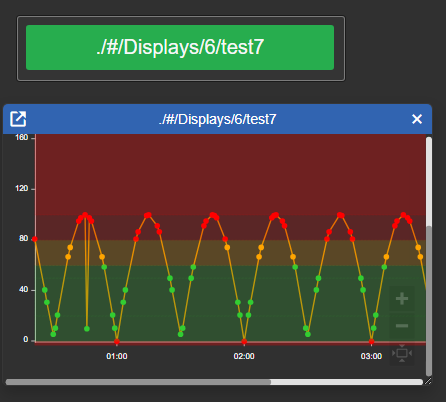
In Dialog display, the following additional settings apply:
- Size: Choose Fixed to enter a Width and Height in pixels, or Relative to size the window as a percentage of the browser window.
- Foreground / Background / Font Size: Set the colors and text size of the button that opens the dialog.
- Text: Choose what the button shows: the Url, the Data source value (Attribute mode only), an Icon, or Custom text entered below the list.
- Border: Set the button's Width, Color, and Radius.
Mode
The mode decides where the page address comes from.
- Attribute: Reads the URL from the current value of the symbol's first data source. The page settings below still apply, so an attribute URL can carry parameters or PI Vision chrome options. The SeeQ page type is not available in this mode.
- Single: Uses one URL entered in the configuration pane.
- Multiple: Uses a list of configured pages, shown either as a Slideshow or as Tabs.
Web view options
- Interaction: On by default. Allows pointer and keyboard interaction with the embedded content. Turn it off to make the page read-only.
- Navigation Button: Shows a control that opens the active page in a separate browser tab. Embedded display only.
- Refresh Button: Shows a control that reloads the active page on demand. In Tabs mode only the active tab is reloaded. Embedded display only.
- Slideshow Buttons: Shows the previous, pause/play, and next controls in the lower-right corner of the symbol.
- Auto Reload: Off by default. Reloads the page at the configured interval. Available in Attribute and Single mode.
- Interval: The reload interval in seconds, 30 by default.
Slideshow
In Multiple mode with the Slideshow type, the symbol rotates through the enabled pages.
- Interval: Choose Global to use one dwell time for every page, or Individual to set a dwell time on each page separately.
- Time: The global dwell time in seconds.
- Reference Time: The instant the rotation is measured from,
*by default. Give several displays the same reference time to keep their slideshows in step.
Turn on Slideshow Buttons to show the previous, pause/play, and next controls. Selecting pause freezes the slideshow on the page it is showing and the button becomes a play control. Selecting play resumes the rotation from the same page with the time it had left, rather than jumping ahead to wherever the clock has arrived. The previous and next controls still step through pages while the slideshow is paused.
Tabs
In Multiple mode with the Tabs type, each enabled page becomes a tab.
- Load only selected tab: On by default for new symbols. Loads only the selected page and unloads the previous page when you switch tabs, stopping its background data requests. Asset changes update only the selected tab; other tabs load with the latest asset and display-time context when selected. Switching tabs reloads the page and resets temporary page state, such as zoom or unsaved selections. Turn this option off to keep all enabled pages loaded in the background. Existing saved displays keep that previous behavior until you enable the option. Embedded display only.
- Background / Foreground: Set the colors of the inactive tabs.
- Active Background / Active Foreground: Set the colors of the selected tab.
- Font Size: Sets the tab label size.
- Sizing: Auto sizes each tab to its title; Fill spreads the tabs across the full width.
- Border: Set the tab strip's Width and Color.
Pages
In Multiple mode, use the page list to add, reorder, and remove pages. Each page carries its own settings:
- Enabled: Include the page in the slideshow or tab strip.
- Title: The tab label. Tabs mode only; the URL is shown when the title is empty.
- Auto Reload: Off by default. Turn it on so this tab reloads its content on its own schedule. With Load only selected tab enabled, its timer runs only while the tab is selected and restarts when you select it again. Tabs mode only.
- Interval: The page's own reload interval in seconds, 60 by default. Intervals below 5 seconds are treated as 5. In Slideshow mode with Individual timing, the page's Interval is instead its dwell time in the rotation.
- Type, URL, and Scale: Each page carries its own page type, address, and scale, as described below.
With Load only selected tab turned off, background tabs also refresh on their own schedules without switching the tab you are looking at.
PI Vision page
A PI Vision page embeds another display. Enter its URL, or select Search for Displays to find one by name or owner. Remove Link clears the entered URL.
- Zoom to fit: On by default. Scales the embedded display so its content remains visible.
- Set start and end time: Passes the current display time range to the embedded display.
- Show Zoom Buttons: Shows the embedded display's zoom controls. Available when Interaction is on.
An embedded PI Vision page hides the host display's chrome by default, and each piece can be brought back independently. The four options combine freely, and every existing page keeps the behavior it already had, because each option is off unless you turn it on.
| Option | Off (default) | On |
|---|---|---|
| Show Timebar | The embedded display's time bar is hidden. | The time bar is shown. |
| Show Toolbar | The embedded display's toolbar is hidden. | The toolbar is shown. |
| Show Sidebar | The embedded display's sidebar is hidden. | The sidebar is shown. |
| Show Context Menu | The page opens in kiosk mode, which also suppresses its right-click context menu. | The page opens without kiosk mode, so the context menu works. |
These options apply to the embedded, window, and dialog presentations alike. The Navigation Button deliberately restores the toolbar, the sidebar, and the context menu when it opens the page in a separate browser tab, because a full-page display normally wants them; the time bar setting is left as configured.
Set asset context passes an AF element to the embedded display. Choose how the element is used, and where it comes from:
- Use current asset: Passes the element as the embedded display's asset.
- Use current asset as root: Passes the element as the embedded display's asset-tree root.
- Display Asset: Uses every asset present on the current display.
- Selected Asset: Uses the asset currently selected on the display, and falls back to the display assets while nothing is selected.
- Custom Asset: Uses one fixed AF element path, entered or dragged into the field as
\\Server\Database\Element.
Custom page
A Custom page accepts an iframe-compatible URL and optional query-string parameters. Enter a URL that starts with http, https, or ./#/. The URL is validated as it is typed, before placeholders are substituted.
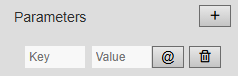
Each parameter has a key and a literal or display-derived value.
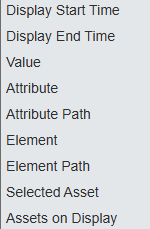
Substitution placeholders
Placeholders are replaced with live display context when the page is built. Select the @ action beside a parameter to insert one, or type it directly.
| Placeholder | Substituted value |
|---|---|
%displayStartTime% | Display start time as configured, for example *-1h. |
%displayEndTime% | Display end time as configured. |
%displayStartTimeIso% | Display start time resolved to an absolute ISO 8601 timestamp. |
%displayEndTimeIso% | Display end time resolved to an absolute ISO 8601 timestamp. |
%displayStartTimeEpoch% | Display start time resolved to epoch milliseconds. |
%displayEndTimeEpoch% | Display end time resolved to epoch milliseconds. |
%value% | Current value of the data source. |
%attribute% | Attribute name of the data source. |
%attributePath% | Full attribute path of the data source. |
%element% | Element name of the data source. |
%elementPath% | Element path of the data source. |
%selectedAsset% | Name of the asset selected on the display. |
%selectedAssetPath% | Full path of the asset selected on the display. |
%assetsOnDisplay% | Names of every asset used on the display. |
%assetsOnDisplayPath% | Full paths of every asset used on the display. |
%assetsOnDisplay:;% | Names of every asset used on the display, joined into one value by ;. |
%assetsOnDisplayPath:;% | Paths of every asset used on the display, joined into one value by ;, in PI Vision's own asset= spelling. |
Use the resolved Iso and Epoch variants for targets that cannot interpret PI time strings. Grafana, for example, expects epoch milliseconds in its from and to parameters.
%assetsOnDisplay% and %assetsOnDisplayPath% repeat the parameter key once per asset, so a single parameter can carry several assets.
Joining the assets into one value
Some targets expect all assets in a single value instead of a repeated key. Append : and a separator to either assets-on-display placeholder to get one value carrying every asset: %assetsOnDisplayPath:;%, %assetsOnDisplay:,%, or any other literal separator, including several characters.
PI Vision itself uses this form, and the joined path variant matches it: it emits the same asset paths a PI Vision page emits, with the af: prefix removed, whereas the plain %assetsOnDisplayPath% keeps the full stored path. A parameter with the key asset and the value %assetsOnDisplayPath:;% therefore hands another PI Vision display exactly the multi-asset context that Web View+ builds for a PI Vision page.
A joined placeholder can sit in the middle of a longer value, and the joined value is encoded as a whole, so the separator reaches the target decoded. When no asset is on the display, the joined value is empty. An asset name that itself contains the separator is not escaped, so pick a separator the asset names do not use.
When nothing is selected on the display, %selectedAsset% and %selectedAssetPath% are replaced with an empty value.
Several data sources
Web View+ accepts more than one data source. Append : and a 1-based position to address a specific one: %value:2%, %attribute:2%, %attributePath:3%, %element:2%, and %elementPath:2%. A placeholder without a position always refers to the first data source, and a position with no data source behind it is replaced with an empty value. Use Trace Options to change the order of the data sources or remove one.
Placeholders in the URL
Placeholders also work in the configured URL itself, which suits targets that carry the context in the path, for example https://host/dashboards/%selectedAsset%. Each substituted value is encoded individually so the rest of the URL stays intact.
Repeated-key expansion is available for parameters only. Inside the URL, %assetsOnDisplay% and %assetsOnDisplayPath% are replaced with the first asset on the display. Use a joined variant such as %assetsOnDisplayPath:;% to include all assets in the URL itself.
Seeq page
A SeeQ page opens Seeq's workbook builder at the Seeq server configured in config.js. No URL is entered; the options below build the address.
- Trend Items: Chooses what Seeq trends. Use Current Attributes sends the symbol's data sources, Use Current Asset sends the assets on the display, and Use Selected Asset sends the asset selected on the display (
trendItems). - Display Time: Passes Use Display Time or a Use Custom Time range as the visible range (
displayStartTime,displayEndTime). - Investigate Time: Passes Use Display Time or a Use Custom Time range as the investigation range (
investigateStartTime,investigateEndTime). - Start Fresh: On by default, matching Seeq's own default. Seeq then starts from a new worksheet and discards the most recent workstep. Turn it off to build on the existing worksheet, which is what makes a saved worksheet usable as a template (
startFresh=false). - Workbook: Opens a configured Workbook and Worksheet by name (
workbookName,worksheetName), with a Workbook Search Scope that decides which workbooks Seeq searches for that name (workbookFilter). - Expanded Asset: Expands one asset in Seeq's Data tab (
expandedAsset). Choose Use Current Asset, which is the element of the symbol's first data source, or Use Selected Asset. - Asset Swap: Swaps every item in the Seeq Details panel to one asset (
assetSwap). Choose Use Current Asset or Use Selected Asset. - Selected Tab: Opens Search, Investigate, or Annotate (
selectedTab). - View Mode: Opens Edit, View, or Present mode (
viewMode).
Expanded asset and asset swap are omitted from the URL when the chosen source resolves to nothing, for example while no asset is selected on the display. Search and Edit are Seeq's own defaults, so choosing them leaves selectedTab and viewMode out of the URL entirely; the result in Seeq is the same.
Which workbooks Seeq searches. By default Seeq matches the configured workbook name only against workbooks the person viewing the display owns. A workbook that belongs to a colleague or to a team therefore appears not to exist for everyone except its owner, and Seeq opens a new workbook instead of the intended one, with no error message. Use Workbook Search Scope to widen the search: My Workbooks (default) keeps Seeq's own owned-only default and adds nothing to the URL, Shared With Me also searches workbooks shared with the viewer, All Accessible searches everything the viewer may open, and Corporate Drive searches the Corporate Drive. Pick the narrowest scope that finds your workbook, and prefer Shared With Me or All Accessible for a workbook that a team maintains.
How times are passed. Seeq accepts only ISO-8601 timestamps and its own asterisk-relative form such as *-8h. Web View+ therefore resolves the display time, and a custom range, to an absolute ISO timestamp before adding it to the URL. A time that cannot be resolved is passed on unchanged only when it is already asterisk-relative; any other unresolvable entry, such as a locale-formatted date or a PI time keyword like Today or Y, causes the whole start/end pair to be left out rather than sending Seeq a value it cannot read. Enter custom times as ISO-8601 or as *-8h for the most predictable result.
How assets are passed. All three asset options - trend items, expanded asset, and asset swap - send the AF path as a Seeq asset specifier: the PI Vision af: prefix and the AF server and database segments are removed, and the remaining levels are joined with >>. af:\\Server\Database\Pump1|Status therefore becomes Pump1>>Status, and a nested attribute becomes Pump1>>Motor>>Status. Every source type produces the same form, so an attribute source and an asset source that point at the same element agree.
Seeq performs an asset swap only when it is unambiguous, meaning every item on the worksheet sits under one matching parent. An ambiguous swap is skipped silently, with no error in Seeq or in Web View+. Turn Start Fresh off when you use asset swap: Seeq's own documented workflow swaps the items of an existing worksheet, and a fresh worksheet has no items to swap.
The parameter names above follow Seeq's published workbook-builder documentation, verified against the latest and R65 editions. Older Seeq releases may not support every parameter, so validate asset swap in particular against your own Seeq version before relying on it in a production display.
Scale
Scale shrinks the embedded page between 10% and 100%, so a page designed for a larger viewport fits the symbol. It is set per page and applies to every page type.
Trace Options
Lists the data sources added to the symbol. Reorder or remove them here. The order decides which data source %value% and the other unindexed placeholders read, and which position %value:2% and the other indexed placeholders address.
Troubleshooting and limitations
- The page is blank or refused: Confirm that PI Vision's
FrameSrcPolicyallows the target host (see Allow the embedded site in PI Vision under Before you begin) and that the target itself permits iframe embedding. - The browser reports mixed content: Use an HTTPS target when PI Vision uses HTTPS.
- Authentication is requested repeatedly: Confirm that the target supports the browser's current authentication context.
- Clicks do not work: Turn on Interaction.
- Context parameters are missing: Confirm the configured parameter names and whether the selected page type supports display time or asset context.
- The Seeq page type cannot be selected: Confirm that a Seeq URL is configured in
config.js, and note that Seeq pages are not available in Attribute mode. - Zoom to fit has no effect: It adjusts embedded PI Vision displays only, and depends on the embedded display's own zoom controls.