Vision Library+ / Gauges and process visualization
Value+
Value+ displays a PI Point or AF attribute value and adds configurable tooltips, copy-to-clipboard support, multiline text, and floating ad-hoc trends to the standard PI Vision value experience.
Overview
Value+ displays a PI Point or AF attribute value and adds configurable tooltips, copy-to-clipboard support, multiline text, and floating ad-hoc trends to the standard PI Vision value experience.
When to use it
Use Value+ when you need to:
- Display a current or time-specific value with additional context.
- Open a floating trend without leaving the display.
- Copy the resolved PI Point or attribute label.
- Present long string values across several lines.
Use a full trend symbol when the historical pattern is the primary information rather than a drill-in action.
Before you begin
- Prepare one PI Point or AF attribute.
- Confirm that the data source returns the data type expected by the display.
- Ask an administrator whether global Value+ defaults replace or override per-symbol behavior when an expected option is unavailable.
Add and set up the symbol
- Select Value+ in the PI Vision symbol gallery.
- Drag a PI Point or AF attribute onto the display.
- Right-click the symbol and select Configure.
- Select the displayed timestamp, visibility options, and tooltip content.
- Enable the copy-label or ad-hoc trend actions when operators need them.
Use the symbol
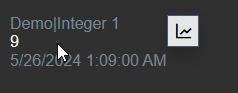
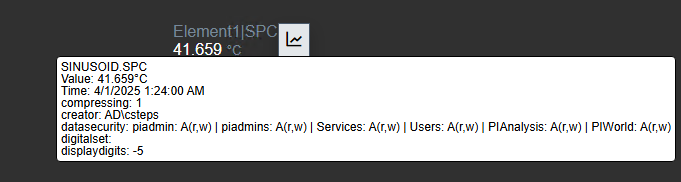
Hover over Value+ to display the configured label and PI Point attributes. When enabled, select the copy action to place the resolved label on the clipboard.
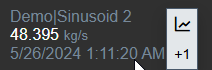
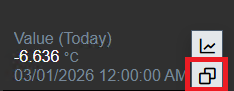
Select the ad-hoc trend action to open a floating trend for the current data source. If a floating trend is already open, use the additional action to add the value as another trace or open a separate trend window.
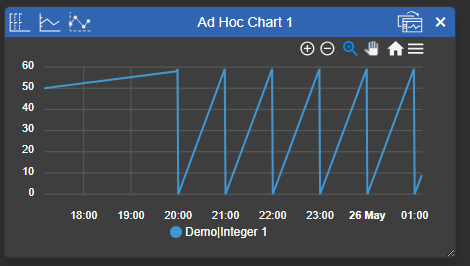
The floating trend can be moved and resized and remains above the display while it is open.
Configure the symbol
Theme
The Style section offers the shared Theme grid. A theme sets the label color, the value color and the target-indicator colors in one click, and it changes nothing else: the fill, the font and the multi-state colors stay exactly as you set them, and Value+ never gains a surface gradient or a container border. Those belong to KPI Card+.
Select Custom to go back to choosing each color yourself. The colors you saved under Custom are kept while a theme is selected, so switching back restores them. While a theme is selected, the individual text and indicator color pickers are hidden because the theme owns those colors; the fill picker stays available.
Apply to all symbols at the foot of the theme grid sends the theme to every other Vision Library+ symbol on the display and moves the display background. Applying a theme from another symbol to a Value+ brings the theme only - a gradient or container style chosen on the source symbol is ignored here.
Data retrieval
- Time: Uses the display end time, display start time, or a custom PI Time expression such as
tor*-1d. - Offset: Applies an optional offset to the selected timestamp.
- Exact: Requires a recorded value at the exact timestamp. Disable it to use the most recent value before that time.
Timestamp visibility
Configure the date and time components displayed with the value.
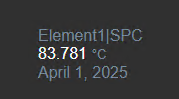
Multiline text
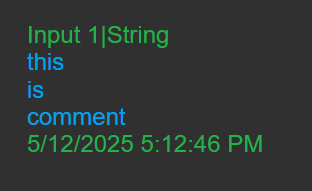
String data sources support two multiline modes:
- Split: Breaks text at a configured delimiter such as
\n. - Wrap: Starts a new line after the configured maximum number of characters.
Copy label
Enable Copy Label to show a clipboard action for the currently resolved label.
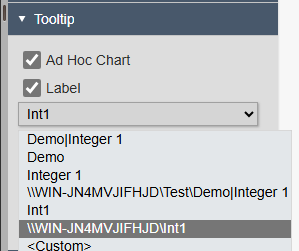
Tooltip
- Displayed label: Shows the PI Point name, path, or another supported label form.
- Point attributes: Adds selected PI Point attributes such as
instrumenttag,datasecurity, orpointsource. - Style: Sets the tooltip font size, background color, and text color.
- Ad-hoc chart: Shows or hides the floating-trend action.
Global Value+ defaults are maintained by administrators in the Vision Library+ configuration. See the installation and administration guide for global replacement, tooltip, and copy-label settings.
Data quality
Value+ supports both shared Data Quality options:
- Hide No Data hides the value while leaving a selectable placeholder in display-editing mode.
- Stale warning keeps the value visible and adds the stale details to Value+'s normal tooltip, so hovering over the amber clock does not open a second tooltip.
See Data Quality for the shared definitions, timestamp rules, supported symbols, and global override behavior.
Troubleshooting and limitations
- No value appears in Exact mode: Confirm that the archive contains a value at the exact requested timestamp or disable Exact.
- The ad-hoc trend action is missing: Enable it in the tooltip settings and confirm that it is not disabled globally.
- Tooltip settings do not match the symbol: Check whether an administrator configured global Value+ defaults.
- Long text is clipped: Enable Split or Wrap and increase the symbol height.