Vision Library+ / Data entry
Manual Input Form+
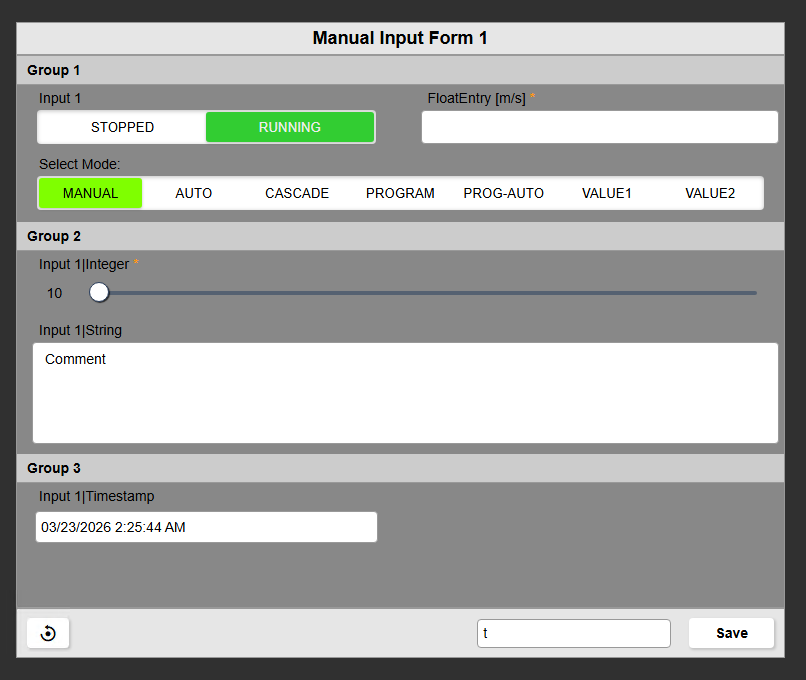
Manual Input Form+ presents writable values as an operator form with configurable controls, grouping, validation, and auditing.
Overview
Manual Input Form+ presents writable values as an operator form with configurable controls, grouping, validation, and auditing.
Watch the demo
See Manual Input Form+ in a practical PI Vision workflow.
When to use it
Use this symbol when you need to:
- Create a guided form for a recurring set of manual entries.
- Use data-type-specific controls and validation to reduce input errors.
Before you begin
- Prepare writable PI Points or AF attributes with the required security.
- Confirm validation limits, timestamp behavior, and audit settings.
Add and set up the symbol
- Select the symbol in the PI Vision symbol gallery.
- Add the required data sources or asset context to the display.
- Right-click the symbol and open its configuration pane.
- Configure the minimum data, range, and display settings for a useful result.
- Confirm that the symbol shows the expected data.
Use the symbol
Enter or select values, resolve any validation messages, then save the form. Saving writes the accepted values to their configured data sources.
Configure the symbol
Overview and behavior
Manual Input Form+ lets display engineers build custom data entry forms within PI Vision. Operators use the form to write values to PI Points or AF Attributes - for example, lab results, inspection notes, or manual setpoints - from desktop and mobile devices. Unlike the table-based Manual Data Entry+ symbol, Manual Input Form+ presents each data source as a labeled input control in a configurable form layout, making it well-suited for structured data collection workflows where field labels and input control type matter.
Grouping
Grouping organizes the form's input fields into labeled, collapsible sections. Use it when a form contains data sources from distinct categories, such as process measurements and equipment readings.
- Enable Grouping: Shows data sources in their assigned groups. When disabled, the form displays one flat list.
- Group Name: Places data sources with the same group name under one section header.
- Collapsible Headers: Lets operators expand or collapse each group to reduce clutter on dense forms.
General layout & columns
The General Layout settings control how input fields are arranged within the form.
- Column Count: Active when Fixed Columns is selected. Specifies the number of columns the form renders (for example, 1, 2, or 3).
- Grid Gap: The gap between the individual input controls
- Min Width: The minimum width of each column
- Title: The title of the form, shown at the top
- Label Placement: Where to show the attribute labels.
- Title: Above the input control
- Placeholder: As a placeholder when the input control is empty
- None: Hides the label
Style section
The Style settings control the visual appearance of the form container.
- Background Color: Sets the fill color of the form container. Transparency is supported.
- Foreground / Text Color: Sets the default color for all field labels and displayed values.
- Border Color & Width: Controls the color and thickness of the border drawn around the form container.
- Font Family & Font Size: Sets the typeface and text size applied to all labels and values in the form.
- Shadow: Adds a drop shadow to the form container, visually lifting it from the display background.
Options for times (Timestamps)
Every value written to the PI System requires a timestamp. This section controls how that timestamp is determined when the operator submits the form.
- Timestamp Mode: Determines the source of the timestamp applied to all submitted values. Options:
- Current Time (Now) - The value is timestamped with the server time at the moment the operator clicks Save.
- Display Time - The value is timestamped with the End Time of the PI Vision display's current time context.
- Custom / Manual Input - Adds a date and time picker to the form, allowing the operator to select any timestamp before saving. Use this mode for backfilling historical values, for example when entering a lab result recorded two hours before it was entered into the system.
Data source options
The Data Source Options section configures behavior for each PI Point or AF Attribute individually. To access these settings, select a data source in the configuration pane's data source list.
- Custom Label: Replaces the default PI Point or AF Attribute name with an operator-friendly label (for example, rename FI-104.PV to Flow Rate).
- Allow Edit: Controls whether the operator can modify the field's value.
- Enabled - The field is editable. The operator can type a value or interact with the configured input control.
- Disabled (Read-Only) - The field is locked and cannot be edited. Combine this with a Prefilled Value to display reference data - such as the current machine speed - that operators need to see alongside the fields they are entering.
- Prefilled Value: Determines what value is pre-populated in the input control when the display loads or after a save operation.
- None (Blank): The field is left empty. The operator must enter a value before saving.
- Current Value: Queries the PI System and pre-fills the field with the most recent stored value for the data source.
- Custom Static Value: Pre-populates the field with a fixed value defined by the display engineer (for example, a default target setpoint of 50). This value does not change unless the configuration is updated.
Input controls
The input control type determines how the operator enters a value. Choosing the right control for the data type reduces entry errors and speeds up the workflow. Select the control type in each data source's configuration.
- Text Input: A free-text box for string values: comments, codes, or short notes.
- Numeric Input: An input field restricted to numerical values. Optionally displays increment and decrement arrows (spinner controls).
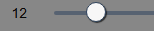
- Slider: A horizontal drag control for selecting a value within a defined range. Well-suited for percentages or setpoints. Requires Min and Max validation limits to define the slider scale.
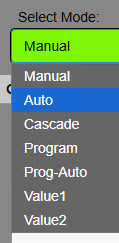
- Dropdown List: Restricts the operator to a pre-defined list of choices. Configure the list by adding entries with a Display Text (the label shown to the operator, for example "Motor Failure") and a Value (the string or number written to PI, for example "1").
- Toggle Switch - A sliding On/Off switch for Boolean or digital PI Points. The labels displayed on the switch can be customized (for example, "Running" and "Stopped").

- Buttons - A set of clickable buttons representing each available state. Available for boolean and digital data types only.
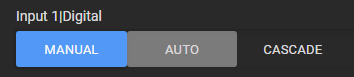
- Checkbox - A compact tick-box for boolean data. Functionally equivalent to the Toggle Switch but occupies less screen space, making it preferable on dense forms.

Limit validations & the "Hard limit" toggle
Limit validation checks the value entered by the operator against a configured Min/Max range before it is written to the PI System.
- Enable Validation: Activates limit checking for the selected numeric data source. When disabled, no range check is performed, and any value can be submitted.
- Minimum Limit: Values below this threshold trigger the validation response (warning or block, depending on the Hard Limit setting).
- Maximum Limit: Values above this threshold trigger the validation response.
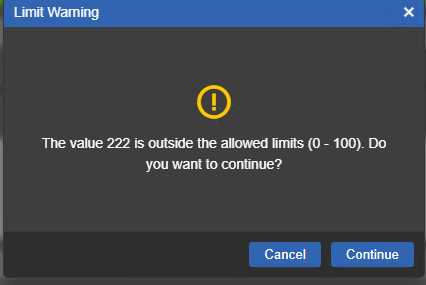
The Hard Limit toggle controls the system's response when the operator enters a value outside the defined Min/Max range:
- Hard Limit On (Strict Block): Out-of-range values are rejected immediately. The input field reverts to the previous valid value as soon as the operator moves focus away or attempts to save.
- Hard Limit Off (Soft Warning): Out-of-range values are permitted but flagged visually. The input field changes color (yellow or red) to indicate that the entered value is outside the normal range. The Save button remains active, and the operator can submit the out-of-range value to the PI System.
Multi-state (Conditional formatting)
multi-state formatting applies color coding to input controls based on the value currently entered, providing the operator with immediate visual feedback about the data's state.
- Enable multi-state: When enabled, define value thresholds and assign a color to each range. For example, configure a Numeric Input to display a green background for values between 0 and 50, and a red background for values above 50. The color updates in real time as the operator types, before the value is saved.
Security, saving, & auditing
These settings control how the form's save operation is confirmed and logged.
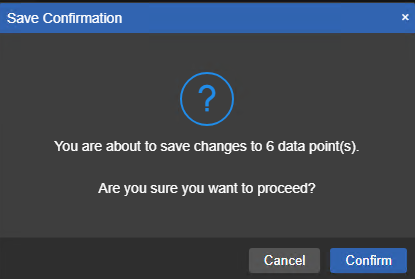
- Confirmation Dialog: When enabled, clicking Save displays a confirmation dialog listing the values about to be written to the PI System. The operator must confirm before the write proceeds. Recommended for forms used by operators in high-paced environments where accidental saves may occur.
- User Logging (Audit Trail): To record the submitting operator's name, add a string-type PI Point or AF Attribute to the form as a dedicated audit field. In the Data Source Options for that field, set Prefilled Value to User and disable Allow Edit. The operator's PI Vision user name is then automatically written to that attribute each time the form is saved.
- Set Questionable flag: In order to distinguish manual inputs from other data writes, you can enable this setting, and every value written will be saved with the Questionable flag set.
- Show Last Input Timestamp: This will show the last input timestamp in the bottom toolbar of the form.
Troubleshooting and limitations
- Check: If a field cannot be saved, check its data type, limits, timestamp, and write permission.
- Check: A saved form changes PI System data and may require an audit reason.