Vision Library+ / Tools
Playback
Playback replays a historical PI Vision display range in controlled time steps so you can review how the complete display changed during an event.
Overview
Playback replays a historical PI Vision display range in controlled time steps so you can review how the complete display changed during an event.
When to use it
Use Playback for root-cause analysis, shift review, training, and any workflow that benefits from advancing the entire display through a past time range.
Use the PI Vision time bar instead when you only need to inspect one static time range.
Before you begin
- Open the display that you want to review.
- Identify the historical start and end times.
- Choose a display span that keeps the relevant process behavior visible.
- Choose a step size and interval that let operators follow the changes.
Use the tool
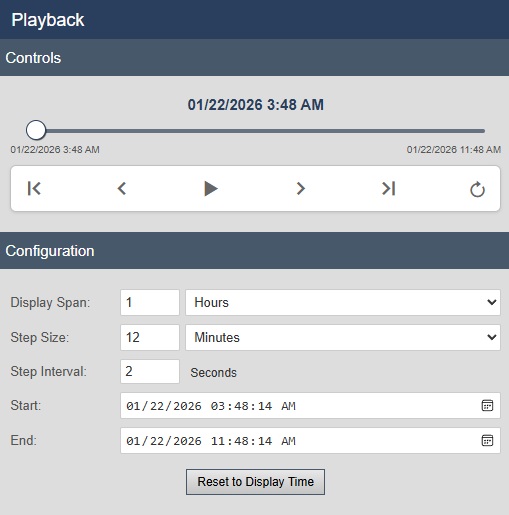
- Select Playback from the tools pane.
- Select Reset to Display Time to initialize the range from the current PI Vision display, or enter the start and end times.
- Select Play to begin playback.
- Use Pause, Step Back, or Step Forward to inspect a specific point in the sequence.
- Drag the progress slider to move directly to another position.
- Select Go to Start or Go to End to jump to a boundary.
When the tool is open, use the keyboard shortcuts:
- Right Arrow: Step forward.
- Left Arrow: Step back.
- Spacebar: Toggle play and pause.
If you zoom or pan a PI Vision trend while playback is active, playback pauses and synchronizes its position with the updated display time range.
Configure the tool
- Display Span: Sets the time window visible on the display at each playback position.
- Step Size: Sets how far the display advances for each step. Use a step smaller than the display span when adjacent views should overlap.
- Step Interval (s): Sets the delay between automatic steps. A smaller value produces faster playback.
- Start / End: Define the complete historical range.
- Loop Mode: Restarts playback at the beginning after it reaches the end.
- Reset to Display Time: Reads the current PI Vision display range and derives the start, end, span, and step size.
Troubleshooting and limitations
- If playback stops after you zoom or pan, select Play to resume from the synchronized display range.
- If changes pass too quickly, increase Step Interval (s) or reduce Step Size.
- If gaps appear between views, set Step Size equal to or smaller than Display Span.
- Playback changes the shared display time range. Symbols that use an independent symbol time range do not necessarily follow it.