Vision Library+ / Guide
Filtering dashboards
Vision Library+ symbols can coordinate selections on one PI Vision display.
Overview
Vision Library+ symbols can coordinate selections on one PI Vision display. Filtering is available for Event Frame and asset-relative symbols, including cross-family relationships such as selecting an asset to show its events or selecting an event to show its asset.
Filtering does not require the source and target properties to have the same name. A display author connects compatible properties through a named channel.
Choose Master or Linked filtering
- A Master filter broadcasts the source symbol's filter criteria to
compatible symbols in the same data domain. Asset and Event Frame Master filters are isolated from each other.
- A Linked filter publishes selected values from a configured source
property through a named channel. Each receiving symbol maps the channel to one of its own target properties.
- Both publishes the same selection through both mechanisms when the
source symbol supports both modes.
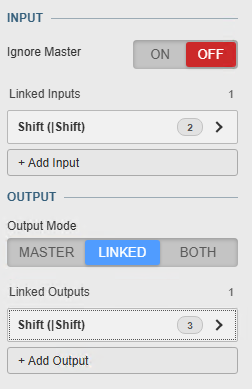
- Ignore Master prevents a symbol from reacting to Master filters in its
domain. Linked inputs remain active.
Use Master filtering when symbols share the same domain and filter definition. Use Linked filtering when properties have different names, when the relationship crosses asset and Event Frame symbols, or when only selected properties should be passed between symbols.
Master and Linked filters are additive. A row must satisfy the active Master filter and every active Linked input. Multiple values selected within one channel are alternatives, so matching any selected value is sufficient.
Configure a Linked publisher
- Open the publisher's Interactivity > Filtering section.
- Set Output Mode to LINKED or BOTH when the symbol offers an
output mode.
- If the symbol has a Click Action, set it to Filter.
- Add a Linked Output.
- Enter a concise channel name that describes the relationship.
- Select the Source property whose selected value should be published.
- Confirm the subscriber count and resolve any validation warning.
Some publishers require a specific interaction before outputs become active:
- Events Table+ publishes selected event rows. Range Selection disables output
filtering because a cell range does not represent event-row selection.
- Asset Comparison Table+ publishes a selected asset only in vertical mode
when Asset Selection is set to Filter.
- Event Analytics Chart+, Pie+, and KPI+, Asset Comparison Bar Chart+, Asset
Treemap+, and Map+ publish only when Click Action is set to Filter.
- Asset Filter+ can publish Master, Linked, or Both from direct list and tree
selections. Numeric range selections remain Master-only.
Configure a Linked receiver
- Open the receiver's Interactivity > Filtering section.
- Add a Linked Input.
- Select a channel currently registered by a publisher on the display.
- Select the receiver's Target property.
- Choose Default when inactive:
- All leaves the receiver unrestricted until the channel has a value.
- None shows no rows and displays a waiting indicator until the channel
has a value.
- Confirm the publisher count and resolve any validation warning.
The configuration pane warns when a channel is unavailable, a property is missing or unsupported, known source and target types differ, a mapping is duplicated, or multiple symbols publish the same channel.
Choose reliable identifiers
Use an identifier whose values are stable, unique within the intended scope, and represented with the same data type at both ends of the channel.
Recommended asset identifiers are:
AssetPathwhen both datasets contain the canonical AF path- a unique business key such as equipment ID, batch unit ID, or production
line code
AssetNameonly when names are guaranteed to be unique in the displayed
dataset
AssetName is often convenient but can match several assets with the same name under different AF branches. Prefer AssetPath or a business key when that ambiguity is possible.
String, Number, Boolean, and DateTime values are matched by compatible type. Values are not silently converted between unrelated types. Blank strings, null values, and supported No Data selections share one missing-value meaning.
Link assets to Event Frames
Select an asset and show its events
Configure Asset Filter+ as the publisher:
text Channel: Selected Asset Source property: AssetPath
Configure Events Table+ as the receiver:
text Channel: Selected Asset Target property: Asset
If the Event Frame dataset stores a business identifier instead of the AF path, publish that identifier from Asset Filter+ and map it to the matching Event Frame attribute.
Select an event and show its asset
Configure Events Table+ as the publisher:
text Channel: Event Asset Source property: Asset
Configure Asset Comparison Table+ as the receiver:
text Channel: Event Asset Target property: AssetPath
The source event property and target asset property may have different names, but their values and data types must describe the same identifier.
Understand the filter indicator
A receiving symbol shows a compact result such as 4 of 31 events or 2 of 18 assets. A required inactive input shows Waiting for filter. When a symbol owns an active published selection, hover over its filter icon to expose the clear action.
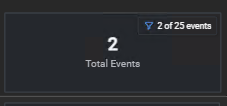

The indicator intentionally omits channel names, property names, internal symbol IDs, and selected values. Publisher and subscriber counts, channel collisions, and mapping warnings remain in configuration.
Supported symbols
| Symbol | Master input | Master output | Linked input | Linked output |
|---|---|---|---|---|
| Asset Filter+ | Yes | Yes | Yes | Yes; list/tree selections |
| Asset Comparison Table+ | Yes | No | Yes | Yes; vertical Filter action |
| Asset Comparison Bar Chart+ | Yes | No | Yes | Yes; Filter action |
| Asset Treemap+ | Yes | No | Yes | Yes; Filter action |
| Map+ | Yes | No | Yes | Yes; marker or cluster Filter action |
| Radar Chart+ | Yes | No | Yes | No |
| Asset Select+ | Yes | No | Yes | No |
| Events Table+ | Yes | No | Yes | Yes; selected rows |
| Event Filter+ | Yes | Yes | Yes | Yes |
| Event Analytics KPI+ | Yes | Yes | Yes | Yes; Filter action |
| Event Analytics Chart+ | Yes | Yes | Yes | Yes; Filter action |
| Event Analytics Pie+ | Yes | Yes | Yes | Yes; Filter action |
| Event Analytics Pivot+ | Yes | No | Yes | No |
| Event Comparison Chart+ | Yes | No | Yes | No |
| Gantt Chart+ | Yes | No | Yes | No |
| Event Frame Form+ | Yes | No | Yes | No |
Understand the loaded-data boundary
Each symbol keeps its own search, time range, result limit, and loaded data. Linked filtering applies immediately to the receiver's already-loaded rows. It does not perform a PI Web API join, change the receiver's search, or retrieve a related row that is outside the loaded result set.
Configure every receiver broadly enough to load all rows that a publisher may select. If a related event or asset is outside the receiver's search root, time range, or result limit, the Linked filter correctly produces no result. Existing result-limit and truncation warnings still apply.
Troubleshoot filtering
- The channel is unavailable: Confirm that the publisher is on the same
display, has a valid output mapping, and is in a mode that publishes Linked filters.
- The receiver shows zero rows: Confirm the selected value exists in its
loaded data and that another Master or Linked filter is not excluding it.
- The property types do not match: Map compatible String, Number, Boolean,
or DateTime properties. Values are not silently coerced.
- Several publishers are reported: Use distinct channel names unless the
shared channel is deliberate. The most recent publisher interaction supplies the active channel value.
- No selection shows no rows: Change Default when inactive from None to
All when the receiver should remain unrestricted before selection.
- A matching asset is ambiguous: Replace
AssetNamewithAssetPathor a
unique business key.