Vision Library+ / Gauges and process visualization
Alarm Sound+
Alarm Sound+ provides a visible and audible alarm that an operator can acknowledge while the alarm condition remains active.
Overview
Alarm Sound+ provides a visible and audible alarm that an operator can acknowledge while the alarm condition remains active.
When to use it
Use this symbol when you need to:
- Draw attention to a threshold breach on an attended display.
- Allow an operator to silence an active alarm without clearing its visual state.
Before you begin
- Prepare a numeric or Boolean data source that represents the alarm condition.
- Confirm that browser and workstation audio are enabled.
Add and set up the symbol
- Select the symbol in the PI Vision symbol gallery.
- Add the required data sources or asset context to the display.
- Right-click the symbol and open its configuration pane.
- Configure the minimum data, range, and display settings for a useful result.
- Confirm that the symbol shows the expected data.
Use the symbol
When the alarm activates, select the symbol to acknowledge and mute it. The visual alarm remains until the data returns to the normal state.
Configure the symbol
Overview and behavior
The Alarm Sound+ symbol enables PI Vision to play an audio alert when a configured value threshold is reached. The user can acknowledge and mute the alarm by clicking the symbol.
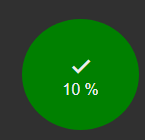
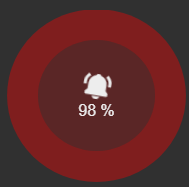
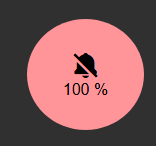
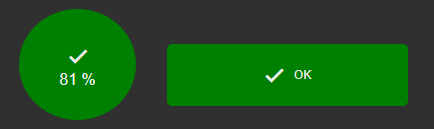
The symbol cycles through three states. In the Good state (1), the value is below the threshold and no sound plays. When the threshold is breached, the symbol changes color and plays the configured sound - this is the Alarm state (2). Clicking the symbol acknowledges the alarm: the sound is muted but the symbol continues to indicate that the value remains above the threshold (Acknowledged state, 3). When the value returns to normal, the symbol reverts to the Good state.
- (1) Good (2) Alarm (3) Acknowledged
Configure styles
Use the Configuration pane to customize the symbol. The General settings control the visual style of the alarm icon.
- Style: Chooses between a Square or Round icon shape.
- Text: Shows or hides the configurable alarm state label. The label text for each state is set in Configure States.
- Value: Shows or hides the live data source value on the symbol face.
- Font Size: Sets the font size for the state label and value.
- Icon: Shows or hides the bell or checkmark icon.
- Size: Sets the icon size when the icon is enabled.
Configure states
The symbol supports three states: Default, Alarm, and Acknowledged. Each state can be configured independently.
- Alarm
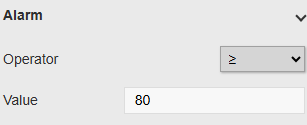
- Value / Operator: Defines the threshold that triggers the Alarm state. For Boolean and Enumeration Set attributes, a list of valid values is shown. For numeric attributes, you configure a threshold value and a comparison operator. The alarm activates when the configured condition is met.
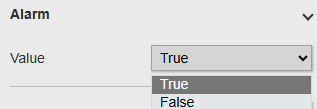
For numeric data sources, enter the threshold value and select a comparison operator (e.g., >, >=, <, <=). The symbol enters the Alarm state when the value crosses that threshold.
Note: For dynamic thresholds such as limit traits, see Configure Dynamic Limits below.
- Background: Sets the background color of the symbol in the Alarm state.
- Blink: Enables or disables a blinking animation in the Alarm state.
- Pulse: When enabled, the symbol grows and shrinks rhythmically to improve visibility.
- Text: The label displayed in the Alarm state. Requires Text to be enabled in General settings.
- Open Dialog: When enabled, a dialog opens at the specified URL when the alarm threshold is breached. Configure a display URL and, optionally, an asset to pass to that URL as context.
- Default
When the alarm threshold is not met, the symbol remains in the Default state.
- Background: Sets the background color of the symbol in the Default state.
- Text: The label displayed in the Default state. Requires Text to be enabled in General settings.
- Acknowledged
The Acknowledged state is optional. Disable it by setting the Enabled flag to Off - when disabled, users cannot mute the alarm sound.
- Enabled: Enables or disables the Acknowledged state. When Off, clicking the symbol has no effect.
- Background: Sets the background color of the symbol in the Acknowledged state.
- Text: The label displayed in the Acknowledged state. Requires Text to be enabled in General settings.
Configure dynamic limits
Static numeric thresholds are sufficient for fixed alarm limits, but for limits that vary over time - such as PI attribute limit traits - you can use a PI Vision calculation to drive the alarm dynamically:
- Create a new calculation in PI Vision.
- Write an expression whose result is a Boolean (true/false), for example:
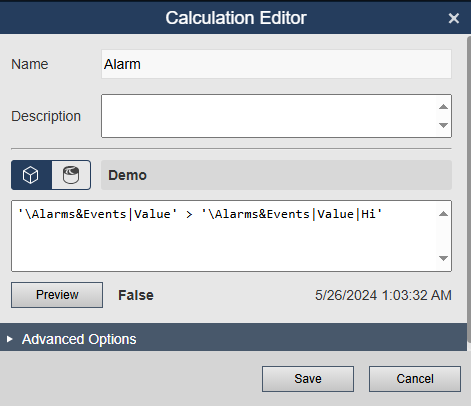
- Drag the calculation onto the display to create an Alarm Sound+ symbol bound to that result.
- The alarm now triggers whenever the Boolean expression evaluates to true - for example, when an attribute's value exceeds its Hi limit trait.
Custom sounds
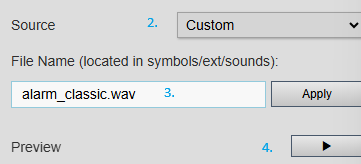
Custom sound files must first be installed in PI Vision's ext/sounds folder by an administrator. See the installation and administration guide for the server procedure.

After the file is available:
- Set Source to Custom.
- Enter the file name without a path.
- Select Apply.
- Select Play to verify that the browser can load and play the sound.
Configure sound
Important: Alarm sounds require a change to the PI Vision web.config file. See the symbol's Help section in the configuration pane for details.
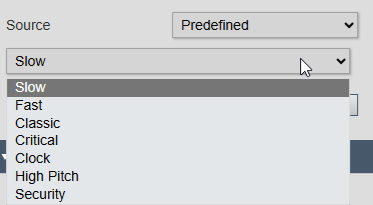
To use one of the built-in sounds, set Source to Predefined and select the sound you want from the dropdown list.
Data quality
Alarm Sound+ supports Stale warning. A stale source places the symbol in its amber stale state; the old value is not evaluated as either Default or Alarm, and the stale state never plays audio.
See Data Quality for the timestamp rules, threshold guidance, supported symbols, and global override behavior.
Troubleshooting and limitations
- Check: If no sound plays, check the configured sound file, browser audio permission, and workstation volume.
- Check: Audio alarms require the display to be open in an active browser session.