Vision Library+ / Embedded content and navigation
Navigation Button+
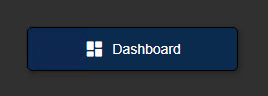
Navigation Button+ opens an external website or another PI Vision display. It can pass the current time range and AF asset context so the destination opens with relevant operational context.
Overview
Navigation Button+ opens an external website or another PI Vision display. It can pass the current time range and AF asset context so the destination opens with relevant operational context.
When to use it
Use Navigation Button+ when you need to:
- Move operators between related PI Vision displays.
- Open an external procedure, report, or application.
- Pass the active asset or display time range to a destination.
- Build a prominent action with custom text and an icon.
Use Navigation Menu+ when a display needs a hierarchy of several links.
Before you begin
- Prepare a fixed destination URL or a PI Point or AF attribute containing a URL.
- Confirm that operators have access to the destination.
- Decide whether the destination should follow display time and asset context.
Add and set up the symbol
- Select Navigation Button+ in the PI Vision symbol gallery.
- Add the symbol to the display.
- Right-click the symbol and select Configure.
- Select a static or data-source link.
- Configure the tab, time-range, and asset-context behavior.
- Enter a clear action label and verify the destination in view mode.
Use the symbol
Select the button to open its destination. Depending on the configuration, the destination opens in the current tab or a new tab and receives the selected time and asset parameters.
Hover over the button to read its configured tooltip. If the tooltip is empty, the destination URL is shown.
Configure the symbol
Link source
- Data source: Reads the URL from the PI Point or AF attribute added to the symbol. Enable Follow Display Asset Context when an attribute URL should update with the active asset.
- Static: Uses a URL entered in the configuration pane.
- Search for Displays: Finds a PI Vision display and inserts its URL.
- Remove Link: Clears the current static URL.
Link behavior
- Open in New Tab: Opens the destination in a separate browser tab. Disable it to navigate in the current tab.
- Set Start and End Time: Passes time context to the destination.
- Display Time Range: Passes the current PI Vision display start and end time.
- Custom Time Range: Passes a fixed range such as
*-8hto*. - Set Asset Context: Passes one or more AF elements to the destination.
- Use Current Asset: Passes the active asset.
- Use Current Asset as Root: Uses the active asset as the destination's asset-tree root.
- Display Asset: Uses assets currently associated with the display.
- Custom Asset: Uses an entered or dragged AF path such as
\\Server\Database\Element.
Text and icon
- Text: Sets the button label.
- Tooltip: Sets the hover text. The URL is used when this field is empty.
- Font size: Sets the label text size.
- Search for Icons: Selects an icon from the available icon library.
- Remove Icon: Removes the current icon.
- Position: Places the icon to the left of or above the text.
- Size: Sets the icon size.
Colors and border
- Background: Sets the button fill color and supports transparency.
- Text: Sets the label color.
- Border: Sets the border color.
- Border width: Sets the border thickness.
- Border radius: Controls corner rounding.
- Shadow: Adds or removes a drop shadow.
Troubleshooting and limitations
- The destination does not change with the active asset: Enable Follow Display Asset Context for a data-source link.
- The destination opens without the expected time range: Enable Set Start and End Time and select the correct range source.
- The destination reports access denied: Confirm the operator's permission to the target display or website.
- The button does nothing: Verify that the configured value is a valid supported URL.