



Vision Library+ / Guide
Using the Time Bar
The Time Bar lets an operator change the time range of one visualization without changing the PI Vision display time. It is available on supported Vision Library+ charts and tables and on Quick Trend.
Overview
The Time Bar lets an operator change the time range of one visualization without changing the PI Vision display time. It is available on supported Vision Library+ charts and tables and on Quick Trend.

The Time Bar uses the owning symbol's font and colors. Quick Trend uses its standard blue appearance. There are no separate Time Bar color or font settings.
Use the runtime controls
| Control | Result |
|---|---|
| Lock / Unlock | An unlocked Time Bar follows later PI Vision display-time changes. A locked Time Bar keeps its own range. |
| Start time | Sets the beginning of the symbol range. The start must not be later than the end. |
| Previous | Shifts the complete range backward by its current duration. |
| Duration | Opens the configured duration choices. Selecting one keeps the current end and recalculates the start. |
| Next | Shifts the complete range forward by its current duration. |
| End time | Sets the end of the symbol range. The end must not be earlier than the start. |
| Reset | Keeps the current duration, anchors the end to * (now), and resumes a moving range. |
Invalid start or end values are shown with a red border and are not applied. Hover and keyboard focus use a subtle highlight without adding permanent input borders.
Configure the Time Bar
Open the symbol's configuration pane and expand Time Bar.
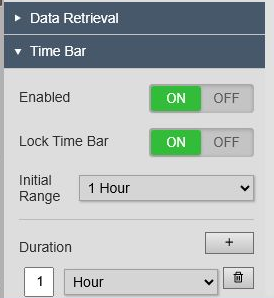
- Enabled shows or hides the Time Bar.
- Lock Time Bar starts the symbol with an independent range and prevents later display-time changes from replacing it.
- Initial Range controls the range used when a locked Time Bar is initialized. Display time range copies the current display range. A configured duration keeps the display end and calculates the start from that duration.
- Duration defines the choices available from the runtime duration button. Add, edit, or remove choices as needed. At least one duration remains available.
- Interval, when shown by a symbol, defines the retrieval interval associated with that duration choice.
The Initial Range choice is only used to initialize a locked Time Bar. After initialization, operators can change the range with the runtime controls without changing the display time.
Enter PI time expressions
Select a start or end field to edit its entered value. When the field is not being edited, the Time Bar shows the evaluated local timestamp. Selecting the field again shows the original PI time expression.
Common expressions include:
| Expression | Meaning |
|---|---|
* | Now. |
*-3h | Three hours before now. |
t | Today at midnight. |
-2h in the start field | Two hours before the evaluated end time. |
Dynamic expressions are retained and reevaluated whenever the owning visualization refreshes. For example, an end value of * continues to move forward while the visualization receives updates; it is not replaced by the timestamp that happened to be current when the value was entered.
Quick Trend behavior
Quick Trend uses the same start, end, navigation, duration, reset, and PI-expression behavior. While unlocked, a Quick Trend follows the PI Vision display time. Editing its range or selecting a duration switches it to a fixed range; unlock it to follow display time again.
Event Frame comparison trends use their event-relative timing instead of the standard Time Bar.
Keyboard operation
- Press Left Arrow or Right Arrow on a navigation or duration control to shift the range.
- Press Down Arrow or Up Arrow on the duration control to open the duration list.
- In the duration list, use Up Arrow, Down Arrow, Home, and End to move; press Enter or Space to select.
- Press Escape to close the duration list or cancel the current time-field edit.
Troubleshooting
- If the symbol changes when display time changes, turn on Lock Time Bar.
- If a locked symbol opens with an unexpected range, check Initial Range and the selected duration.
- If a dynamic expression appears not to move, confirm that the owning visualization is still receiving updates.
- If a value is marked invalid, verify the expression and confirm that the start does not occur after the end.


