PI Nexus+ / Installation and Administration
25. Troubleshooting
Use this section when installation, login, discovery, or scans fail. Start with the UI error, then check the web application or scanner logs in ProgramData for the full exception.
Overview
Use this section when installation, login, discovery, or scans fail. Start with the UI error, then check the web application or scanner logs in ProgramData for the full exception.
25.1 Installer Warns About Service Account
If setup warns that the service account cannot be resolved:
- Confirm the account is typed as
DOMAIN\User,.\User, oruser@domain. - Confirm the account exists.
- Confirm the PI Nexus+ server can reach the domain controller.
- Re-run setup or update identities manually after install.
If setup warns that the account could not be assigned:
- Confirm the password is correct.
- Confirm
Log on as a batch jobis granted for IIS. - Confirm
Log on as a serviceis granted for the scanner service. - Confirm the account is not denied those rights.
- Check domain Group Policy.
- Update the IIS app pool and scanner service identities.
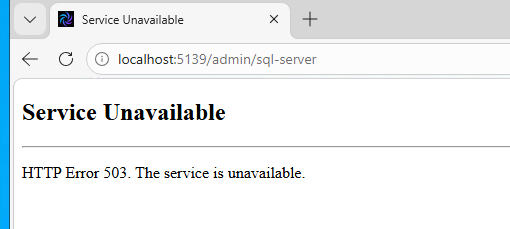
25.2 Website Does Not Open
Check:
- IIS site
PI Nexus+exists. PINexusAppPoolis started.- Port
5139is available. - Windows Authentication is enabled.
- Anonymous Authentication is disabled.
- Web application logs in ProgramData.
If the app pool stops immediately after starting, check the Windows Event Log and web application log. Common causes are invalid app pool identity, missing database access, or failed application startup.
25.3 /api/me or Permissions Fail
The /api/me endpoint loads current user context and permissions. If it fails, the API usually cannot initialize configuration or database access.
Check:
- SQL bootstrap file exists.
- SQL Server name is correct.
- Database exists.
- IIS app pool identity has database access.
- Schema is compatible.
- Web application logs show the real exception.
25.4 Database Connection Fails
Typical error:
Cannot open database "PINexus" requested by the login.
Login failed for user 'DOMAIN\svc-pinexus'.
Fix:
- Run
Setup-Database.batas a SQL admin. - Confirm the service account has a SQL login.
- Confirm the service account has a database user.
- Confirm the service account has required permissions in the PI Nexus+ database.
- Confirm IIS and scanner service are running as the intended service account.
- Restart the app pool and scanner service.
25.5 PI Nexus+ Scanner Service Does Not Start
Check:
- Windows service
PI Nexus+ Scannerexists. - Service identity is the intended service account.
- The account has
Log on as a service. - SQL database is reachable.
- Schema is compatible.
- Scanner logs in ProgramData.
If the scanner service runs as a machine account such as DOMAIN\SERVER$, it was probably left as LocalSystem. Change it to the PI Nexus+ service account.
If Windows shows error 1053, check the scanner log for database readiness messages. A message such as PendingMigrations=1 and LatestMigration=<none> means the PI Nexus+ database exists but the schema has not been applied yet. Open Admin > SQL and click Apply, or run the database setup again, then restart the scanner service.
25.6 PI Server Discovery Fails
Check:
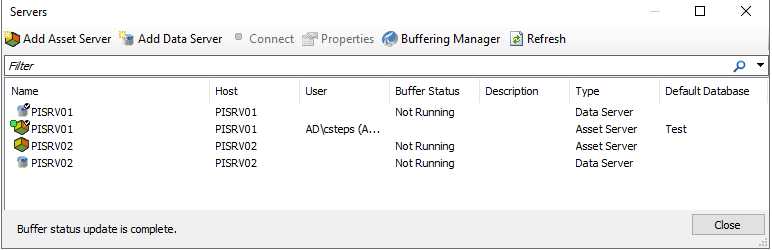
- AVEVA AF SDK / PI AF Client is installed.
- Web application logs do not report a missing Microsoft Visual C++ runtime. If they do, repair or rerun the PI Nexus+ installer.
- Service account can access PI Data Archive and AF.
- PI server names resolve from the PI Nexus+ server.
- Web application logs show the AF SDK exception.
25.6.1 PI Module Database Test Fails or PI Interfaces Is Empty
Check:
- The PI Data Archive target uses Windows authentication; OpenID Connect is not supported by the legacy Module Database API.
- Interface Tracking is enabled for the PI Data Archive target.
- The 64-bit PI SDK was installed on the PI Nexus+ server by using the supported setup kit from the AVEVA PI System Customer Portal.
- IIS and the scanner service both run as the intended PI Nexus+ service account.
- The service account can connect to the PI Data Archive and read
%OSI\Interfaces. - Test Module DB succeeds and reports the expected Windows identity.
- A PI Point or Full Inventory scan completed after PI SDK installation or permission changes.
- Web application and scanner logs show the target-specific Module Database error.
If the test reports PI SDK unavailable, install or repair the 64-bit PI SDK and restart both the IIS app pool and PI Nexus+ Scanner service. If the target uses OpenID Connect, normal PI Point scanning can continue, but interface discovery requires a Windows-authenticated target.
Runtime status meanings:
- Setup Required: verify the standard UniInt marker in each health point's Extended Descriptor or configure the exact Core Health PI Point from Monitoring setup.
- Unknown: PI Nexus+ could not read the mapped core signals from PI.
- Error: readable evidence indicates a stale heartbeat, bad quality, error, or shutdown state.
25.7 AF Scan Fails
Check:
- AF server is enabled.
- AF database is enabled.
- Service account has AF read access.
- Database tests pass.
- No other scan is running.
- Scanner logs show the AF SDK exception.
25.8 PI Vision Scan Fails
PI Vision inventory depends on both the configured web instance and direct read access to its SQL database. Check the complete path before retrying the scan:
- PI Vision instance is enabled.
- PI Vision URL is correct.
- PI Vision SQL Server and database are correct.
- Service account has read access to the PI Vision SQL database.
- PI Vision test passes.
25.9 License Error
Review the installed license, server binding, and licensed PI Point capacity before retrying the operation:
- License is installed.
- License has not expired.
- License signature is valid.
- PI server names match the license. New Evaluation licenses require named server bindings; legacy signed Trial licenses remain compatible and use Evaluation restrictions.
- Current tag count is within the licensed limit, or over-capacity PI Points are expected to appear as
Not Evaluatedwhile administrators reduce scope or install a larger license.
25.10 Installer Freezes or Fails
Start with the installer diagnostics and Windows installation state:
- Installer log in
%TEMP%. - Installer log in ProgramData.
- Windows Event Log source
PI Nexus+ Installer. - Whether another MSI installation is already running.
- Whether a previous failed install is pending reboot.
If Windows reports another installation is in progress, reboot before trying again.
25.11 PI Data Archive Discovery Returns No Servers
If PI Data Archive discovery returns no servers:
- Confirm AVEVA AF SDK / PI AF Client is installed.
- Confirm the PI Nexus+ service account can read the PI System connections.
- Verify the expected PI Data Archive is present in the Connections overview in PI System Explorer.
- Verify the PI Data Archive name resolves from the PI Nexus+ server.
- Confirm the PI Data Archive target is enabled under Admin > PI Data Archives.
- Review the web application log for AF SDK discovery errors.
Adding or correcting a connection in PI System Explorer does not by itself enable a PI Nexus+ target. The target must still be discovered or added and enabled in the PI Nexus+ Admin area.