



Vision Audit+ / User Guide
Display History
This chapter explains the history list and the details of each version.
Overview
This chapter explains the history list and the details of each version.
Vision Audit+ records a new version of a display whenever it changes. Depending on the snapshot strategy your administrator chose, a version is one save or a whole editing session. Validation decisions and other governance actions are recorded in the same list.
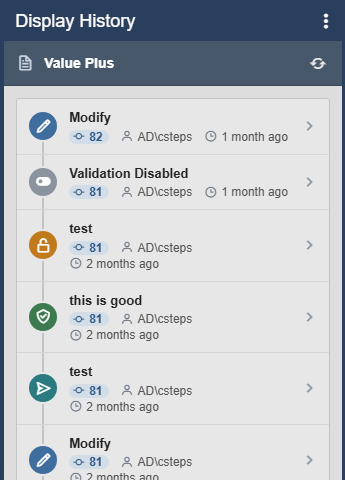
The history list
The list shows the newest entry first, 50 entries per page. Each entry shows:
- an icon and the action, for example Modify, or the reason the user entered when saving;
- the version number (an X marks a failed action);
- the user and how long ago the entry was recorded.
An entry that is still being processed shows (In Progress); a failed action shows (Failed). The list refreshes every minute. Select Refresh display history at the top to refresh it right away.
If your administrator does not track all displays, a display without tracking shows Display auditing is disabled. Select Enable Auditing to start tracking it. To stop tracking, select Disable Auditing at the top of the pane. Both need edit access to the display.
Action types
| Action | Meaning |
|---|---|
| Create | the first version Vision Audit+ recorded: the display was created, or Vision Audit+ found it for the first time |
| Modify | the display changed. With the Intelligent or Daily Summary strategy, one entry can contain several saves |
| Snapshot | a version a user saved deliberately with Create Snapshot |
| Revert | the display was set back to an earlier version. The entry shows the source version |
| Restore | a deleted display was restored from the recycle bin; its history starts again |
| Delete | the display was deleted. This entry is for the record only and cannot be a revert target |
| Submitted, Validated, Rejected, Revoked, Archived, Reactivated | validation decisions (see Display Validation) |
| De-Validated | Vision Audit+ returned a locked display to Draft because it changed outside the workflow |
| Validation Enabled, Validation Disabled | the display was added to or removed from the validation workflow |
Validation entries record decisions; they are not versions of the display and cannot be revert targets. They are recorded even when the display is not tracked.
Version details
Select an entry to open its details. Select the back arrow (Go Back) to return to the list.
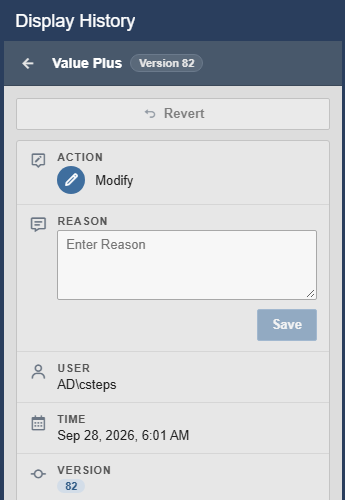
| Field | Content |
|---|---|
| Error | the error message of a failed action |
| Action | the action type |
| Reason | the reason entered when saving, or the decision reason of a validation entry. If an entry has no reason and you made the change, you can enter one and select Save. A reason cannot be changed once it is saved |
| User, Time | who made the change and when |
| Version | the version number. For a revert, an arrow points to the source version; select it to open that version |
| Comments | follow-up notes on this entry (see Add a comment) |
| Changes | what changed compared with the previous version |
| Symbols | for Create and Snapshot entries: the symbols of the display |
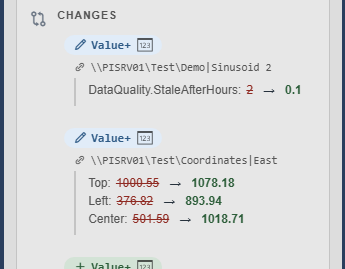
The Changes section lists each added (+), removed (−) or modified (pencil) symbol with its type and data sources, and the changed properties with the old value crossed out and the new value next to it. Hover over a symbol to highlight it on the display; select it to select the symbol.
Add a comment
Comments add notes to an entry, for example review findings, without changing its reason.
- Open the entry.
- Type the comment in Comments (up to 1,000 characters).
- Select Add Comment.
The comment shows its author and time; the newest comment is on top. Comments are part of the audit record and cannot be edited or deleted. The Comments box appears only if your administrator allows you to comment on history entries.


