



Vision Audit+ / User Guide
Reverting and restoring displays
This chapter sets a display back to an earlier version, restores a deleted display and takes snapshots.
Overview
This chapter sets a display back to an earlier version, restores a deleted display and takes snapshots.
Revert a display to an earlier version
A revert brings back the complete display as it was in the selected version. It does not delete history: the old version becomes a new entry at the top of the list.
- Open the display and the Display History pane.
- Select the version you want to go back to.
- Select Revert.
- Confirm with Yes.
The entry shows (In Progress) until the service has written the display. PI Vision then reloads the display, and a Revert entry appears at the top of the history.
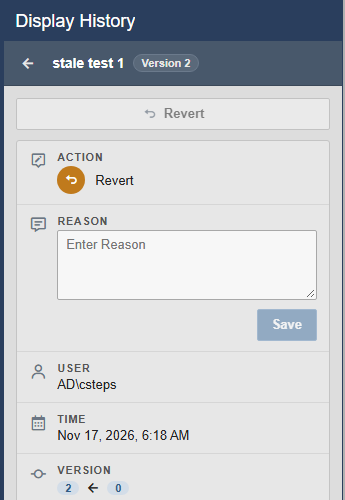
Revert is disabled for Delete, Restore and validation entries, for the current version, for read-only displays and when you lack the permission; the tooltip says which.
Restore a deleted display
Deleted displays stay in the Vision Audit+ recycle bin until they are deleted permanently.
- Open the Display History pane on any display.
- Select More options > Recycle Bin. The list shows the deleted displays, the most recently deleted first.
- Select the display. Its details show when it was deleted, its owner, its last change and its version.
- Select Restore and confirm with Yes.
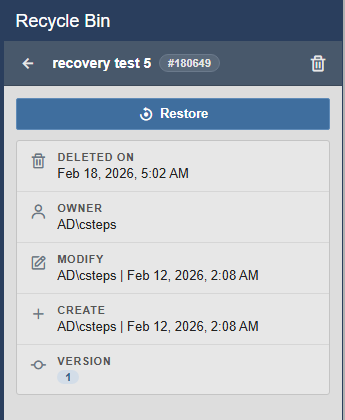
The display returns to PI Vision with its last recorded version, its original ID and its original permissions. Its history starts again with a Restore entry.
If Vision Audit+ has no saved permissions for the display, the confirmation says Restore without saved permissions?. The display is then restored without its original access settings. Check its permissions in PI Vision right after the restore.
Delete displays permanently
If your administrator allows it, you can remove displays from the recycle bin for good:
- In the details of a deleted display, select the trash icon (Delete Display Permanently) and confirm.
- In the recycle bin list, select the trash icon (Empty Recycle Bin) to delete all displays in the recycle bin.
Important: A permanent delete cannot be undone. The service carries it out in the background and shows the result when it finishes.
Take a manual snapshot
A manual snapshot saves the current version as a milestone, for example before a larger change. It is available with every snapshot strategy except On Every Save, and needs edit access to the display.
- Save the display.
- In the Display History pane, select the camera icon (Create Snapshot).
- Confirm with Yes.
A Snapshot entry appears at the top of the history. Your administrator can protect snapshots from automatic deletion.
Delete a history entry
You can delete two kinds of entries: your manual snapshots, and failed revert or restore entries. Open the entry and select Delete. The entry is removed at once, without a confirmation.


