



Vision Audit+ / User Guide
Display Validation
This chapter explains the validation workflow: how a display is reviewed, approved and locked, and how it is changed again.
Overview
This chapter explains the validation workflow: how a display is reviewed, approved and locked, and how it is changed again.
The validation workflow is for displays that need a formal approval, for example in GxP or other regulated environments. An approved display is locked against changes, and every decision is recorded with the user, the time and the reason. Your administrator can rename the workflow and its states; this guide uses the default names.
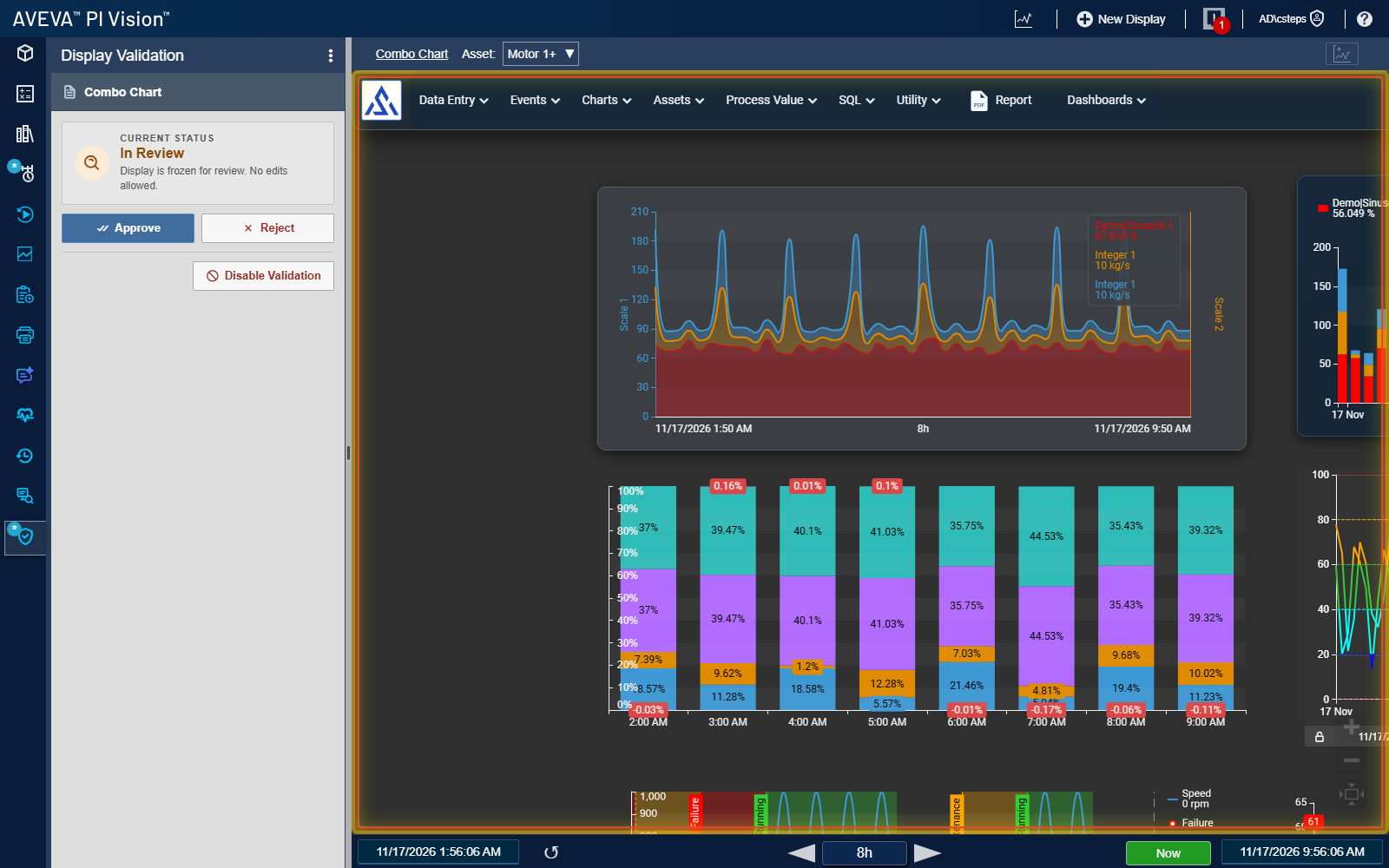
Open the Display Validation pane (shield icon). Current Status shows the state of the display.
States
| State | Meaning | Can the display be edited? |
|---|---|---|
| Draft | the display is being worked on. Changes are tracked | yes |
| In Review | the display was submitted and waits for a decision | no |
| Validated | the display is approved for production use | no |
| Archived | the display is retired from active use | no |
While a display is In Review, Validated or Archived, PI Vision hides the edit and save commands for it, and Ctrl+S shows This display cannot be saved while it is ....
Submit a display for review
- Make and save your changes while the display is in Draft.
- In the Display Validation pane, select Submit for Review.
- Enter a comment for the reviewer (optional, unless your administrator requires a reason) and select Submit for Review.
The pane shows Validation change queued. until the service has processed the request. The display is then In Review and locked.
Approve or reject a display
A reviewer with validate permission decides on a display that is In Review.
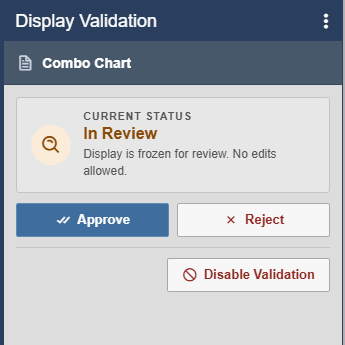
- Review the display, and its changes in the Display History pane.
- Select Approve or Reject.
- Enter the reason, for example
Approved for production line 2, and confirm.
Approve makes the display Validated. Reject returns it to Draft so the author can change it. The reason is stored with the Validated or Rejected entry in the display history.
Change a validated display
A Validated display is locked. To change it, return it to Draft first.
- Select Revise (Unlock).
- Enter why validation is being revoked and select Revise.
The display returns to Draft and can be edited again. A Revoked entry records who revised it. After the changes, submit it for review again.
Archive and reactivate a display
Select Archive on a Draft or Validated display to retire it, and enter a reason. An archived display stays locked. Select Reactivate to return it to Draft.
Add or remove a display from the workflow
If your administrator does not validate all displays, each display is added to the workflow individually:
- Select Enable Validation to add the display. It starts in Draft.
- Select Disable Validation at the bottom of the pane to remove it. It returns to Draft, so a locked or approved state is not kept.
Both are recorded as Validation Enabled or Validation Disabled in the display history.
How requests are processed
Every validation action is a request that the Vision Audit+ service checks and carries out. The history entry is created first and shows (In Progress); when the service has applied the change, the entry is complete. If the request is invalid or outdated, the entry shows (Failed) with the error, and the display keeps its state. If the service is not running, the request waits: after 60 seconds the pane says Validation change is still pending. The request is processed as soon as the service is available again.
Automatic de-validation
Vision Audit+ checks every display in review or validated on the server. If such a display changes outside the workflow, for example through a script or directly in the database, the service returns it to Draft and records a De-Validated entry. A Validated state therefore always belongs to the version that was approved.
State indicators on the display
Your administrator can show the state on the display itself: a colored border around the display and a watermark text, for example Draft in gray or Validated in green. The indicators do not block clicks, values or trends.


