



PI Nexus+ / Administration Guide
PI Data Archives
This chapter adds the PI Data Archives whose PI Points PI Nexus+ inventories, and optionally tracks their PI Interfaces and the interfaces' runtime health.
Overview
This chapter adds the PI Data Archives whose PI Points PI Nexus+ inventories, and optionally tracks their PI Interfaces and the interfaces' runtime health.
Before you start
- The AVEVA AF SDK (PI AF Client) is installed on the PI Nexus+ servers.
- The PI Nexus+ service account has read access to the PI Points (see Service Account Rights in the Reference), or an OpenID Connect client is set up (see OpenID Connect).
- The license names each archive you enable. An enabled archive it does not cover shows Not licensed: disable it or install a license that covers it.
Add a PI Data Archive
Enable only the archives that belong in the inventory.
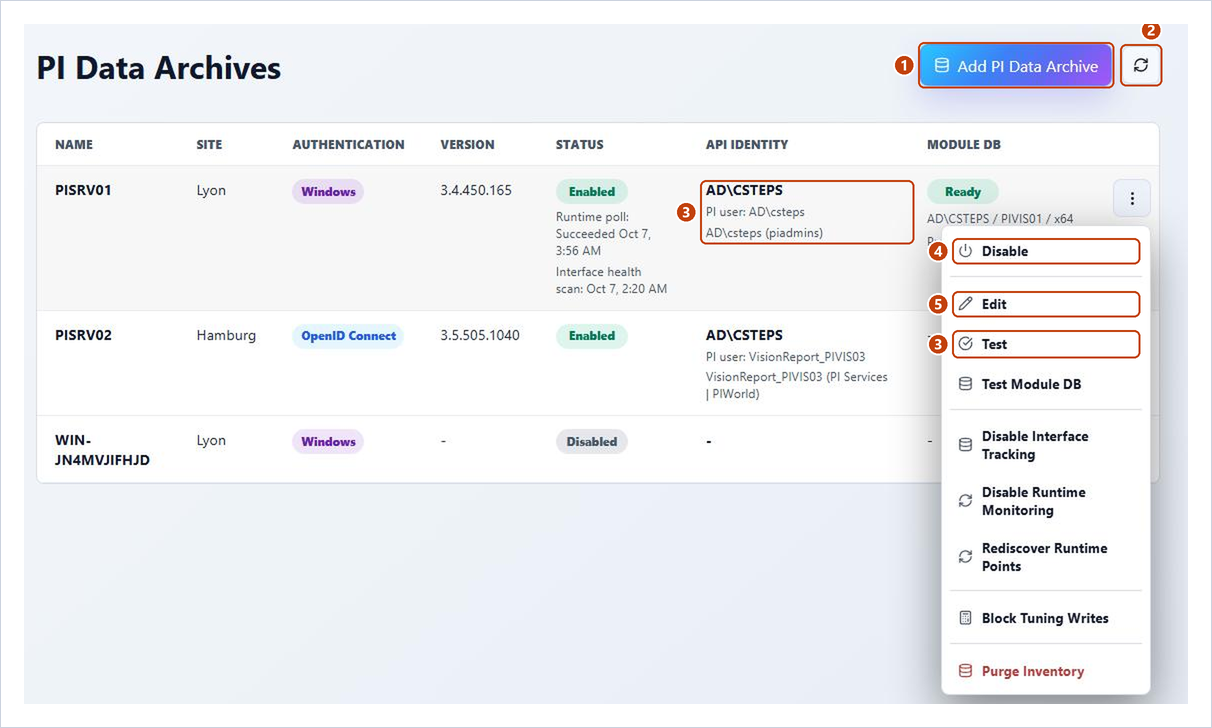
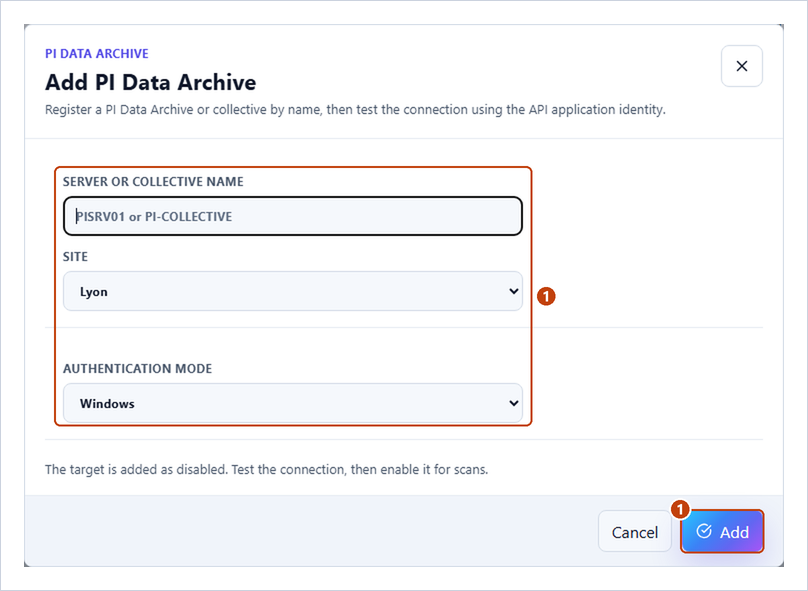
- Open Admin > PI Data Archives and choose Add PI Data Archive. Enter the Server or collective name, the Site and the Authentication mode, and choose Add.
- Or choose the refresh button to import every archive in the web server's PI SDK connections list.
- In the row menu, choose Test. API identity shows the account and its PI identities.
- Choose Enable. PI Nexus+ tests again and enables the archive only if the test passes.
- To change the site or the authentication mode later, choose Edit.
Disabling an archive also switches off its Interface Tracking, Runtime Monitoring and tuning writes.
Track PI Interfaces
Interface Tracking reads the legacy PI Interfaces from the PI Module Database. Without it, PI Points are still inventoried. It needs the 64-bit legacy PI SDK on the scanner server, Windows authentication, and read access to %OSI\Interfaces for the service account.
- Enable the archive, then choose Test Module DB in its row menu. The test runs in the scanner service, as its account.
- Wait for Module DB to show Ready, with the account, machine and path tested. Failed names the cause.
- Choose Enable Interface Tracking and confirm.
- Run a PI Interfaces scan (see Scanning in the User Guide), then check the PI Interfaces page.
To switch the archive to OpenID Connect, disable Interface Tracking first. Disabling it removes the interface mappings from the PI Points.
Monitor PI Interface runtime health
Runtime Monitoring reads the standard UniInt health points of each tracked interface between scans.

- In the archive's row menu, choose Enable Runtime Monitoring and confirm. PI Nexus+ discovers the health points.
- After health points are added or renamed, choose Rediscover Runtime Points.
- For an interface without discoverable health points, open it on PI Interfaces, choose Monitoring setup in its More actions menu, and on Core Health choose the edit button of a signal.
- Enter the exact PI Point name on that Data Archive and confirm. Repeat for each Core Health signal.
- Check the Status column: Runtime poll shows the last poll outcome.
The interval is the Interface and adapter runtime poll under Scan Automation. Poll outcomes are in PI Data Archive Settings, runtime statuses in PI Interface Issues and Runtime.
Allow Compression Tuning writes
Compression Tuning temporarily changes exception settings while it observes PI Points, and restores them afterwards. With the archive owner's approval, choose Allow Tuning Writes in the row menu and confirm; Block Tuning Writes withdraws it. Recommendations are still applied by hand (see Compression Tuning in the User Guide).
Troubleshooting
| Symptom | Cause | Fix |
|---|---|---|
| No PI Data Archives configured after the refresh | The archive is not in the web server's PI SDK connections list | Add it under Connections in PI System Explorer or PI System Management Tools on the web server and refresh, or choose Add PI Data Archive |
| Discovery fails with an error | PI AF Client or a Microsoft Visual C++ runtime is missing | Install PI AF Client, or repair PI Nexus+; the web application's log names the exception |
| Test or Enable fails | The name does not resolve, TCP 5450 is blocked, or the account has no PI mapping | Check DNS, the port and the PI mapping of the account in API identity |
| The Module DB test reports PI SDK unavailable | The 64-bit PI SDK is missing on the scanner server | Install it, then recycle PINexusAppPool and restart the PI Nexus+ Scanner service |
not found or access errors for %OSI\Interfaces | The path is missing, or the scanner service account cannot read it | Grant that account read access to the Module Database |
| The test passes but PI Interfaces stays empty | Interface Tracking is off, or no scan has run since the fix | Enable Interface Tracking and queue a PI Interfaces scan |
| Runtime poll: Failed | The health points cannot be read | Check the scanner service account's PI mapping |
Reference: PI Data Archive Settings


