



PI Nexus+ / User Guide
Getting Started
This chapter explains what PI Nexus+ does, how to find your way around, and what the Evaluation edition limits.
Overview
This chapter explains what PI Nexus+ does, how to find your way around, and what the Evaluation edition limits.
How PI Nexus+ works
PI Nexus+ scans your PI System and shows what is unhealthy, what depends on it and what changed. Everything you see comes from the latest scans:
- A scan reads the inventory of your PI Data Archives, AF databases and PI Vision instances.
- PI Nexus+ evaluates the health of every object and opens an issue for each problem it finds.
- You investigate the issue in PI Nexus+ and fix the cause in the PI System itself.
- The next scan confirms the fix and resolves the issue.
PI Nexus+ never changes your PI System when it scans. Repairs happen in PI Data Archive, AF, PI Vision or the process that feeds them.
What you can do depends on your role. A Viewer can read the dashboard, the issues, the change history and the inventory. An Operator can also open the Scanning page, queue scans, suppress issues and download CSV files. An Admin also configures PI Nexus+ and opens Compression Tuning. Buttons you are not allowed to use are not shown.
Find your way around
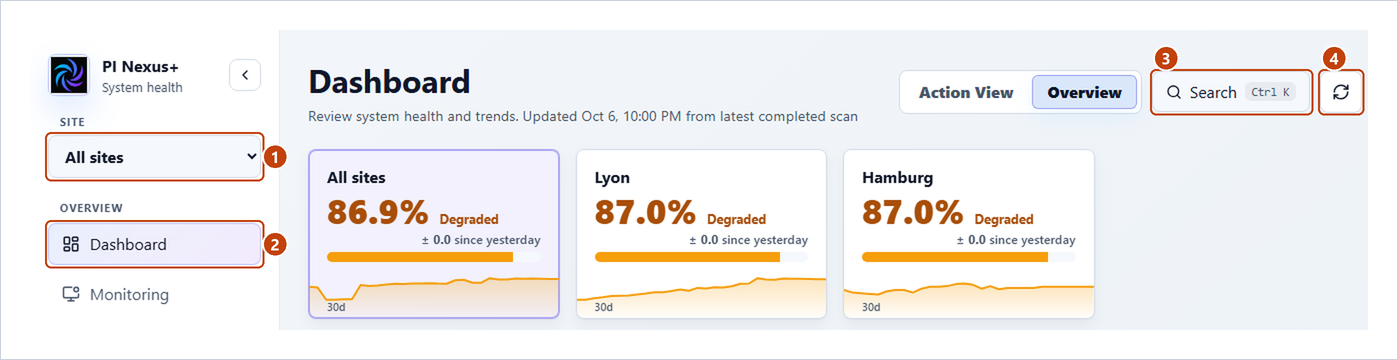
- Choose a Site to narrow every page to one plant (see Narrow the app to one site).
- Use the navigation groups: Overview (Dashboard, Monitoring, Issues, Change History), Inventory, Data Collection and Tools.
- Choose Search, or press Ctrl+K, to find an object by name.
- Choose Refresh to reload the page from the latest stored scan results.
Operators also see the latest scan's status at the bottom of the navigation; click it to open the Scanning page.
The inventory list pages all work the same way; see Work with any list page in PI Points.
Find an object by name
Search finds PI Points, AF Attributes, AF Elements, AF Element Templates, AF Analyses and PI Vision Displays.
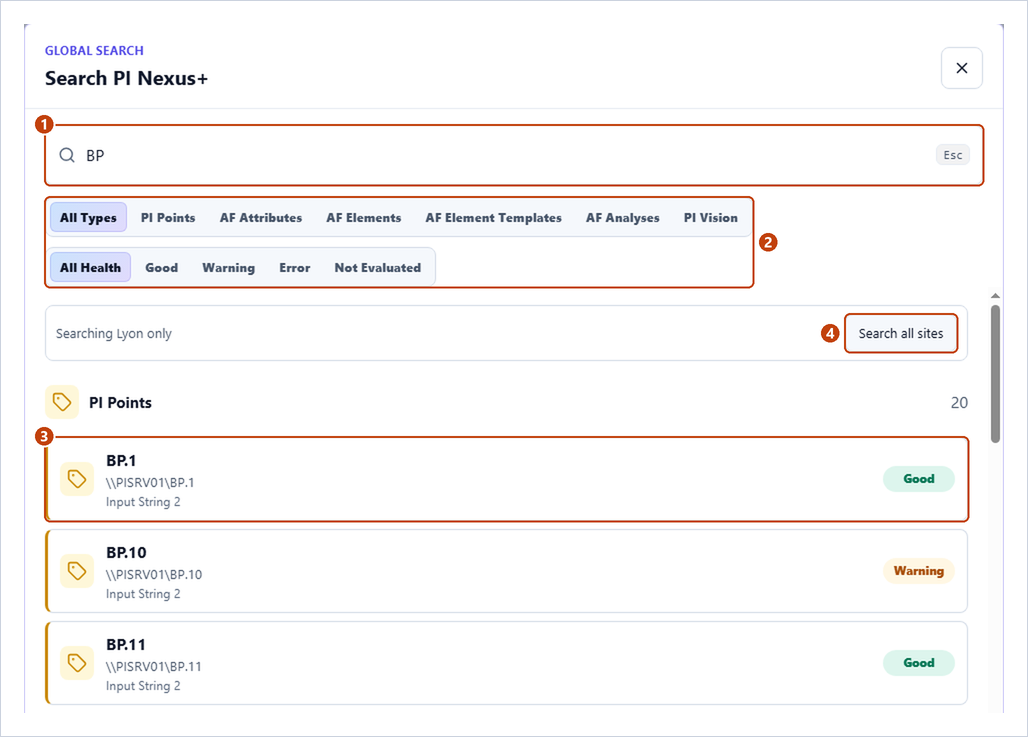
- Choose Search or press Ctrl+K, and type a name, path, display ID, point source or instrument tag.
- Optionally narrow the results with the type chips (All Types, PI Points and so on) and the health chips (All Health, Good, Warning, Error, Not Evaluated).
- Click a result to open its detail dialog.
- With a site chosen, search looks in that site only and says, for example, Searching Lyon only. Choose Search all sites to widen it.
Servers, PI Interfaces and PI Adapters are not searched; use their own pages.
Narrow the app to one site
When your servers are spread over two or more sites, a Site list appears at the top of the navigation.
- Choose a site in Site. Lists, counts, charts and CSV downloads now cover that site only, and the page title shows it, for example Servers · Lyon.
- Choose All sites to see the whole estate again.
The choice is remembered in your browser. It is a filter, not a permission: every user can choose every site, and a link to an object always opens it. Scanning, External Systems, Compression Tuning and the recalculation tabs of AF Analyses always show the whole estate and say Whole estate beside their title.
The Evaluation edition
An Evaluation installation shows a PI Nexus+ Evaluation banner. Scans and health checks run in full, and every page shows complete counts and lists. The limits:
- The Issues page shows a few representative examples per issue type.
- Opening an object's full detail uses one of a shared allowance of detailed objects; PI Nexus+ asks before it uses one, and reopening the same object is free.
- Search, Change History, CSV downloads, suppression and compression tuning changes are locked and say Not available in the Evaluation version.
The full list is under Evaluation licenses in the Reference. Ask your PI Nexus+ administrator about a Production license. Once it is installed, everything already collected is unlocked at once.
Reference: Navigation, Search and Exports


